Feature Showcase
Explore the main features of Codex through screenshots and descriptions.
Home Page
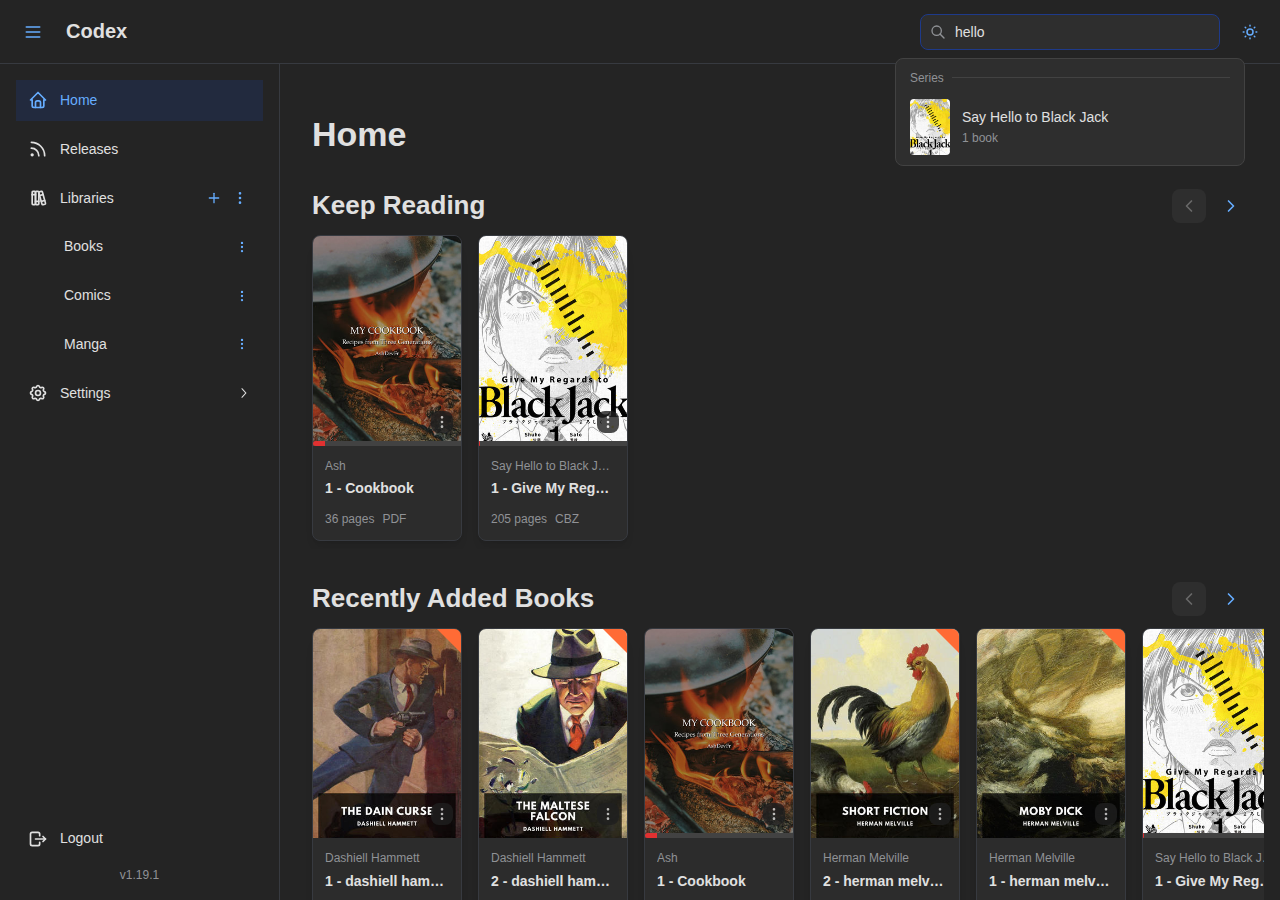
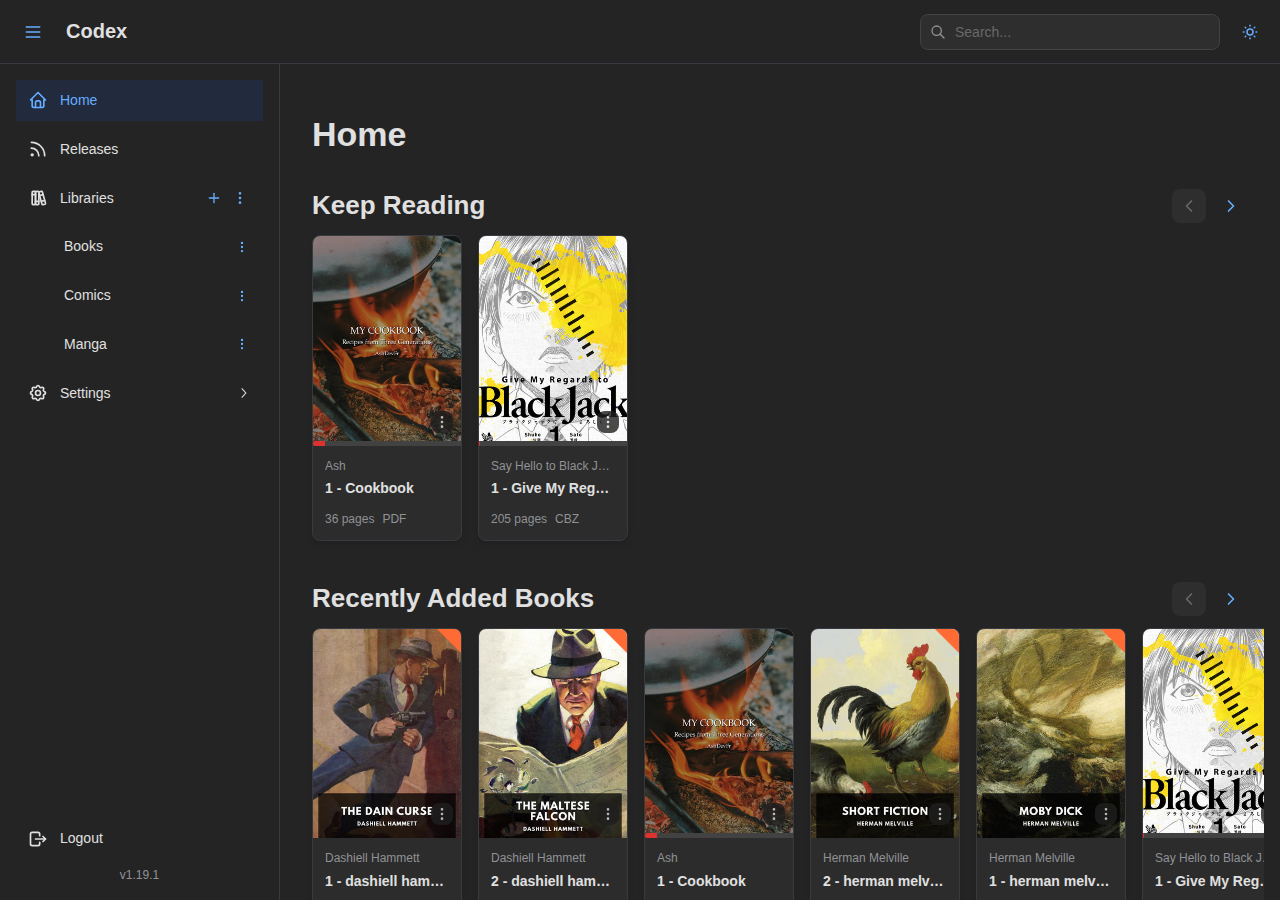
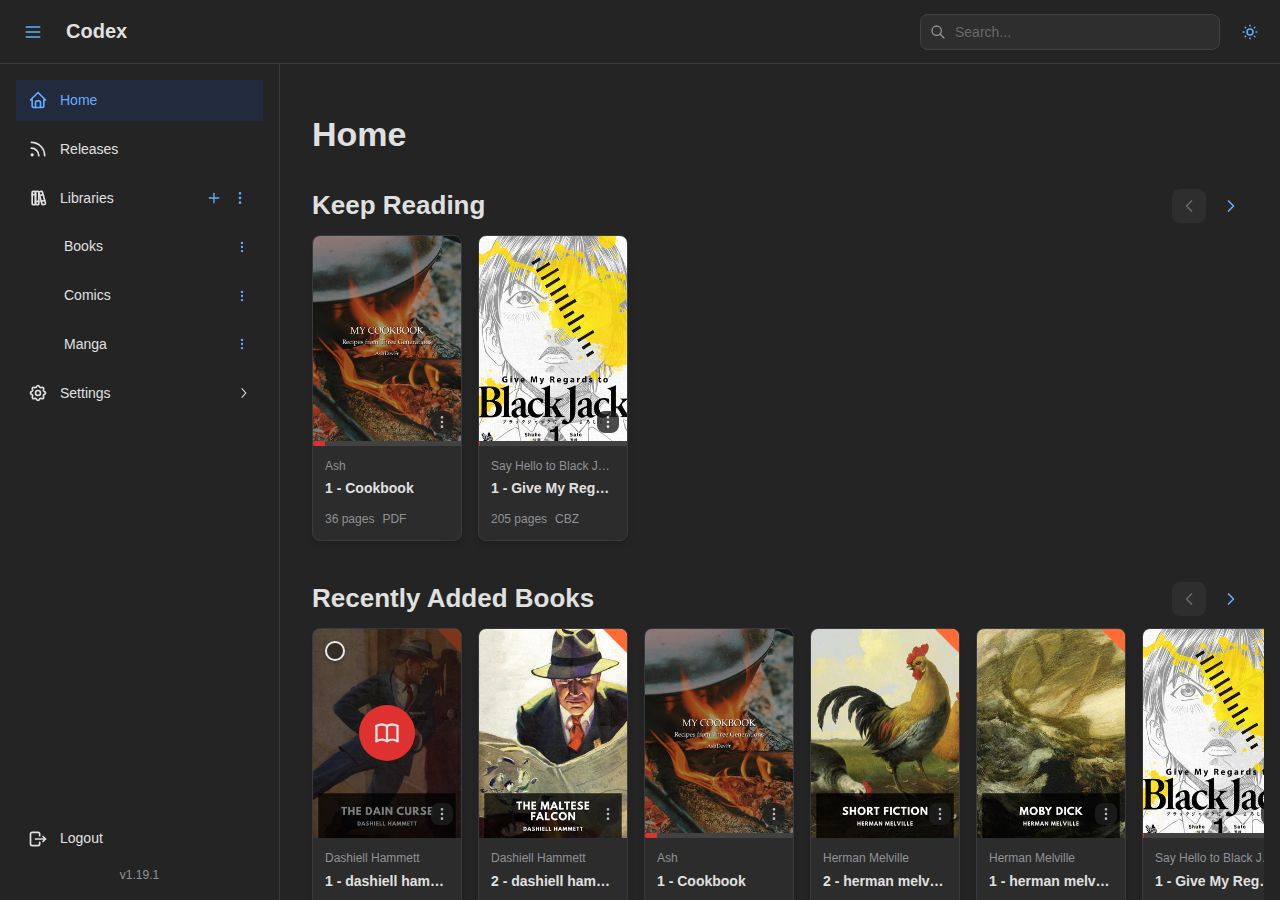
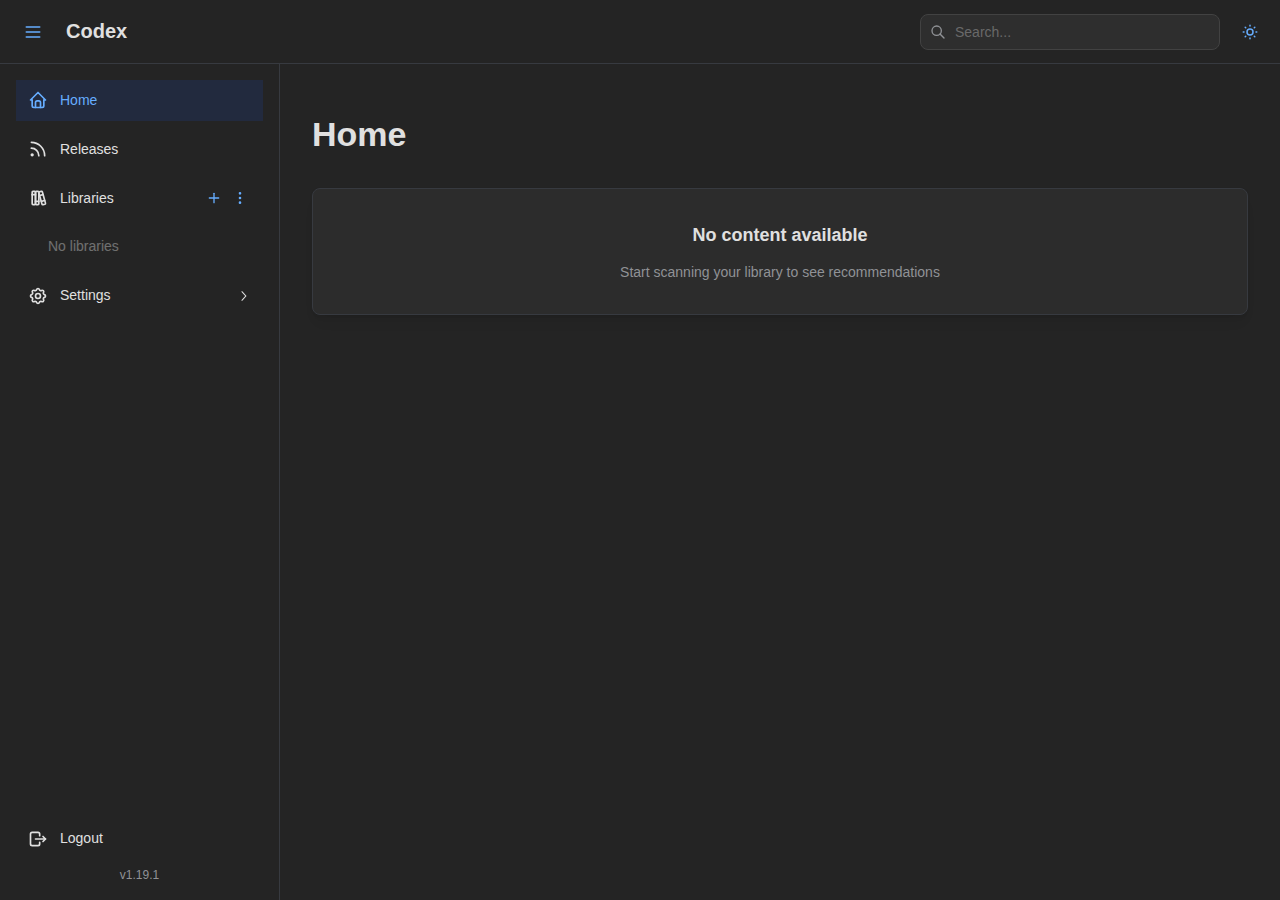
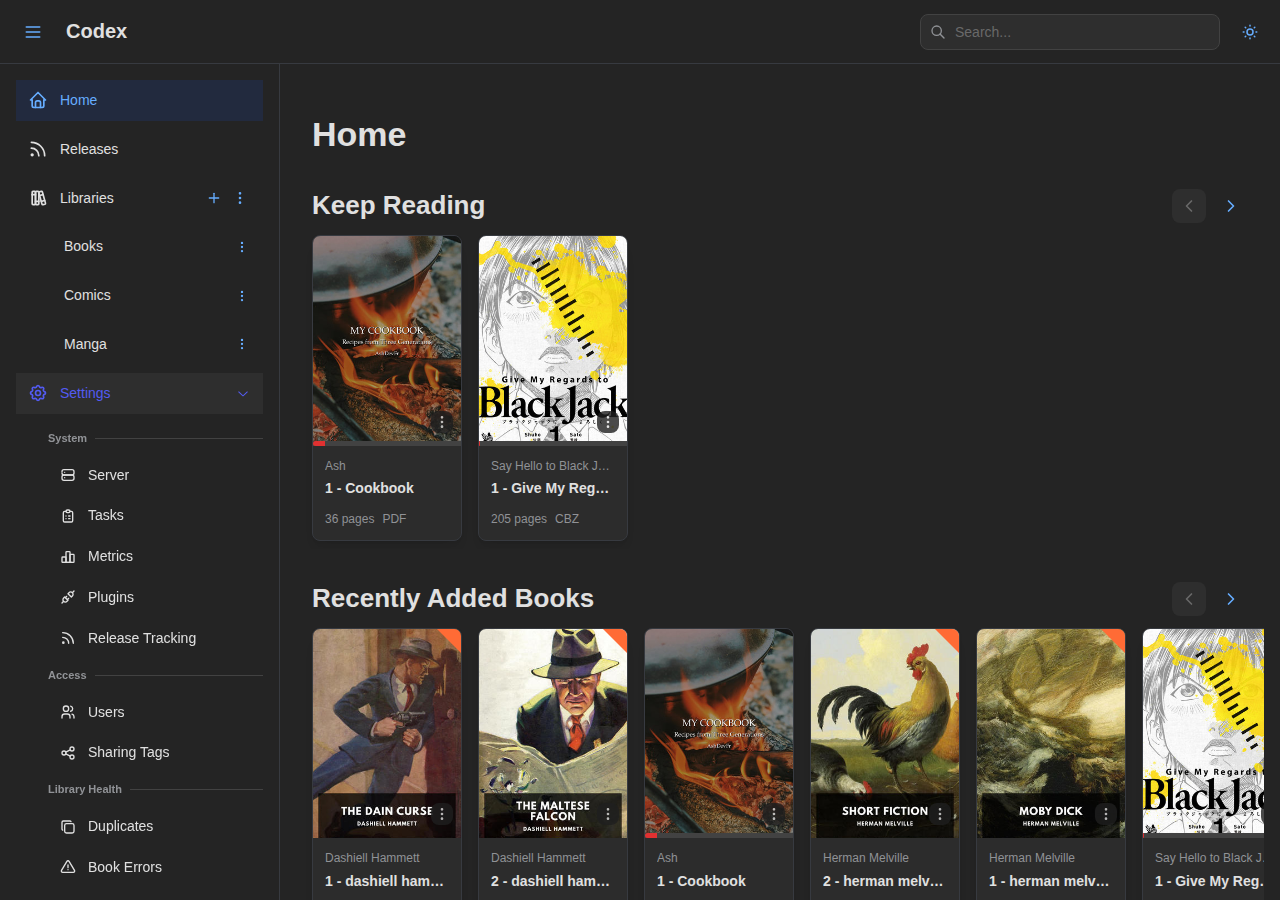
The home page provides quick access to your reading activity and recently added content. The Keep Reading section lets you continue where you left off, and the Recently Added section helps you discover new additions to your library.
Library Management
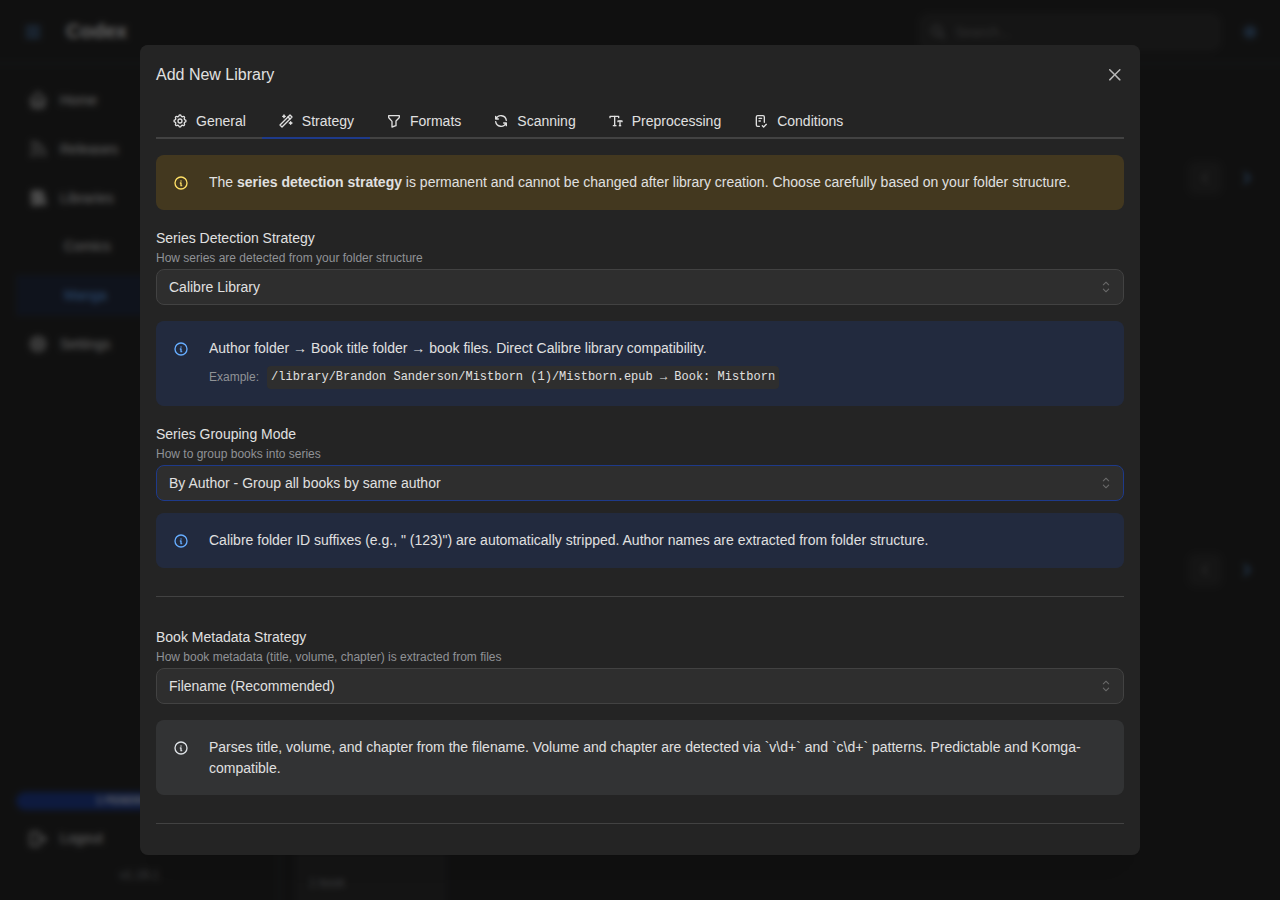
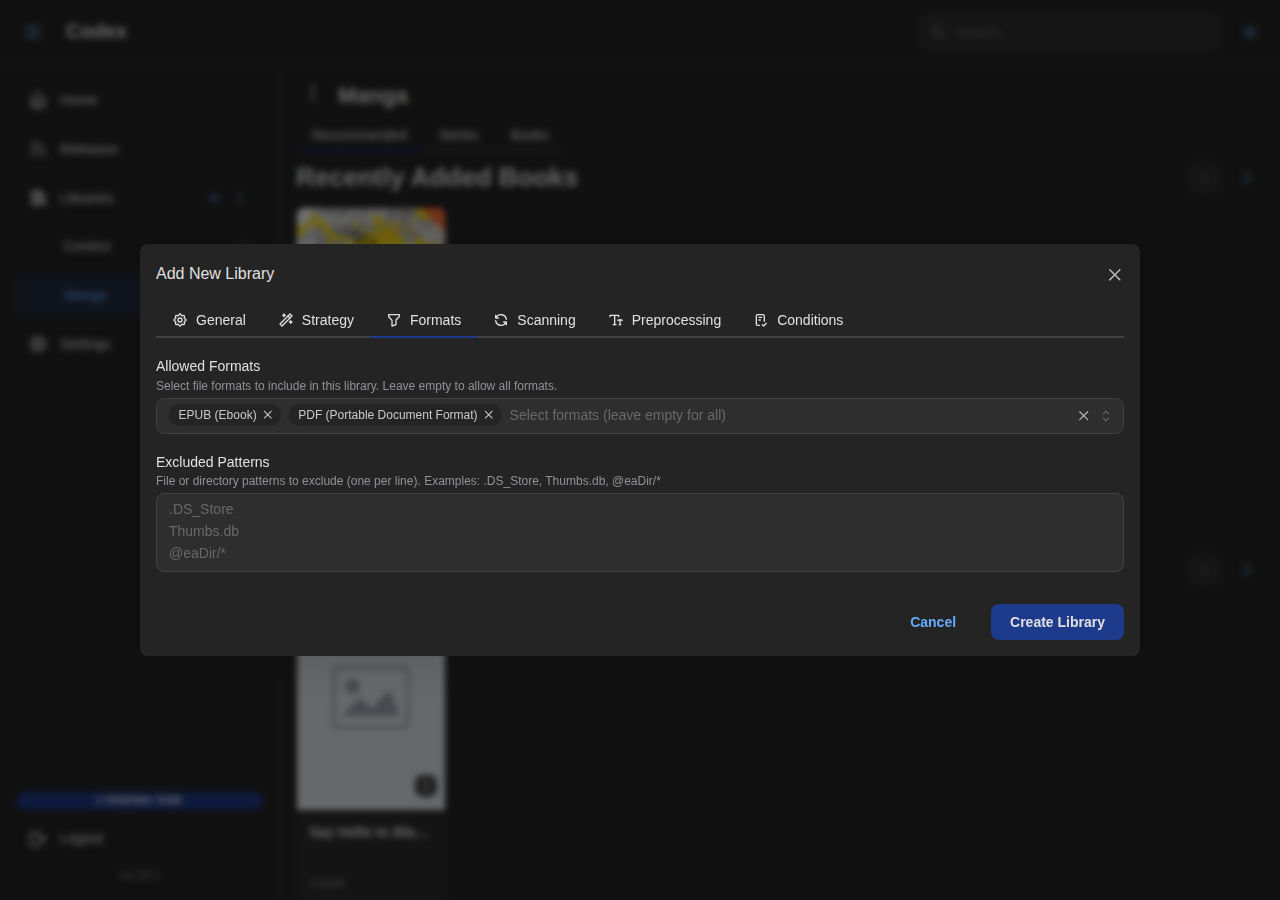
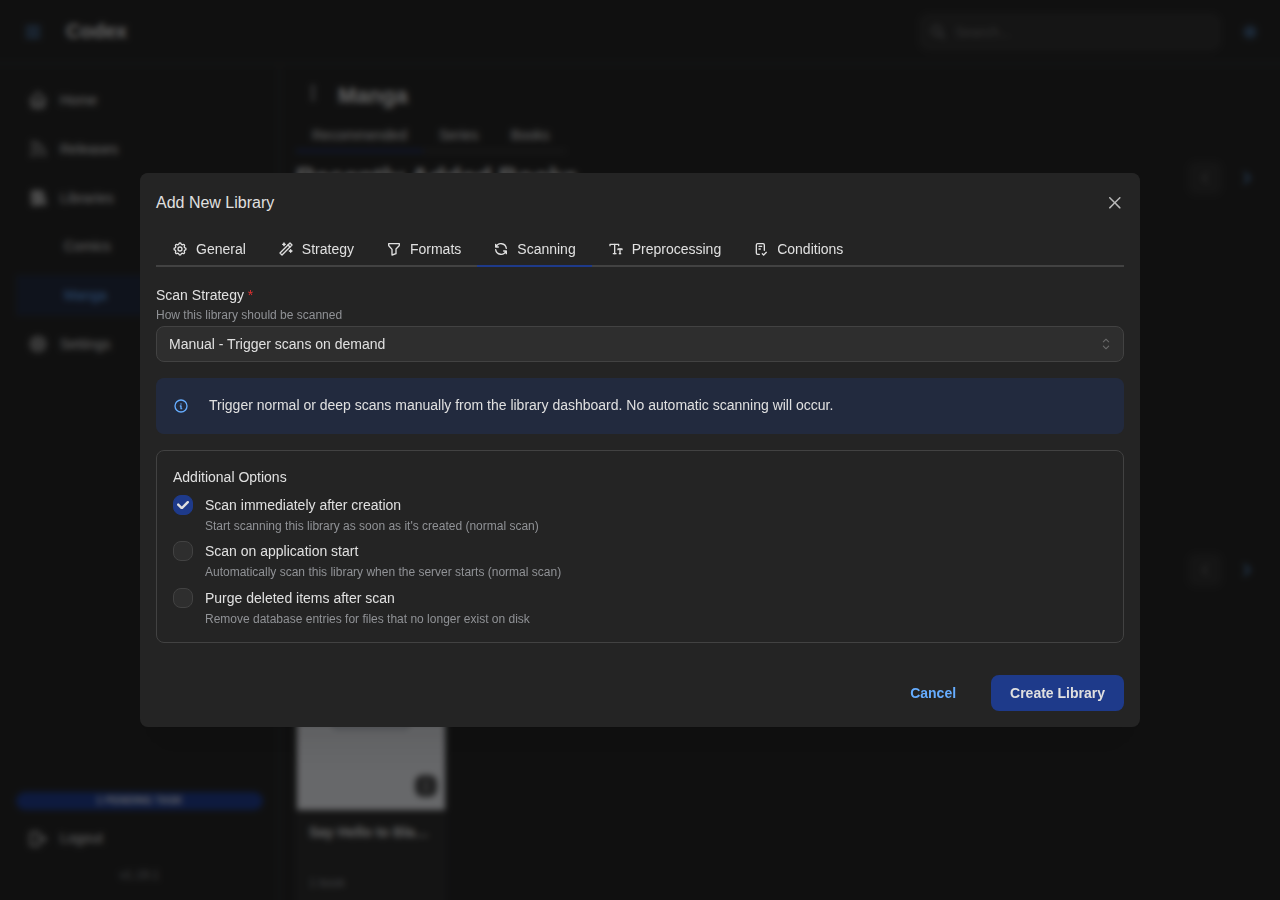
Adding a New Library
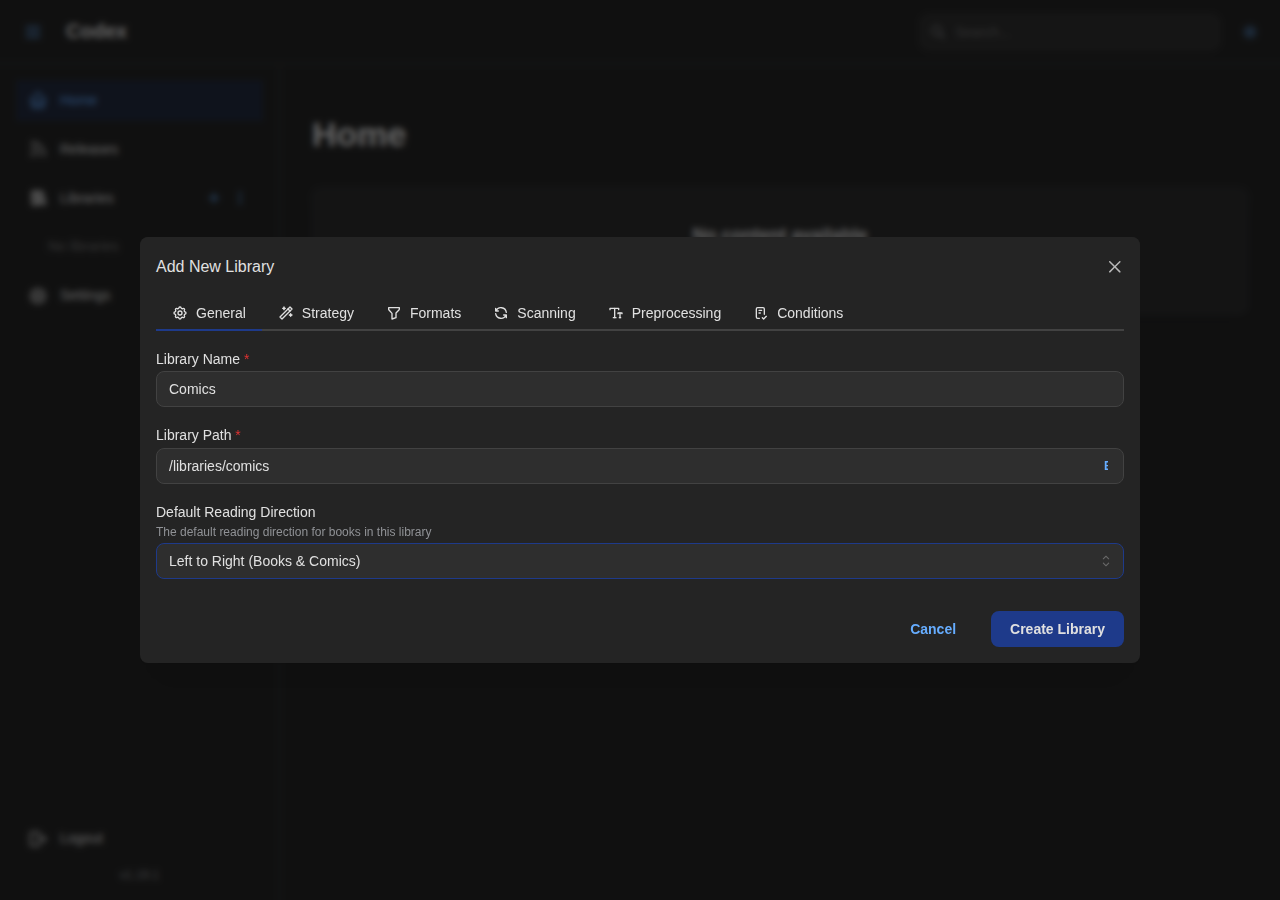
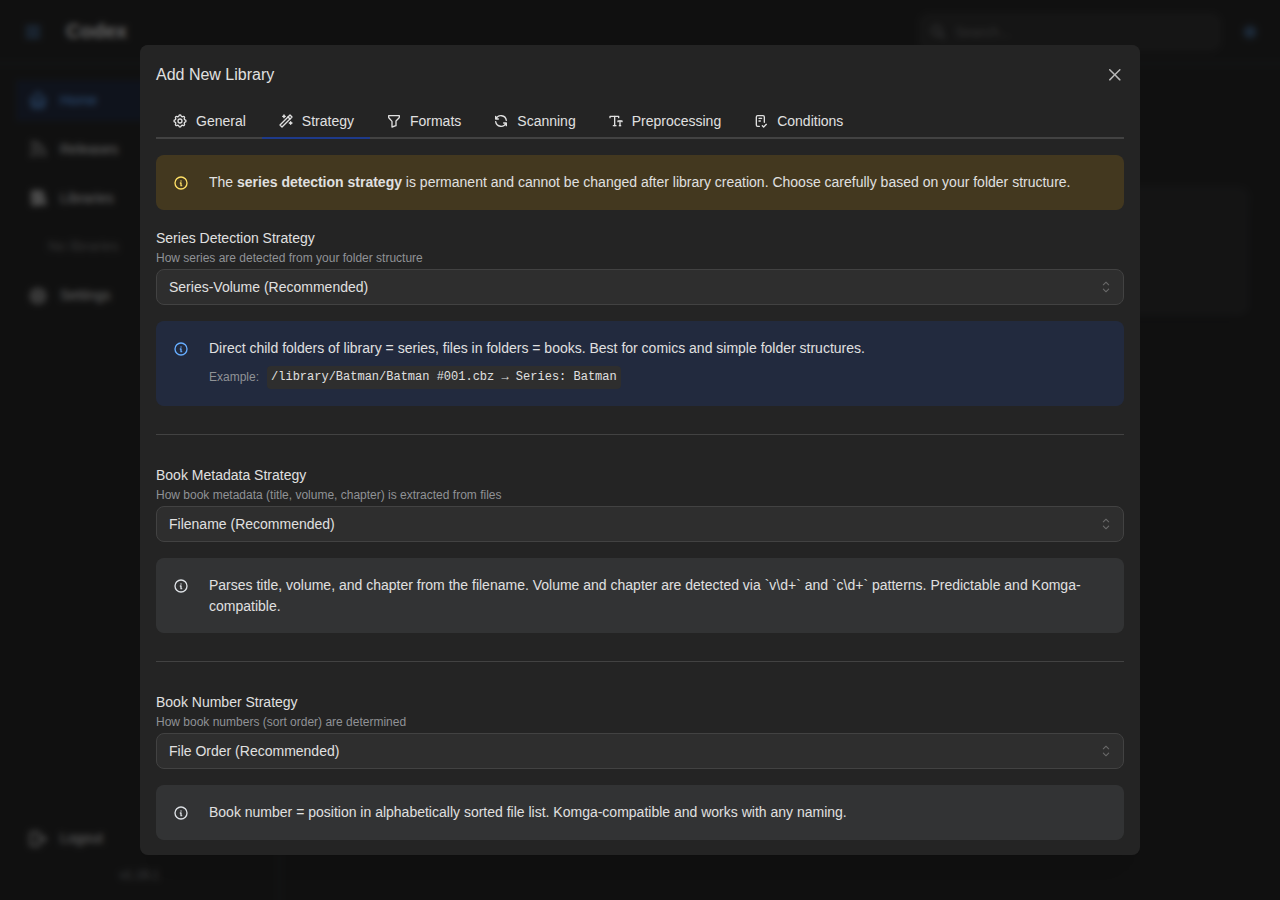
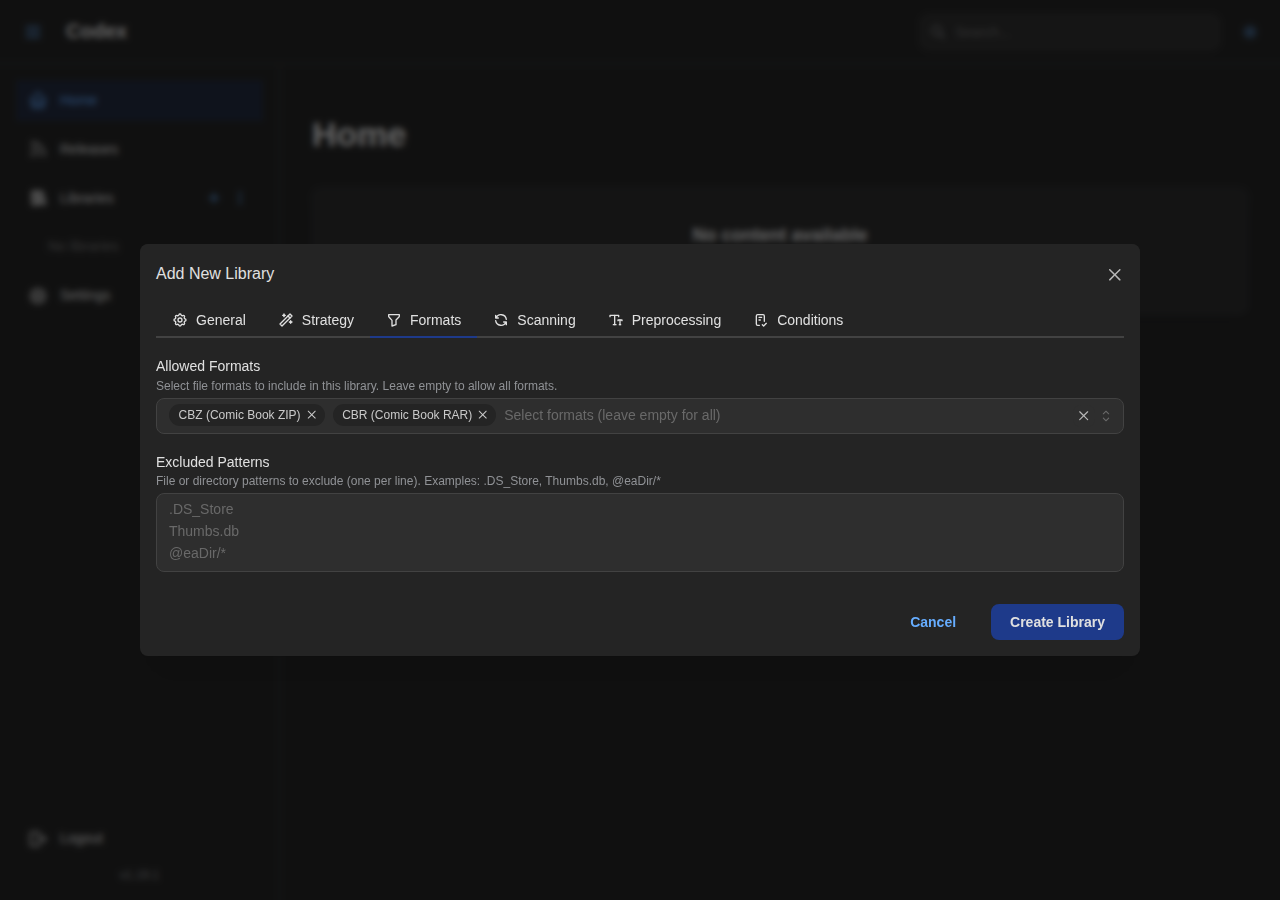
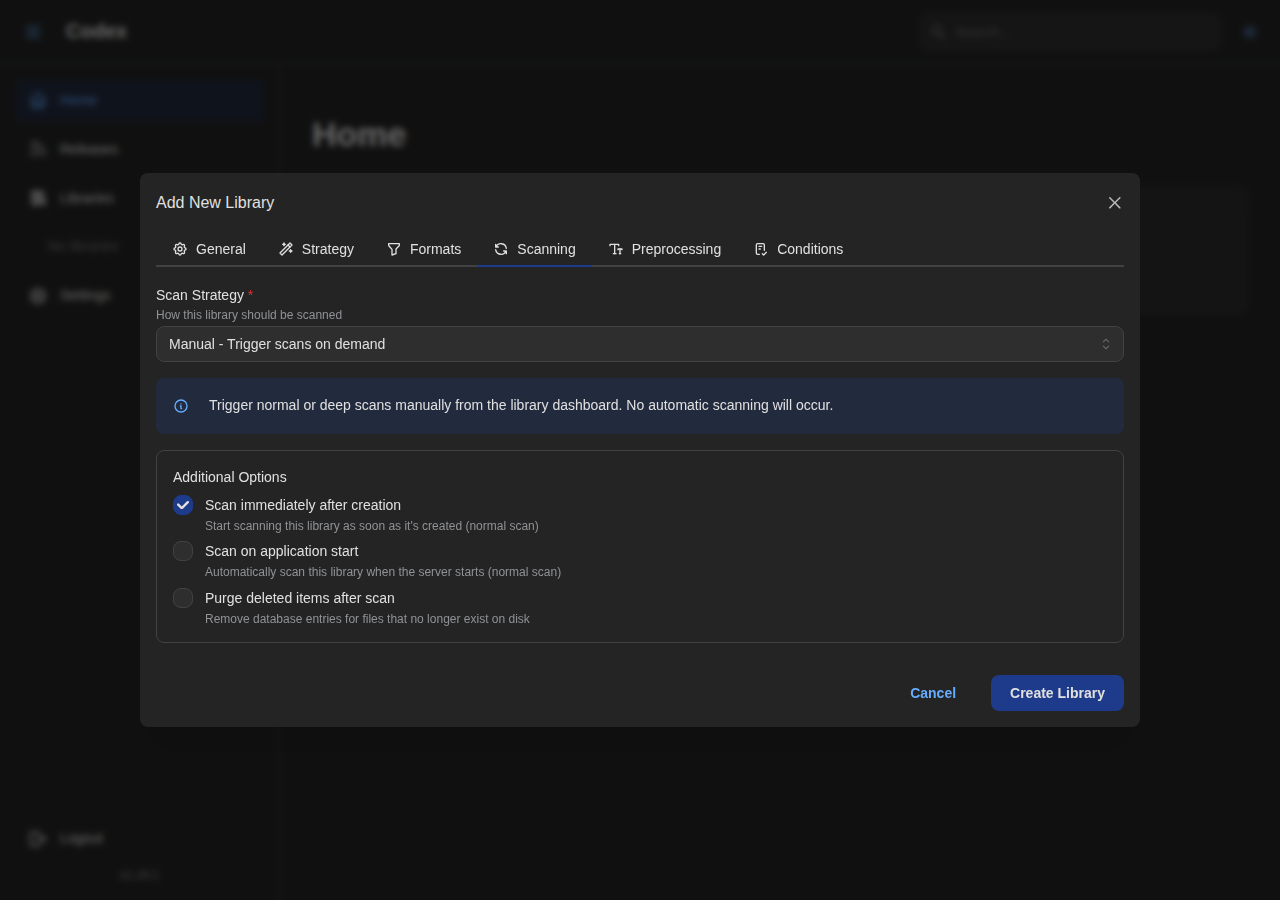
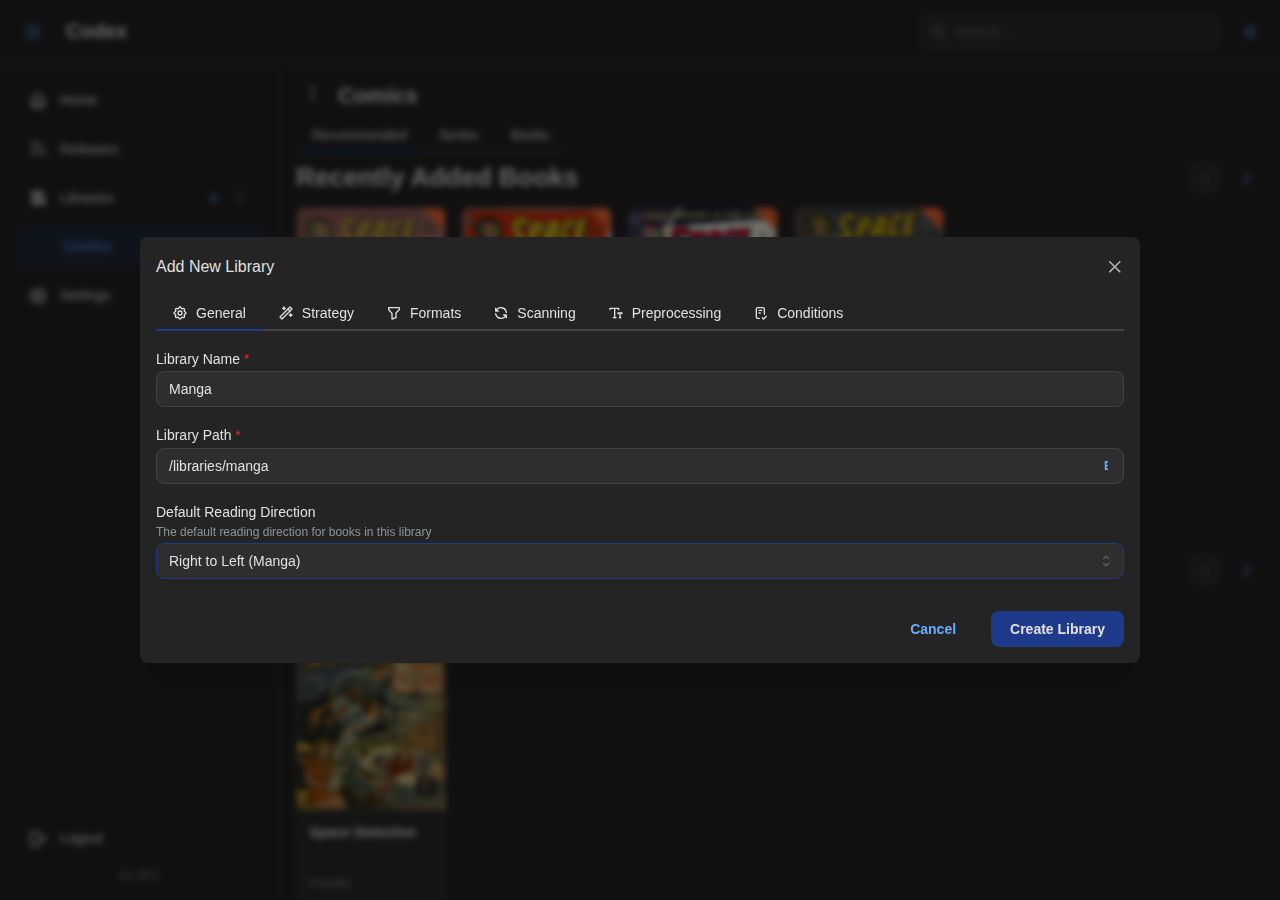
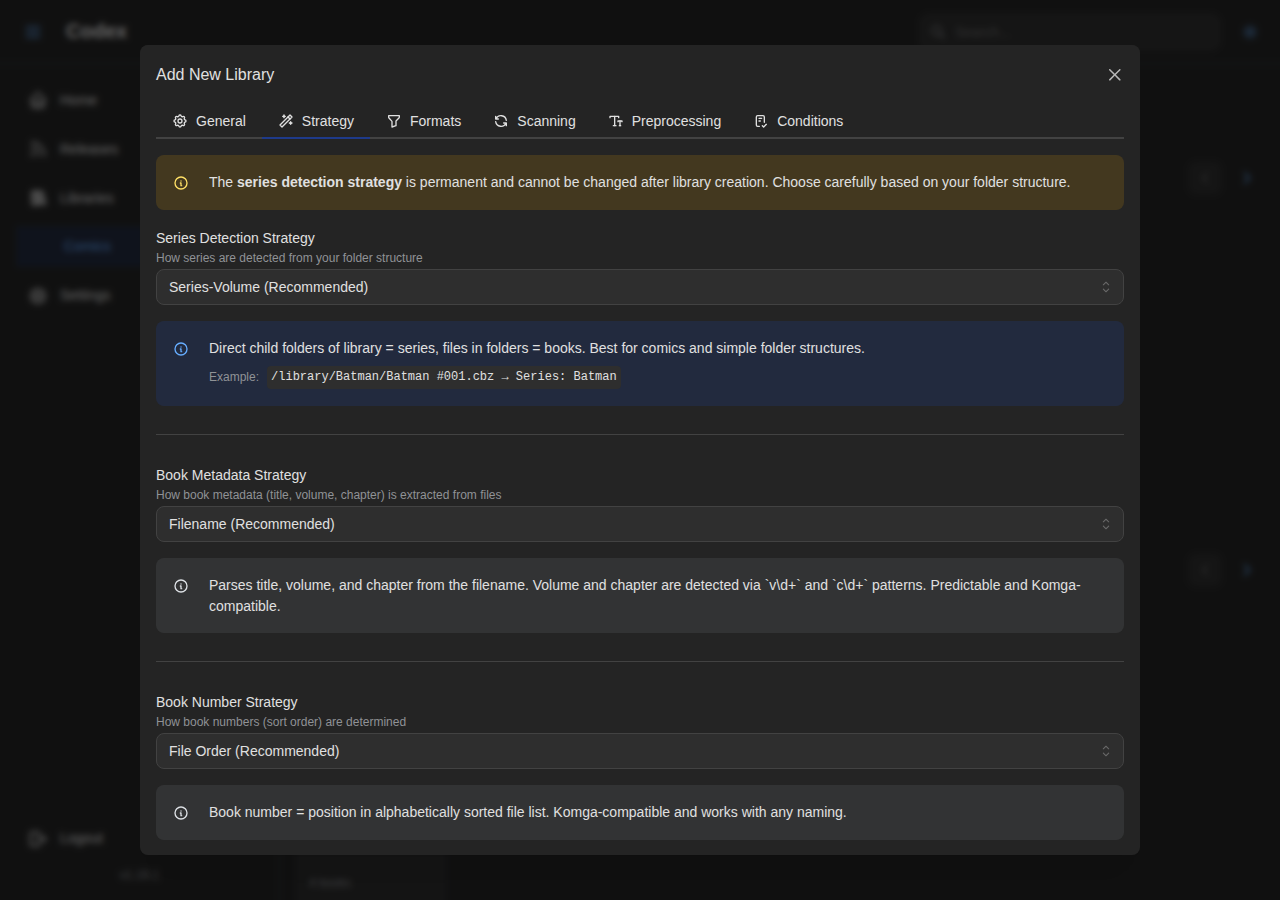
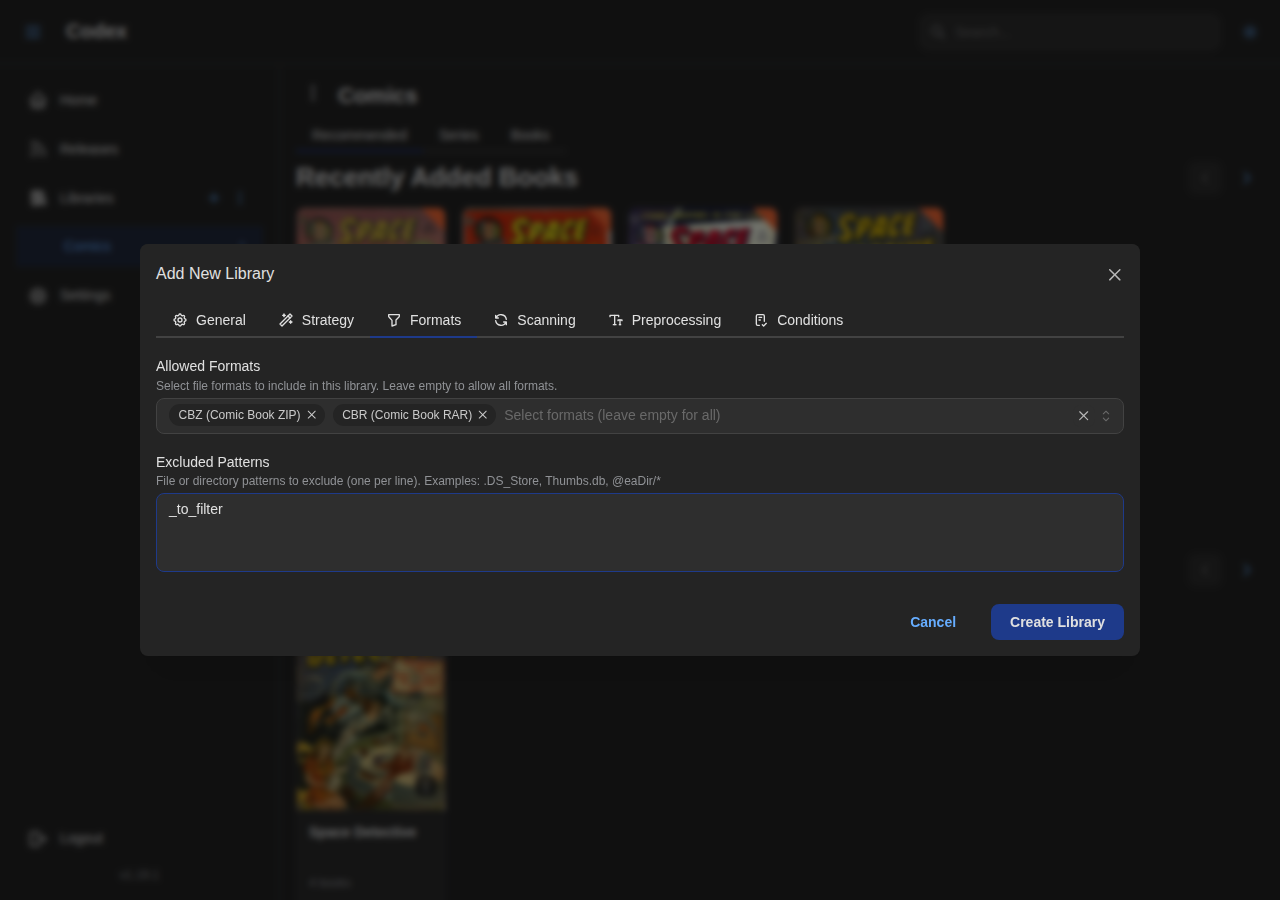
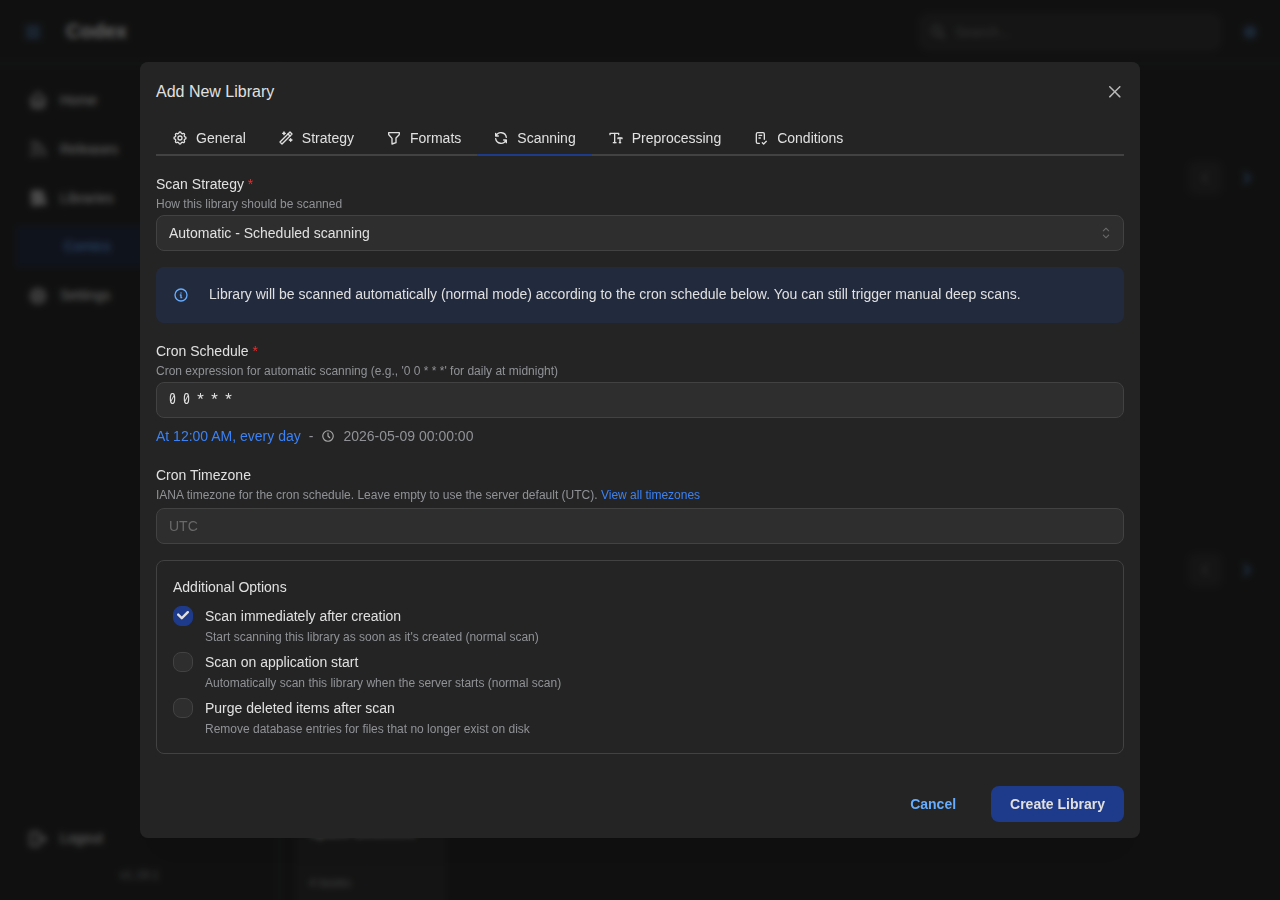
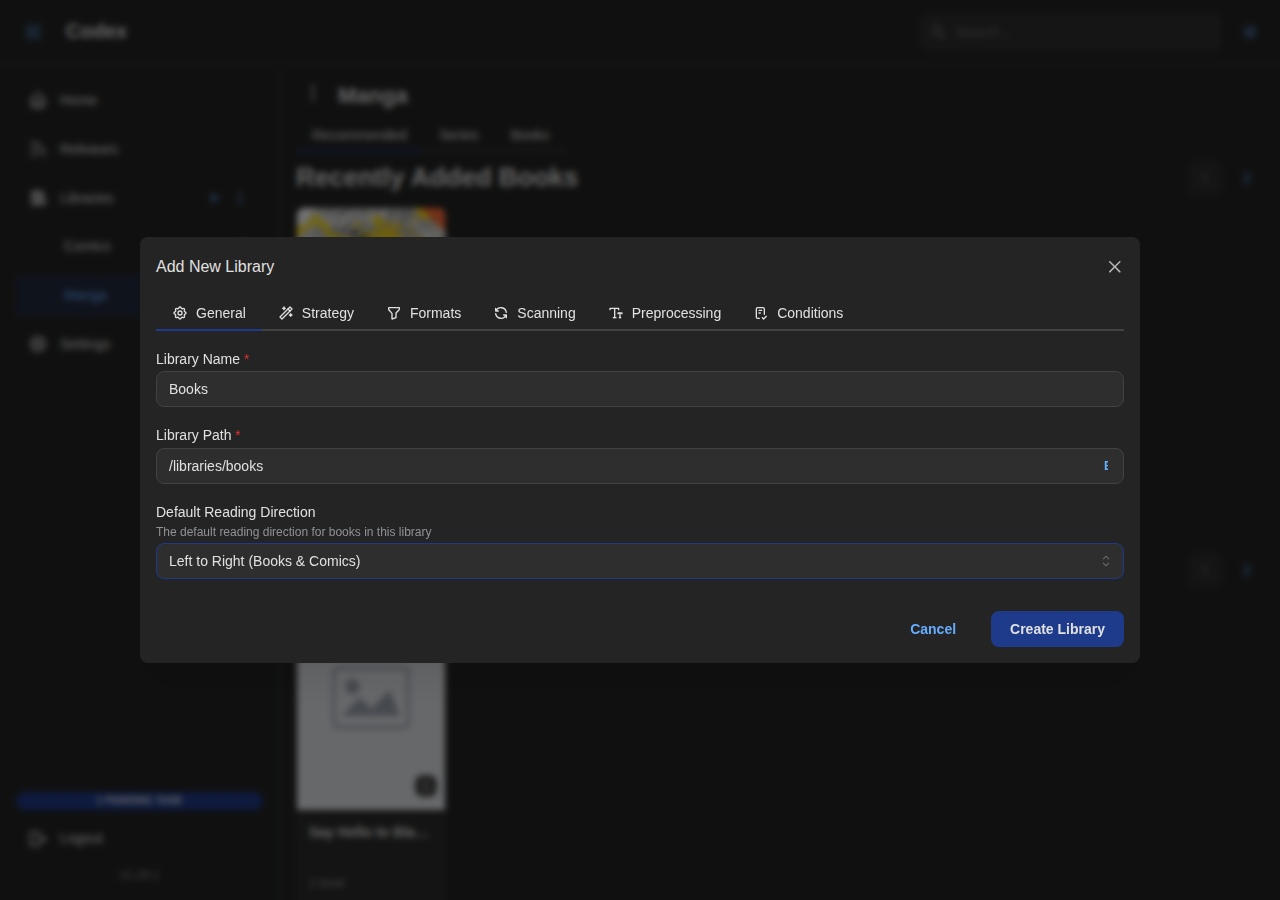
Create libraries to organize your comics, manga, and ebooks. Configure general settings, file formats, scanning strategies, and schedules.
Comics Library
Manga Library
Books Library
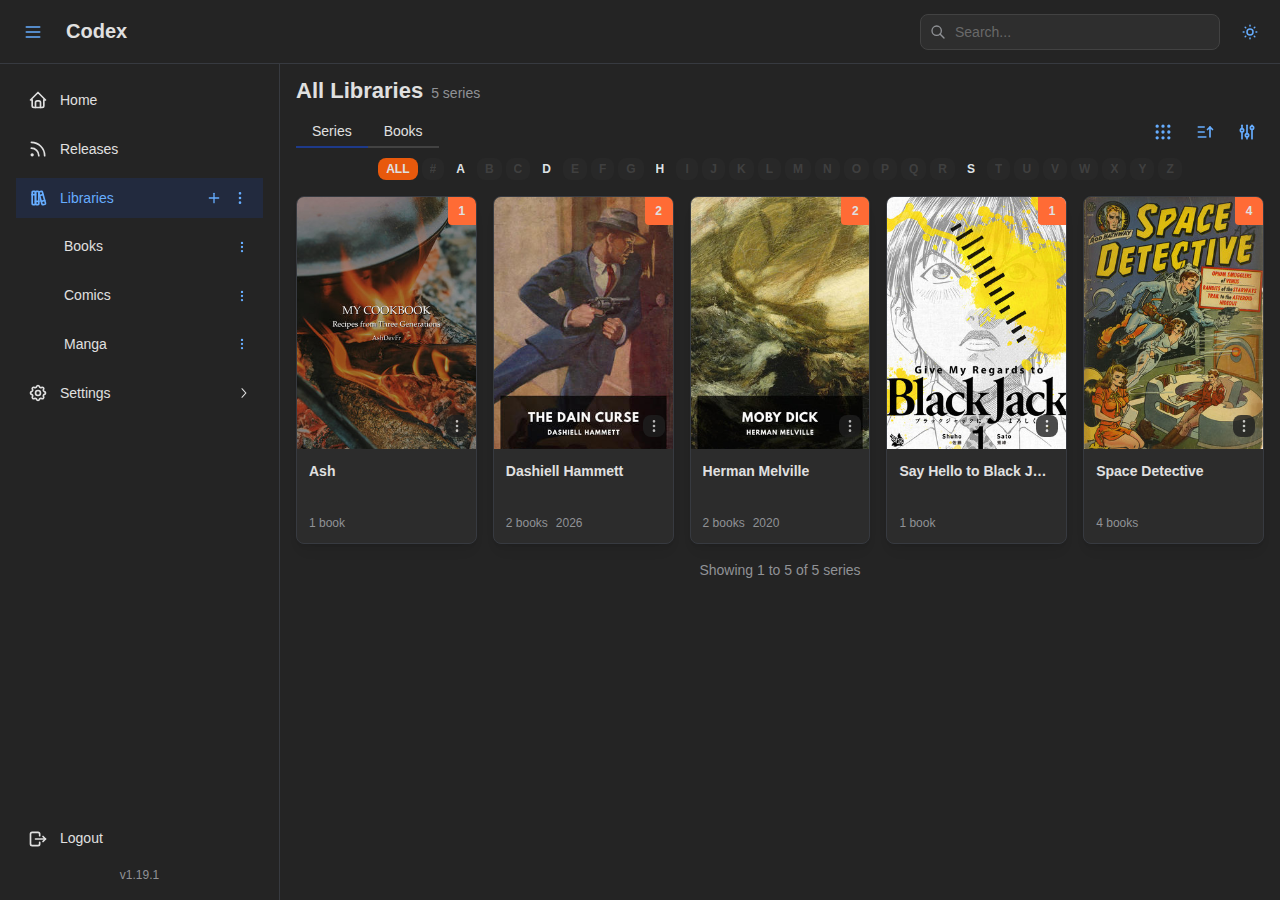
Browsing Libraries
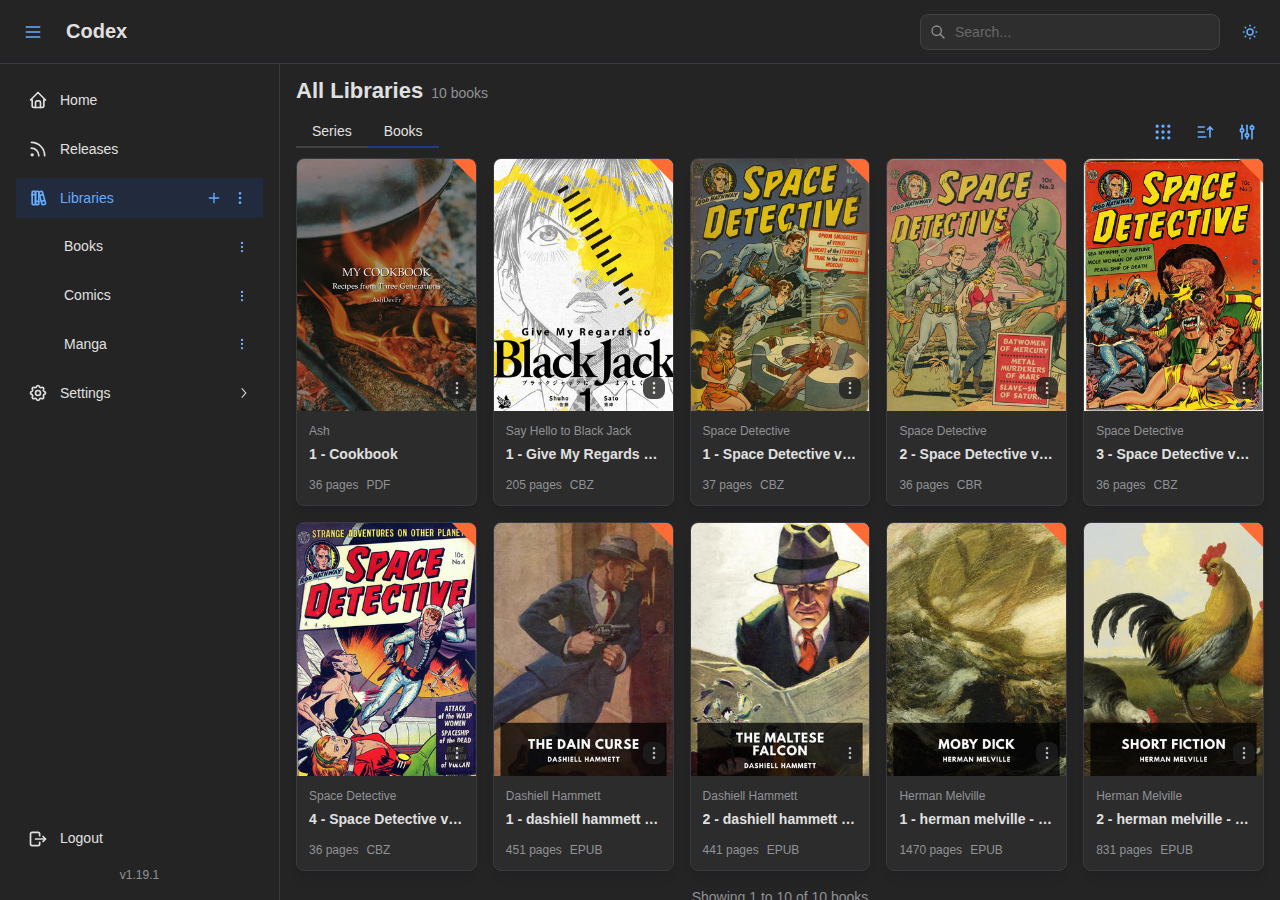
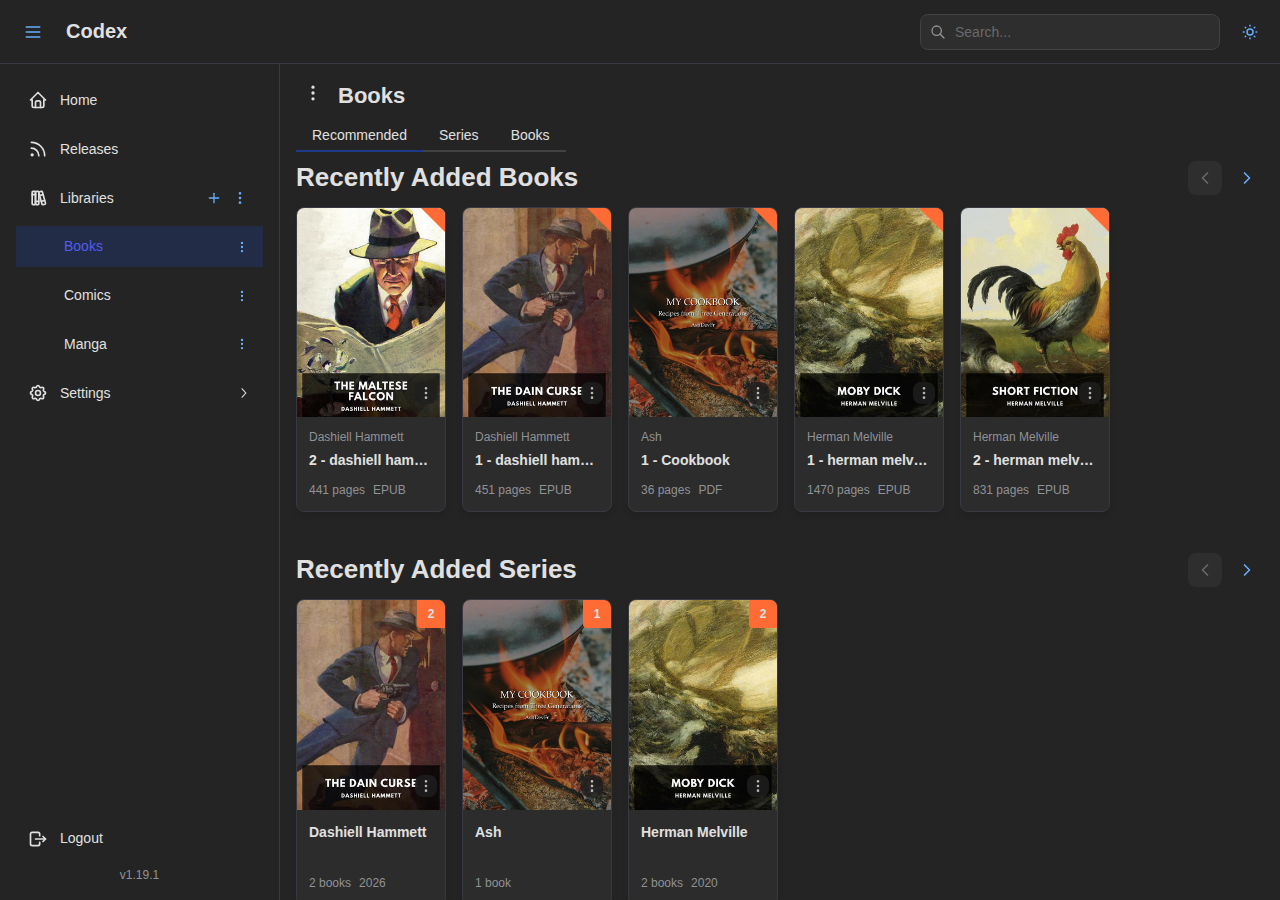
View your libraries by series or books with powerful filtering and sorting options.
Series & Book Details
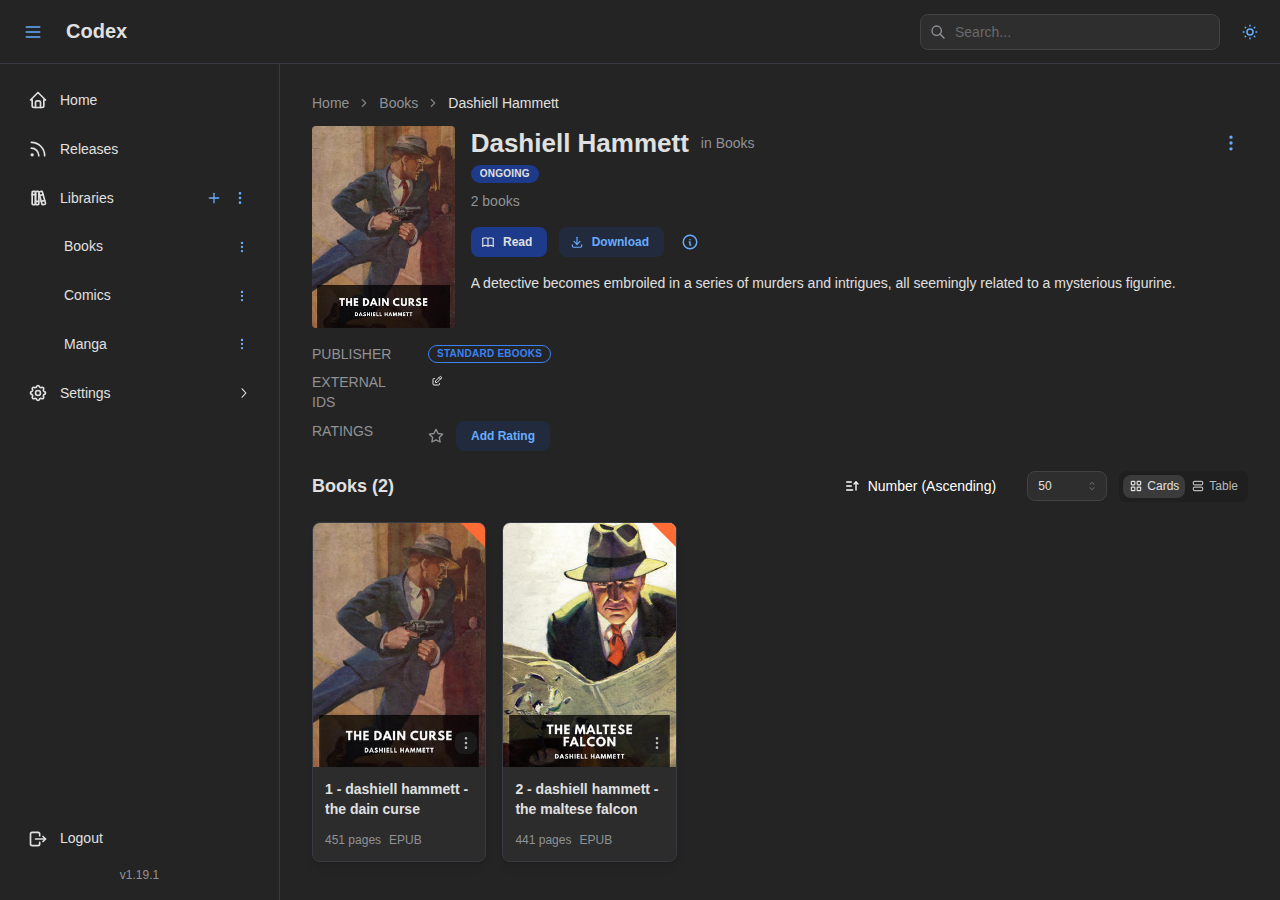
Series Detail Page
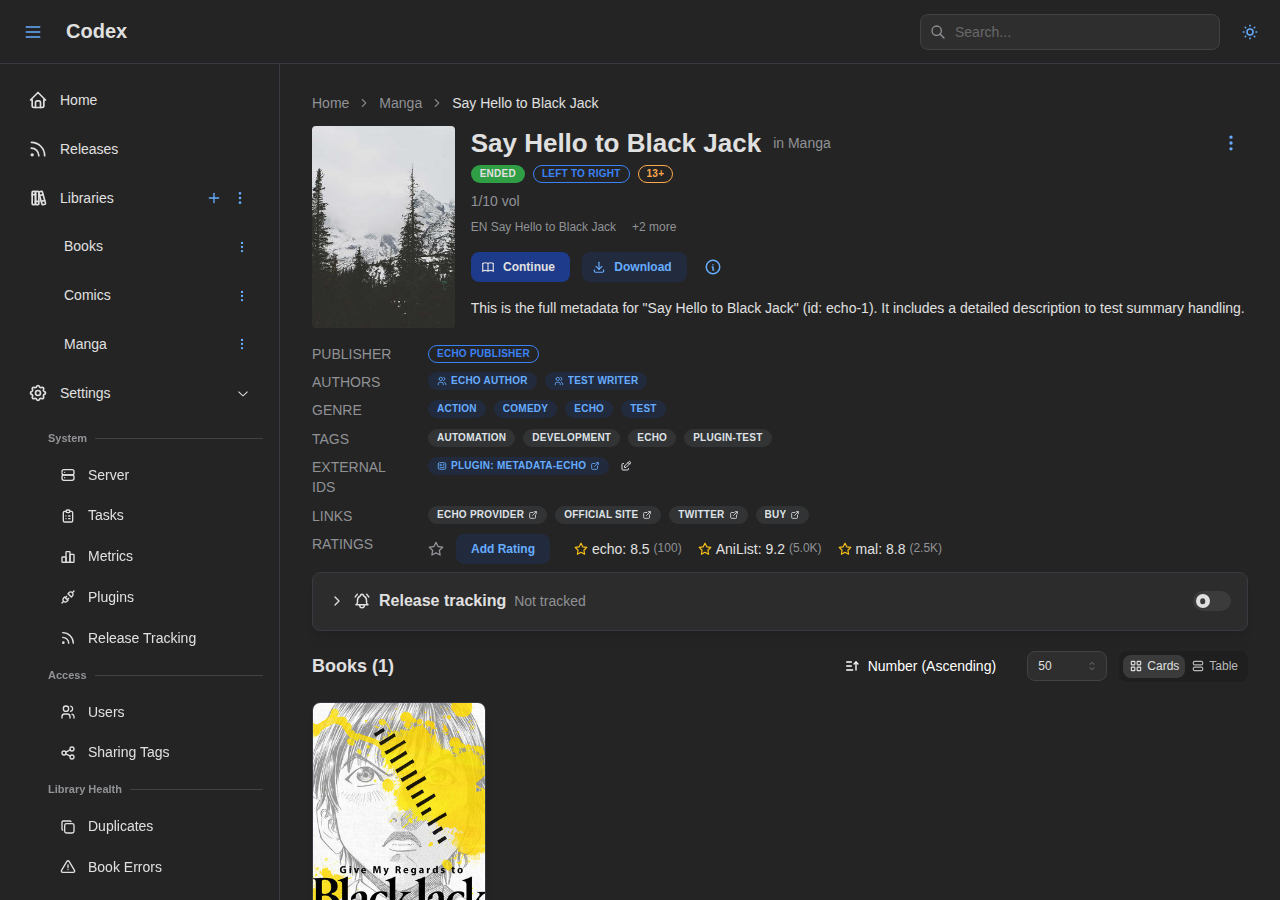
View comprehensive information about a series including metadata, books, and reading progress.
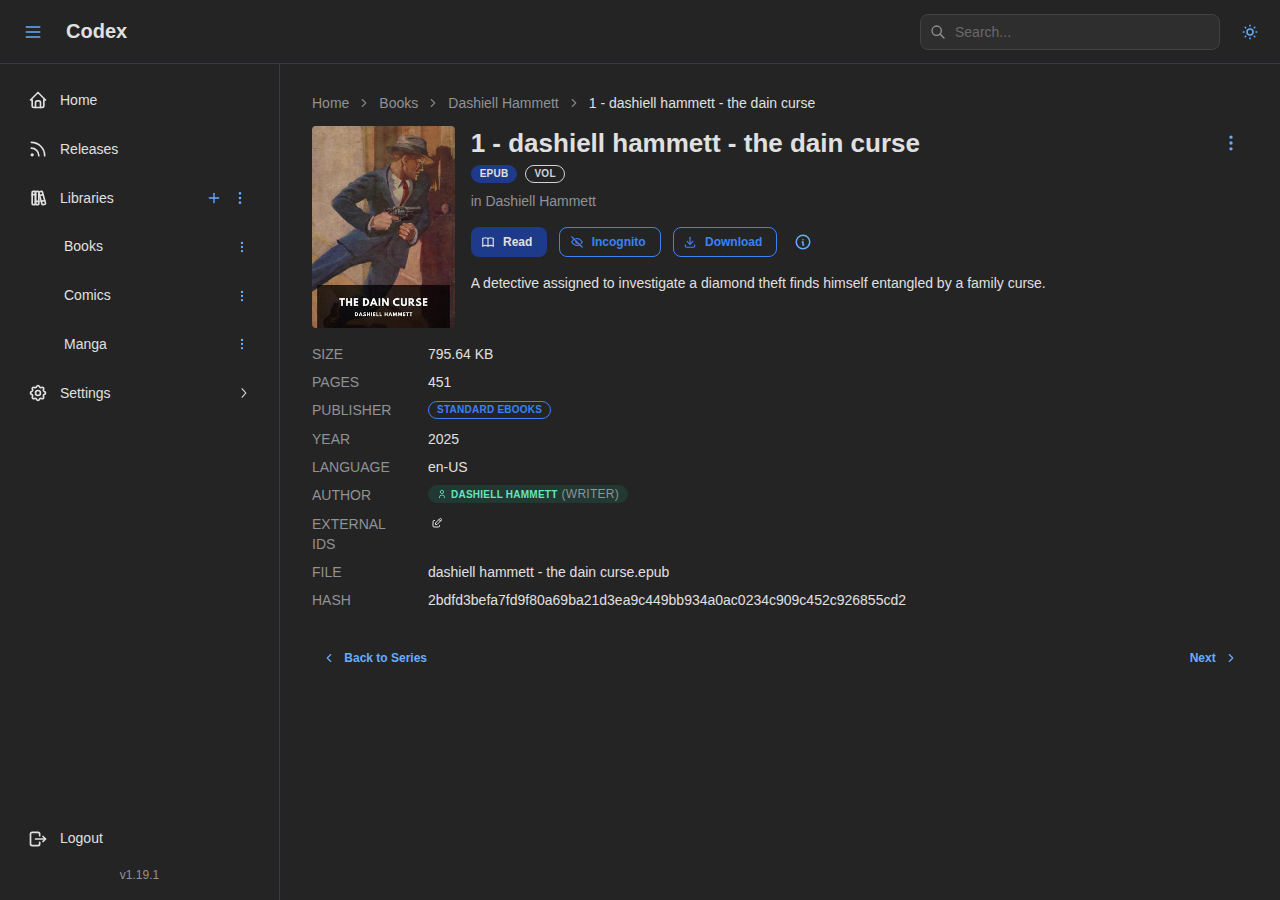
Book Detail Page
View detailed information about a specific book.
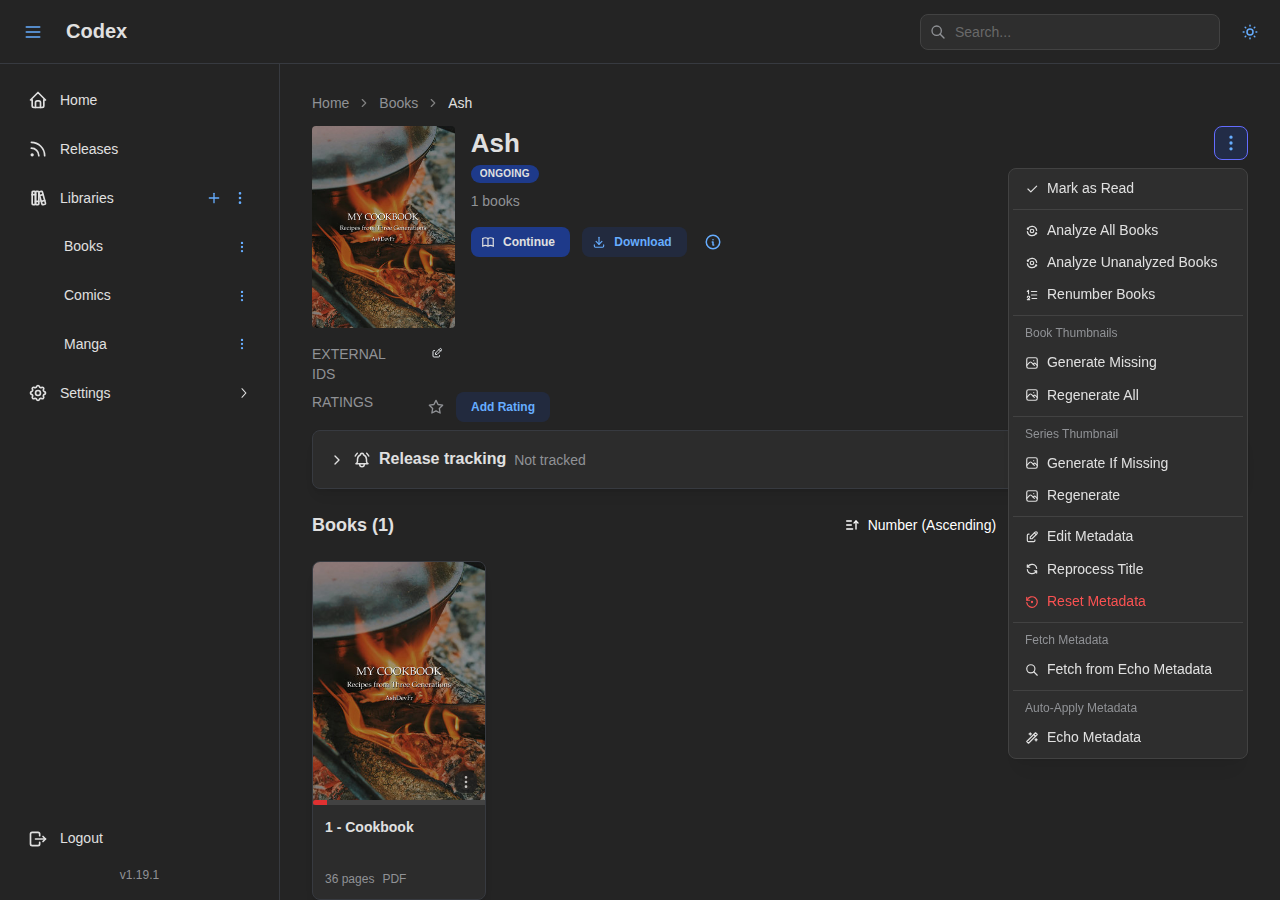
Series Actions Menu
Per-series actions live behind the kebab menu in the series header. See the Managing Series guide for details.
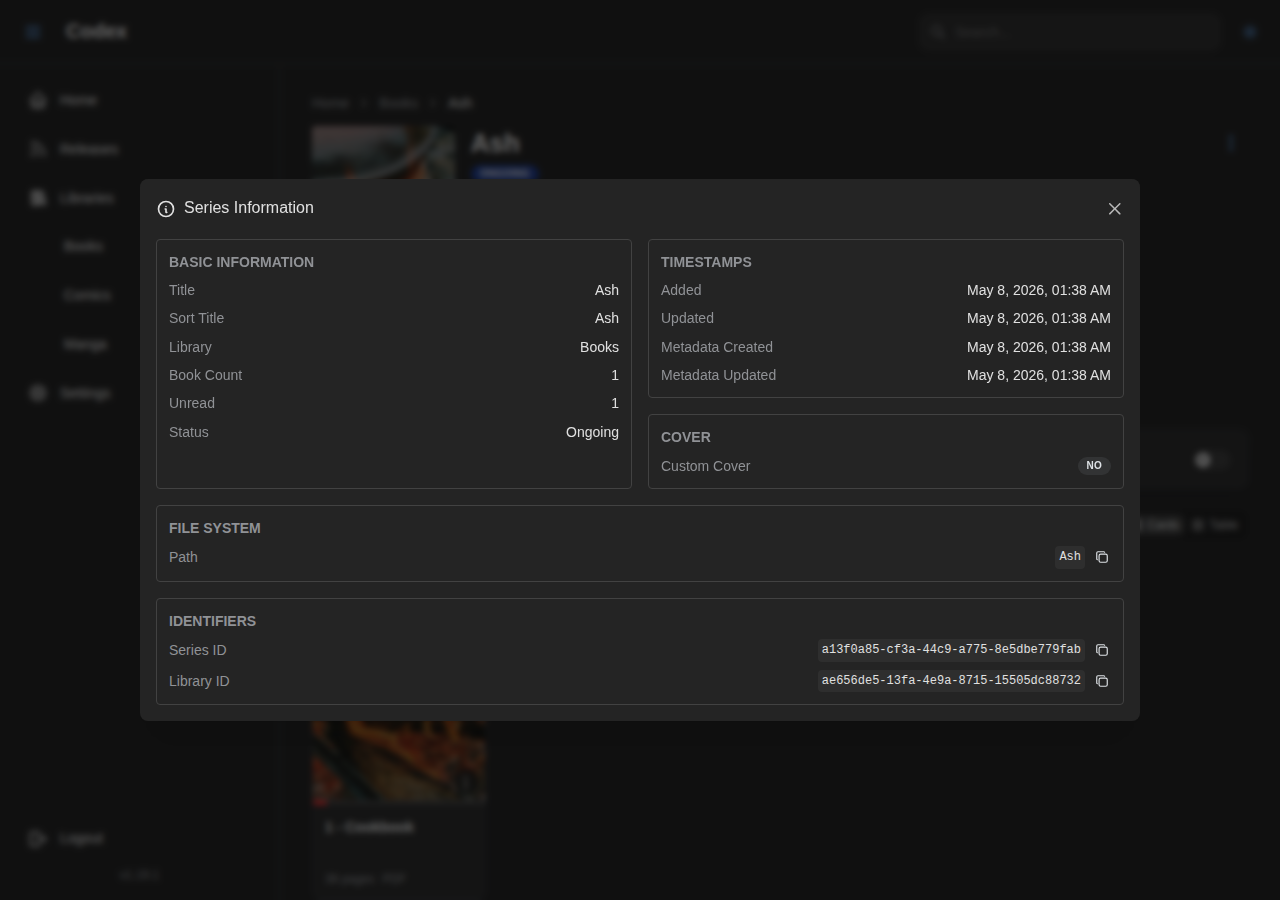
Series Info Modal
Read-only details: UUIDs, file path, timestamps, resolved external IDs.
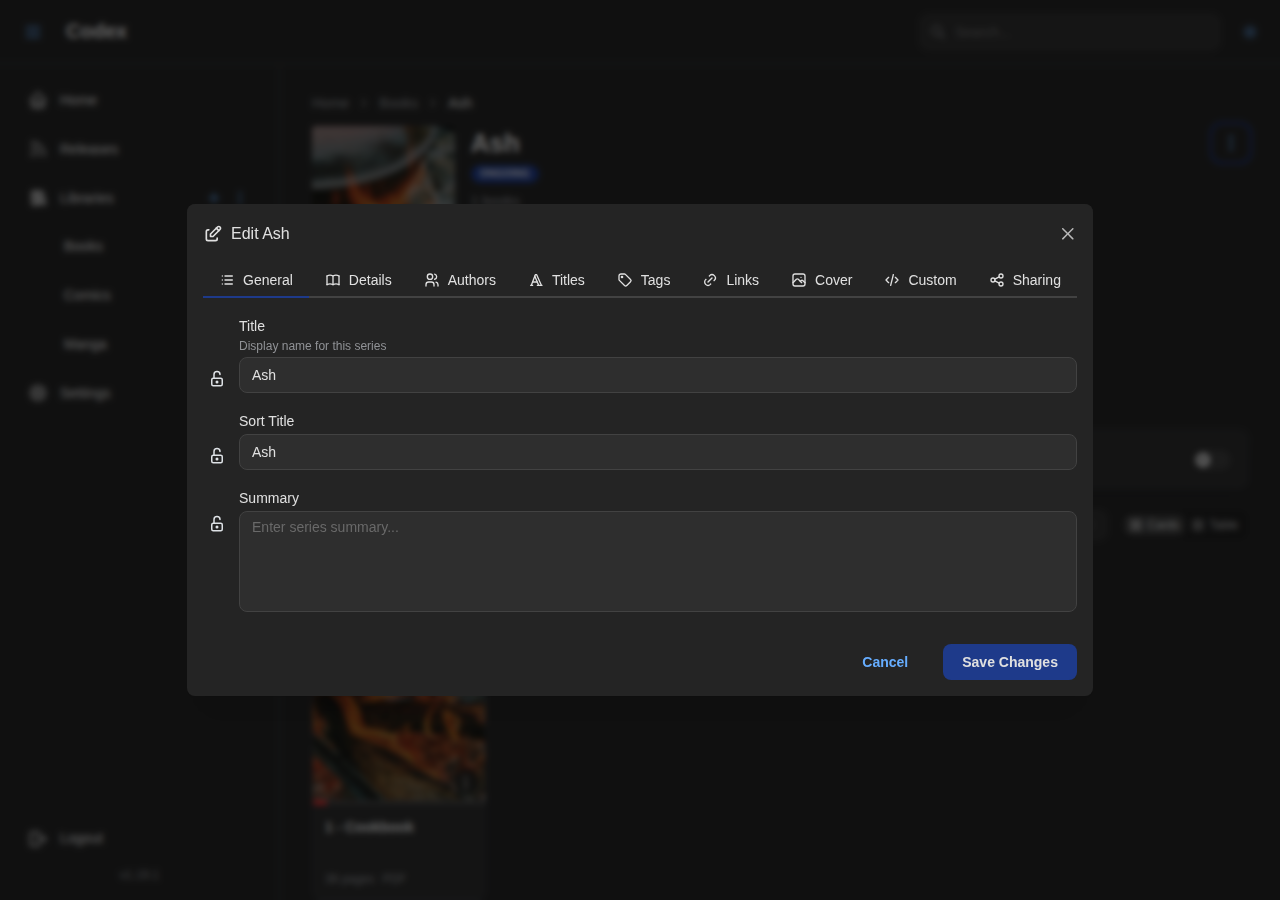
Edit Metadata Modal
The metadata editor opens from the actions menu or any field's edit icon.
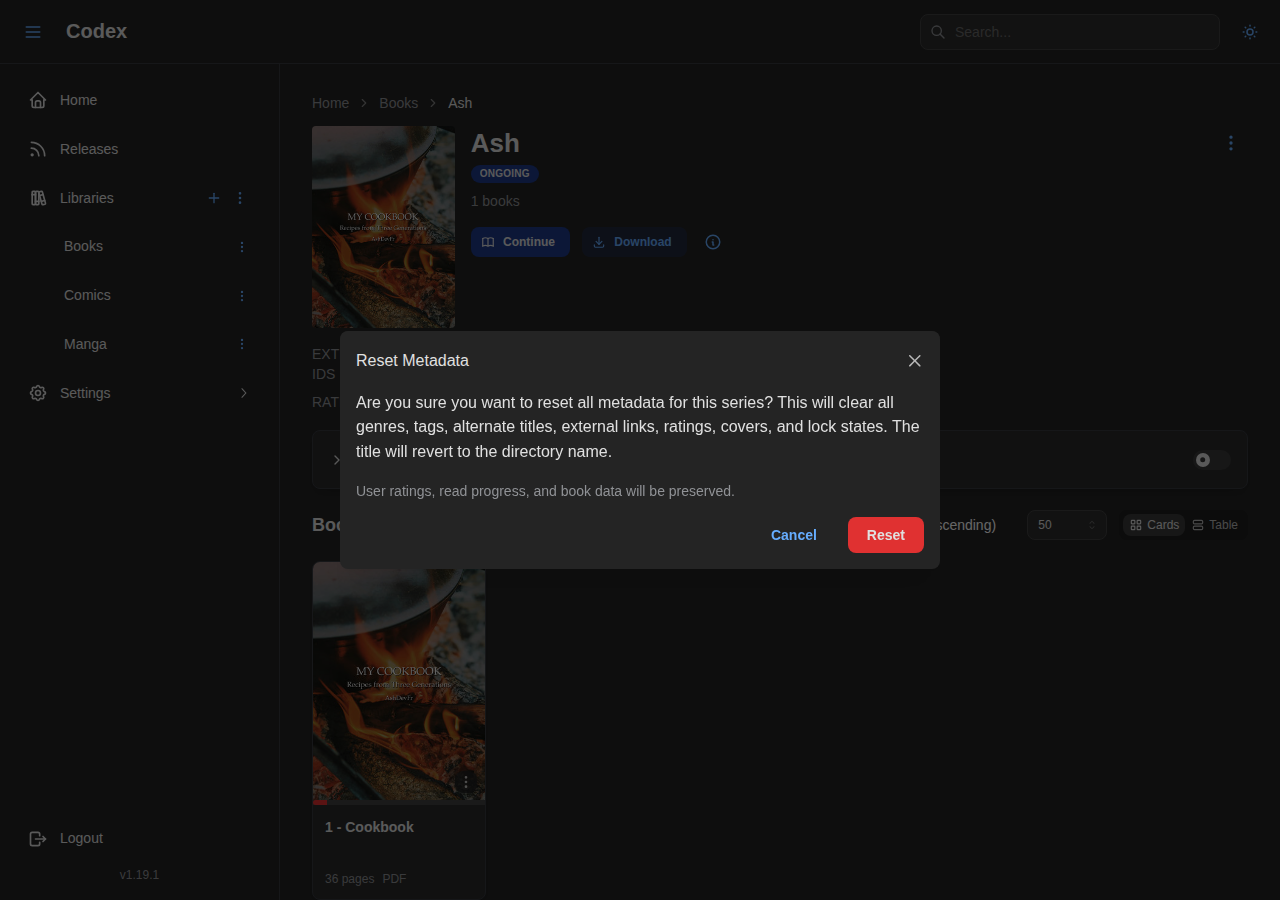
Reset Metadata
Wipe manual edits and revert to scanner / provider values. Confirmation required.
Bulk Operations
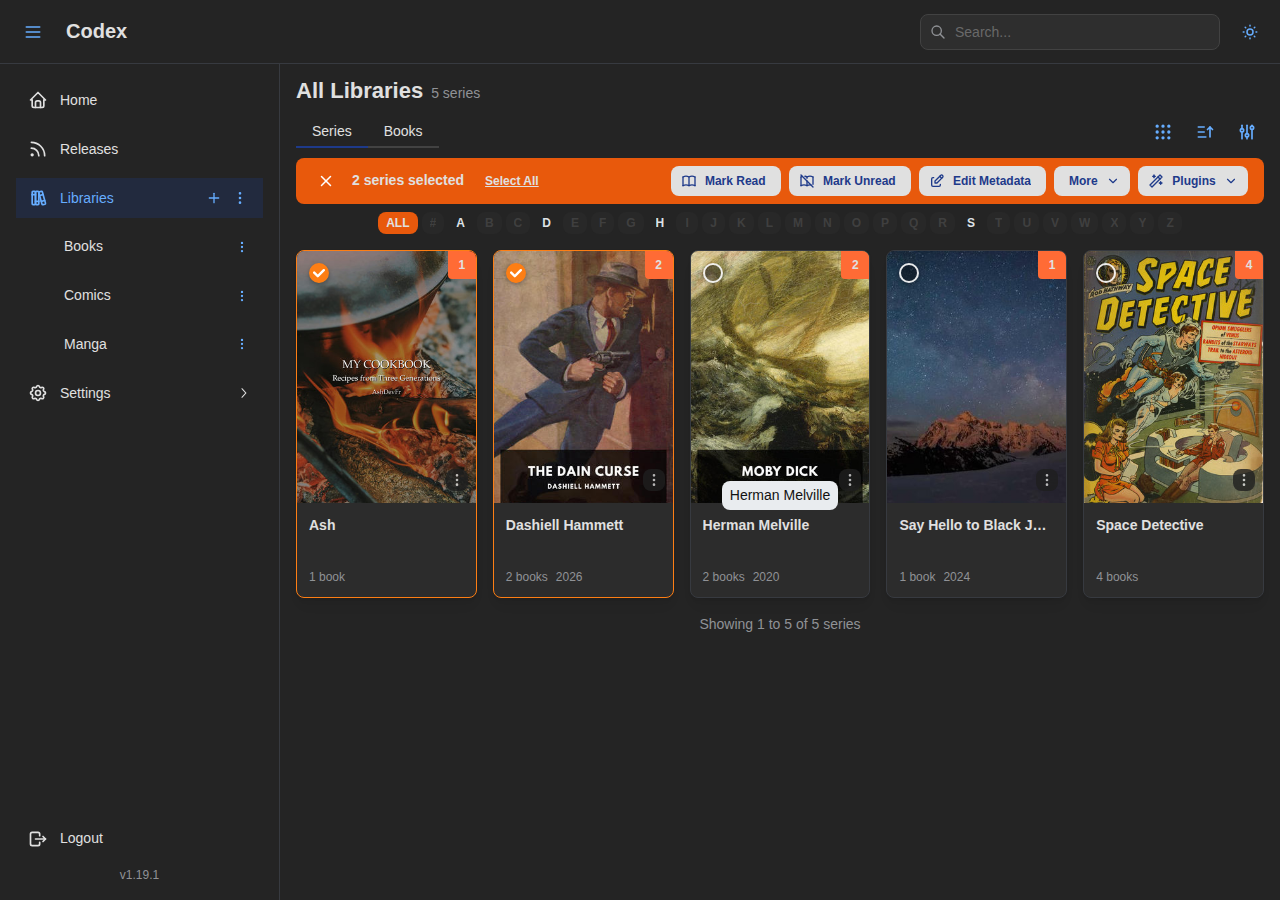
Bulk Selection Toolbar
Multi-select series cards from the library grid; the toolbar surfaces bulk actions.
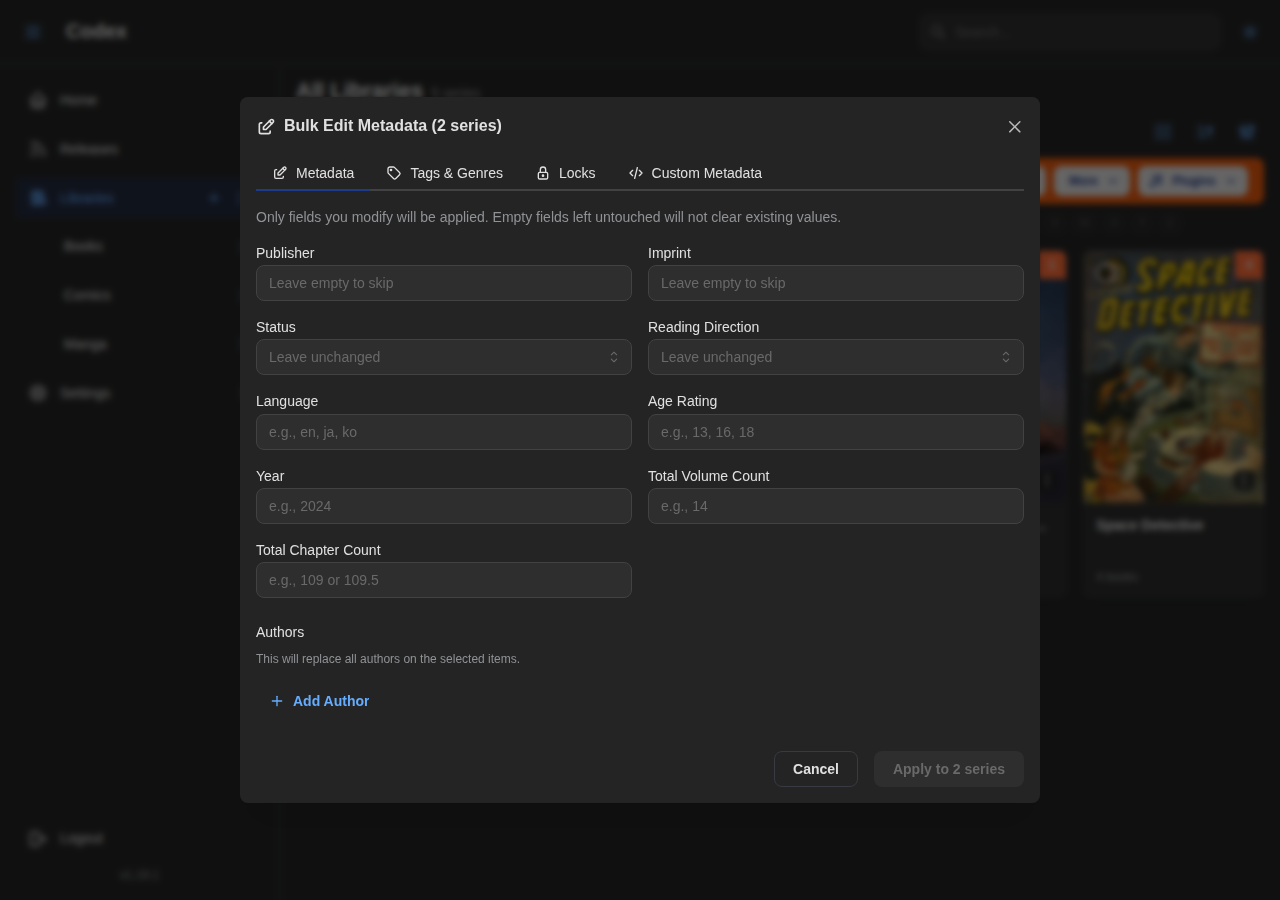
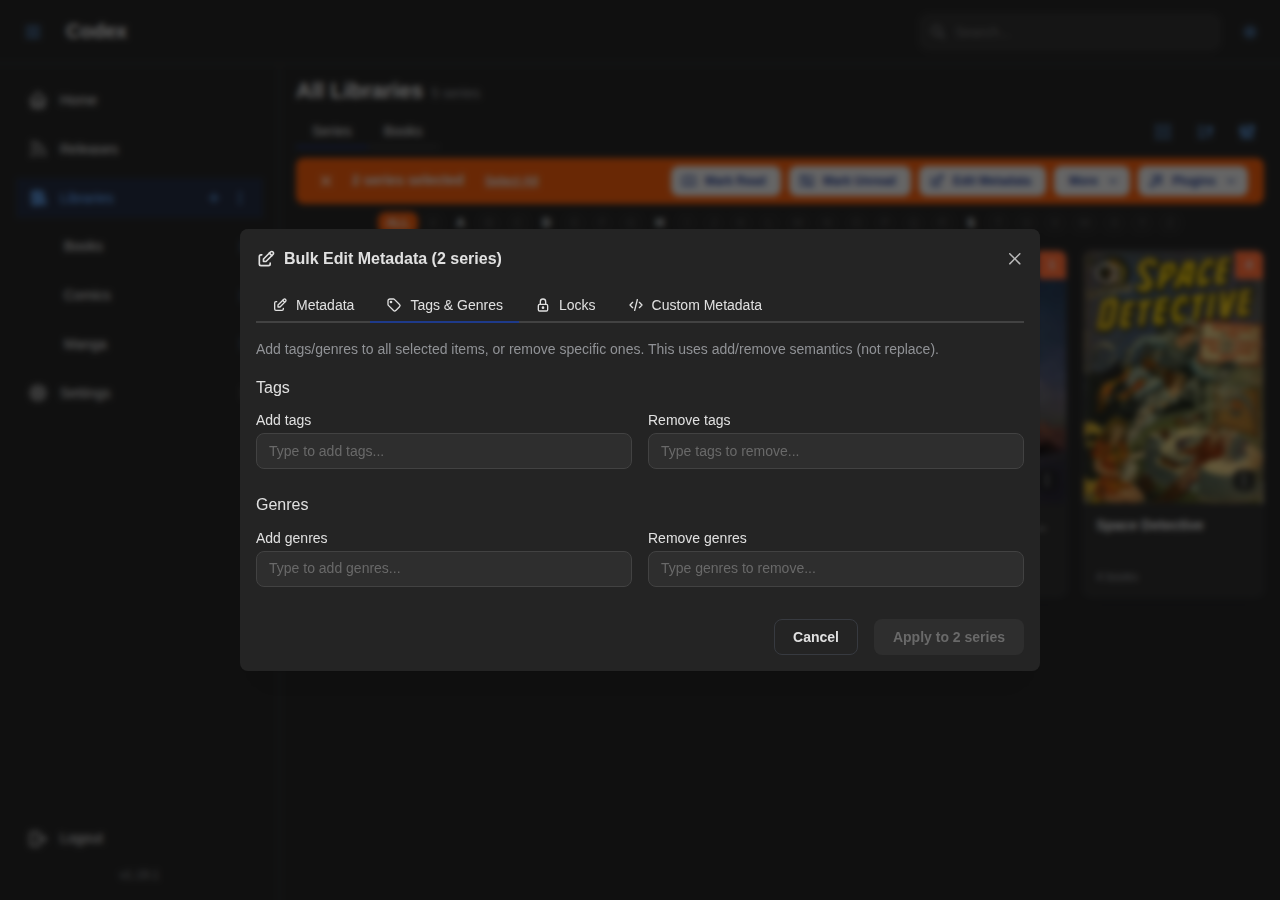
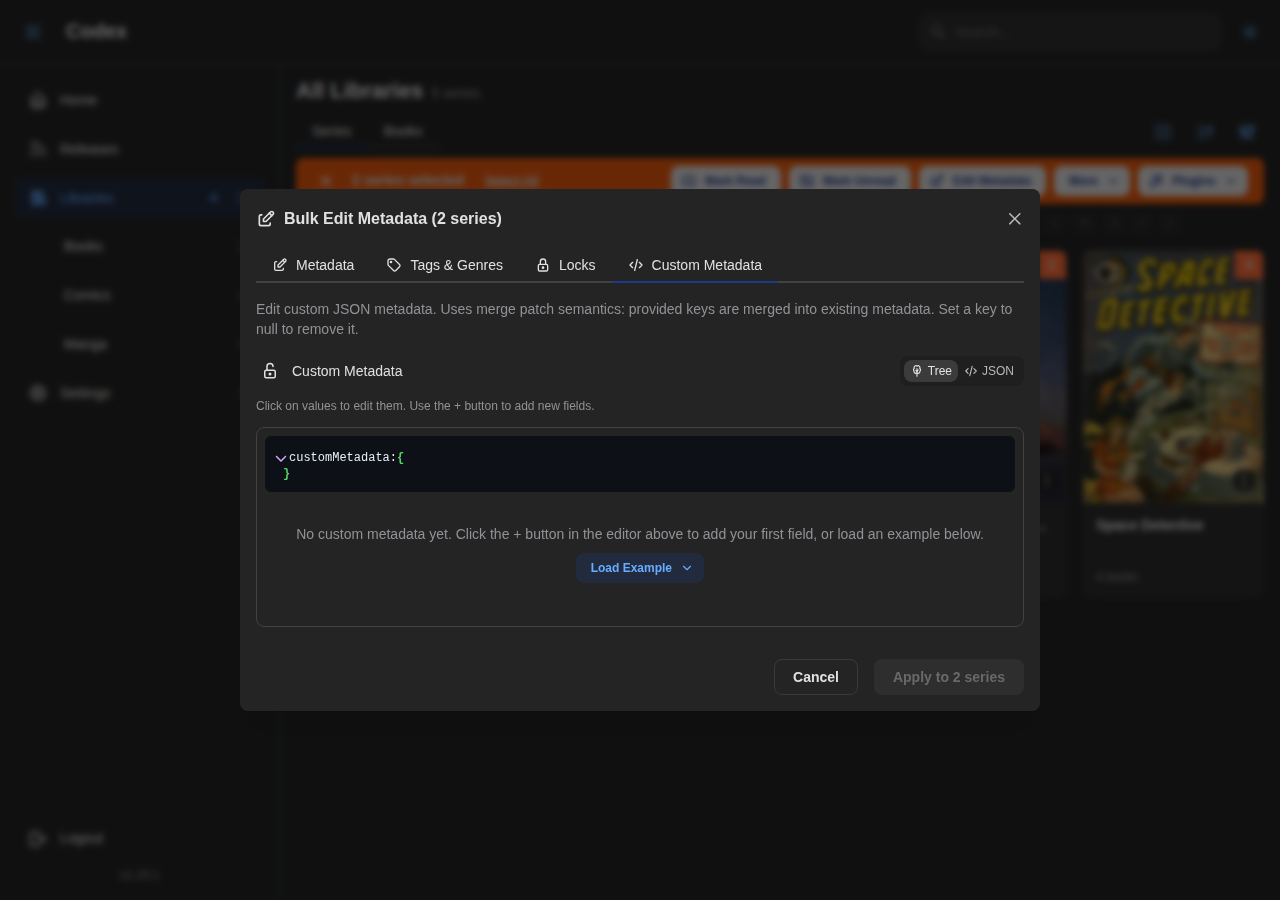
Bulk Metadata Edit
Patch fields across the entire selection. Tabs cover General, Tags, and Custom metadata.
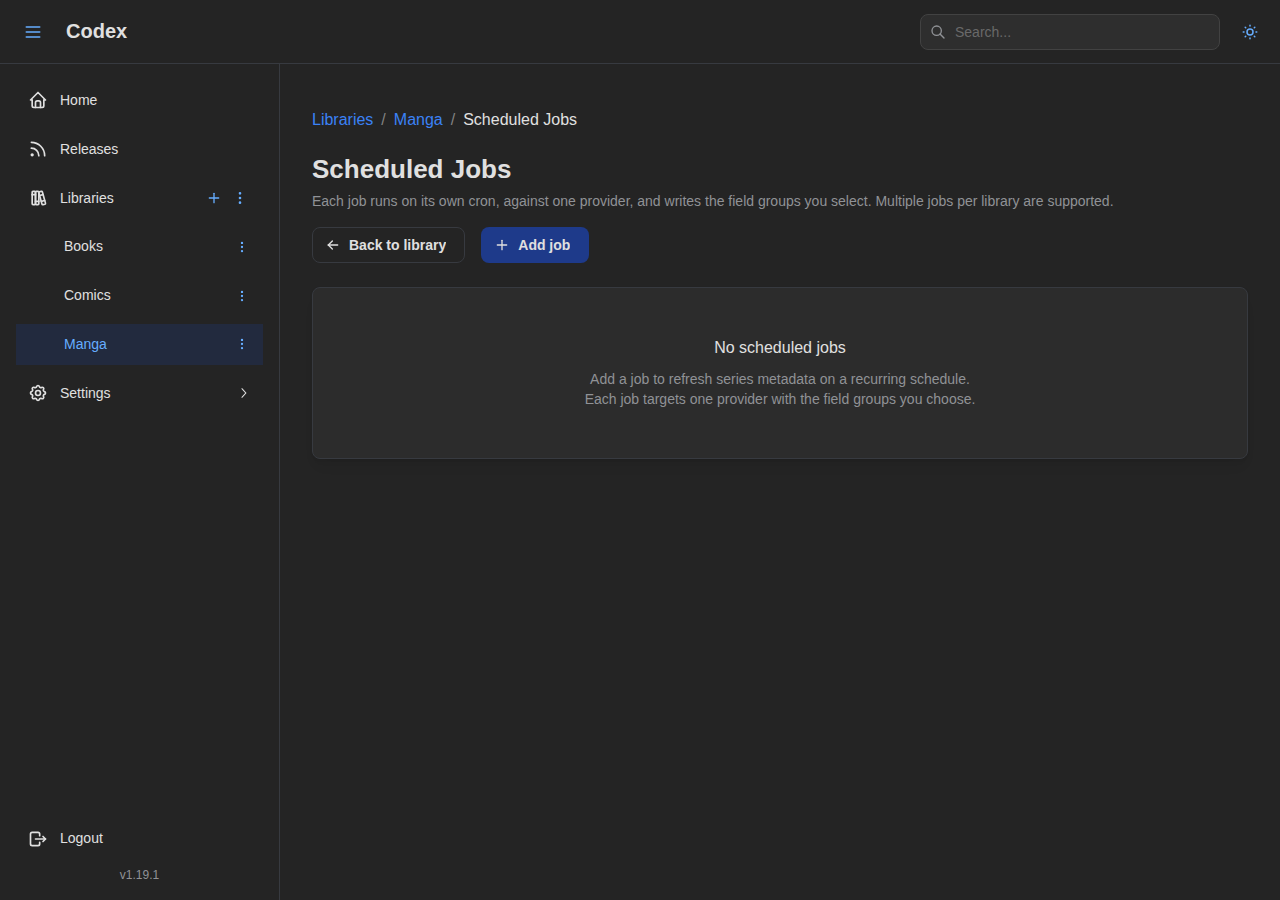
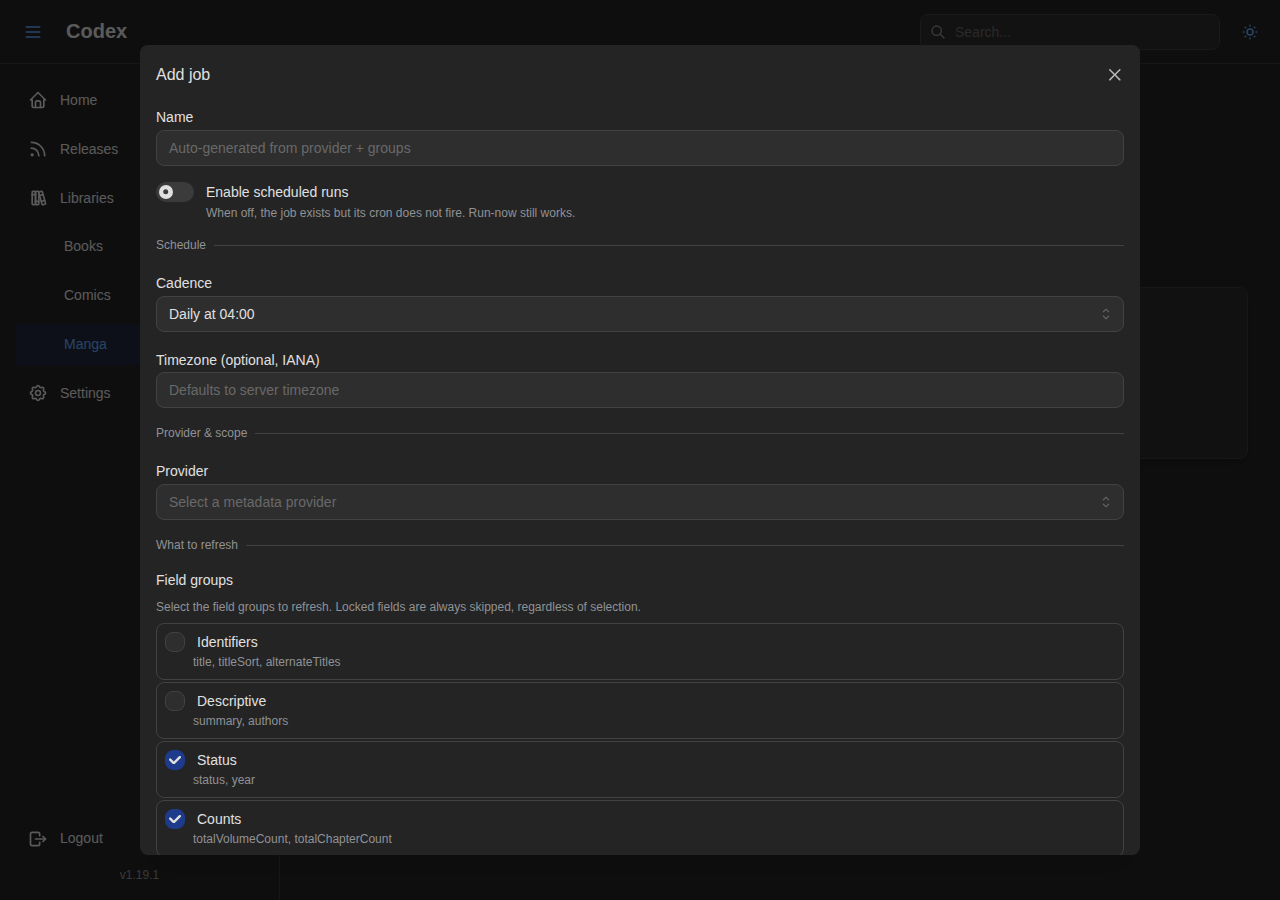
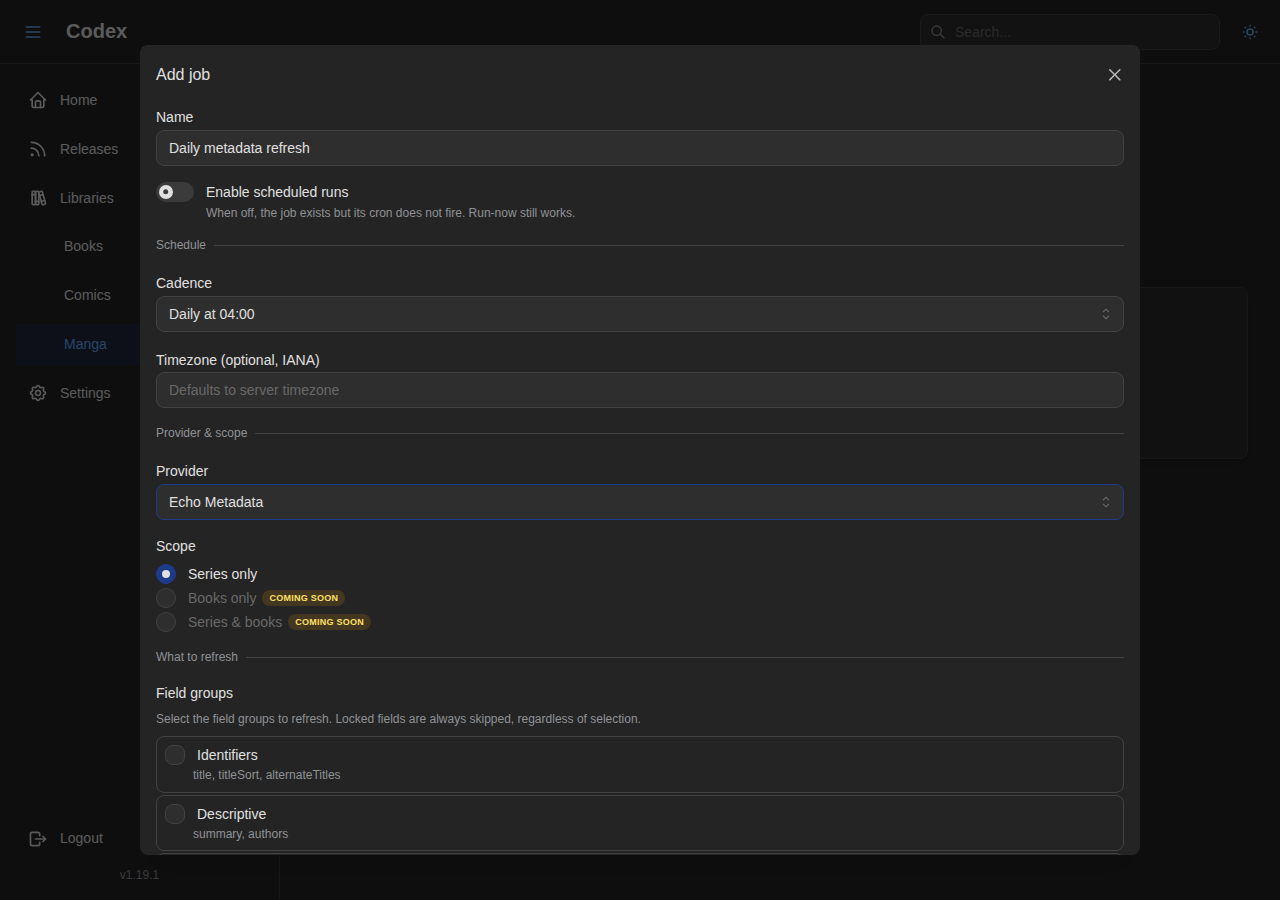
Scheduled Library Jobs
Each library can run periodic metadata refresh jobs against a provider plugin. See the Library Jobs guide.
Release Tracking
Codex polls external sources and surfaces new chapter / volume announcements in a dedicated inbox. See the Release Tracking guide.
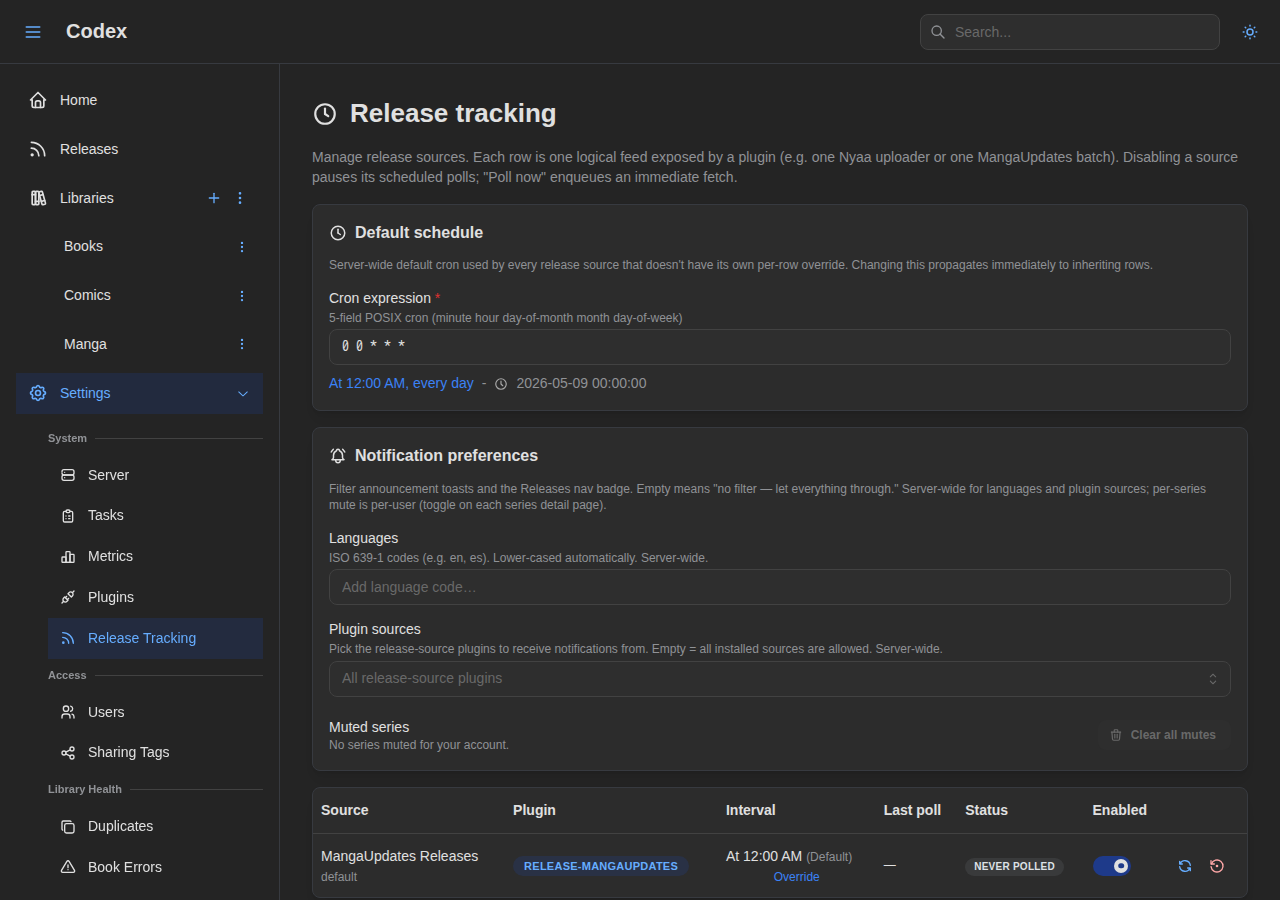
Settings Overview
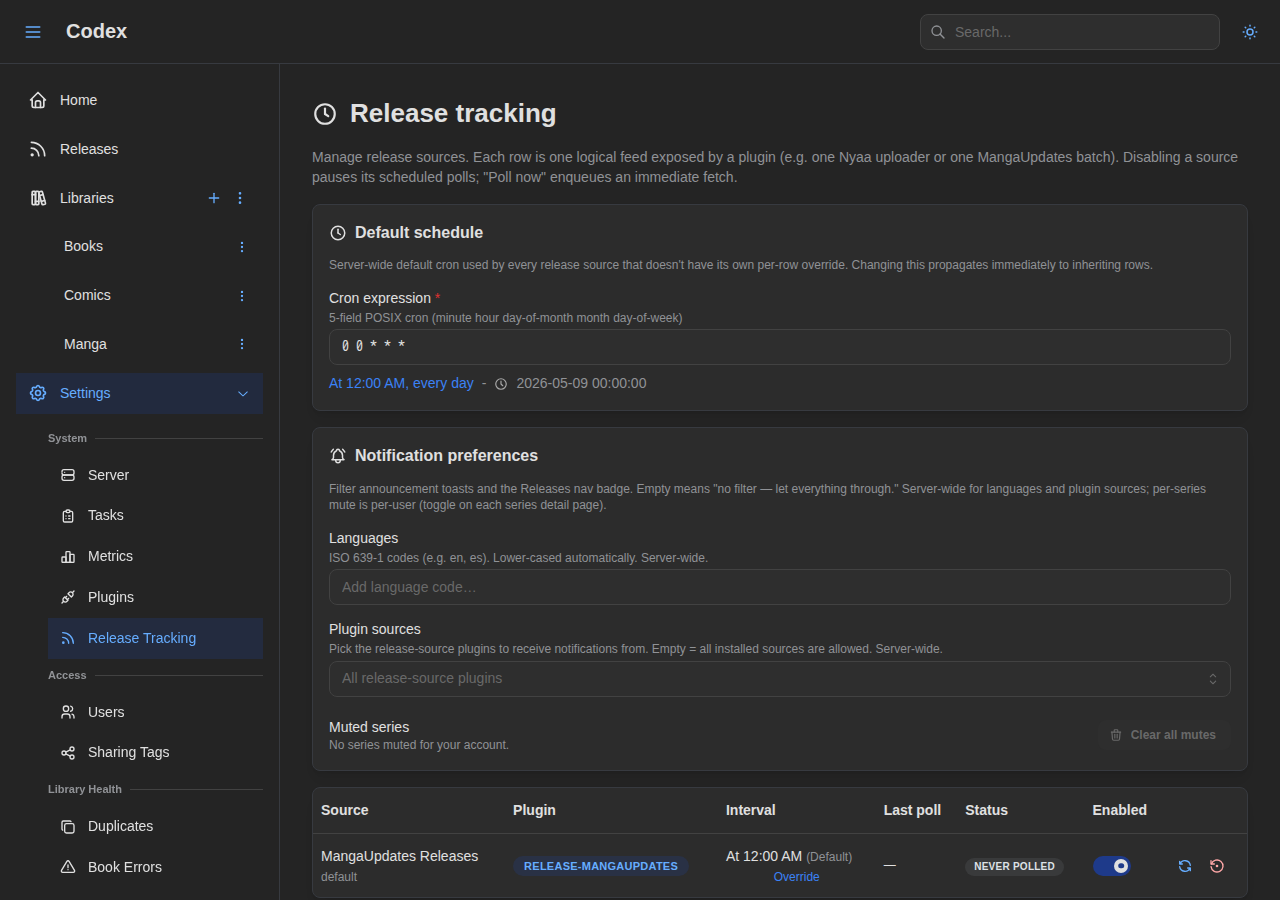
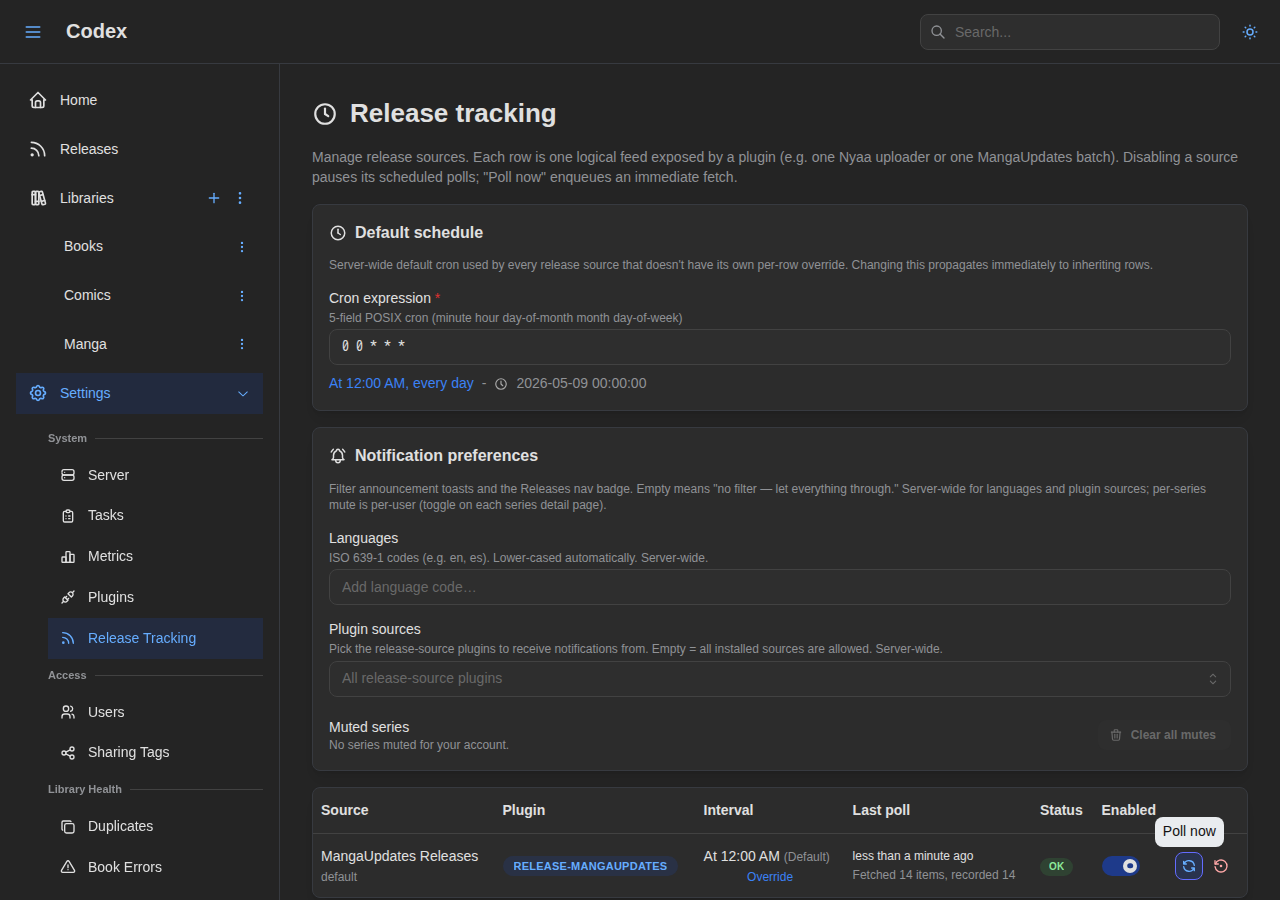
Polling a Source
Trigger an immediate poll on a source row in Settings → Release tracking.
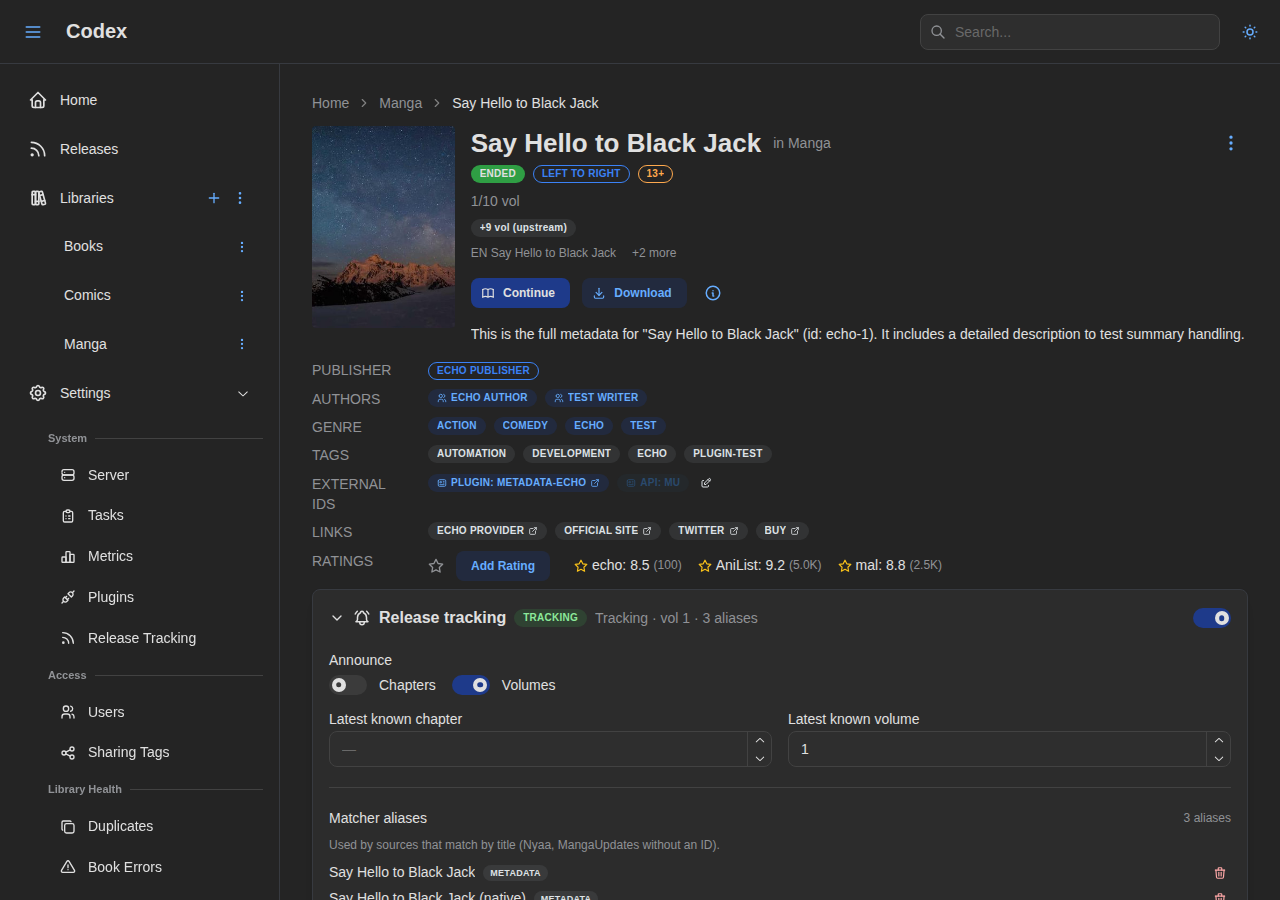
Series Tracking Toggle
Enable tracking on a series; add aliases or external IDs for matching.
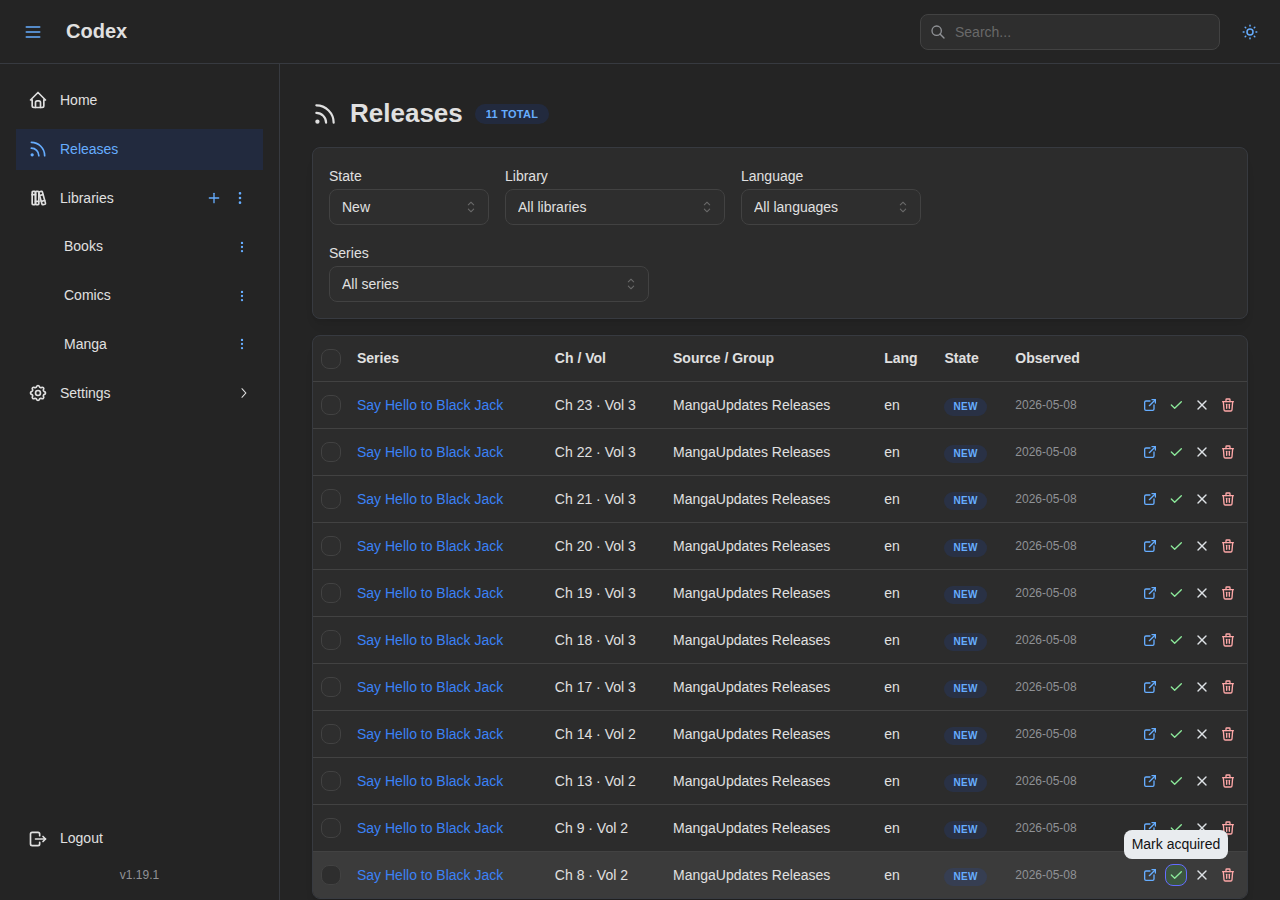
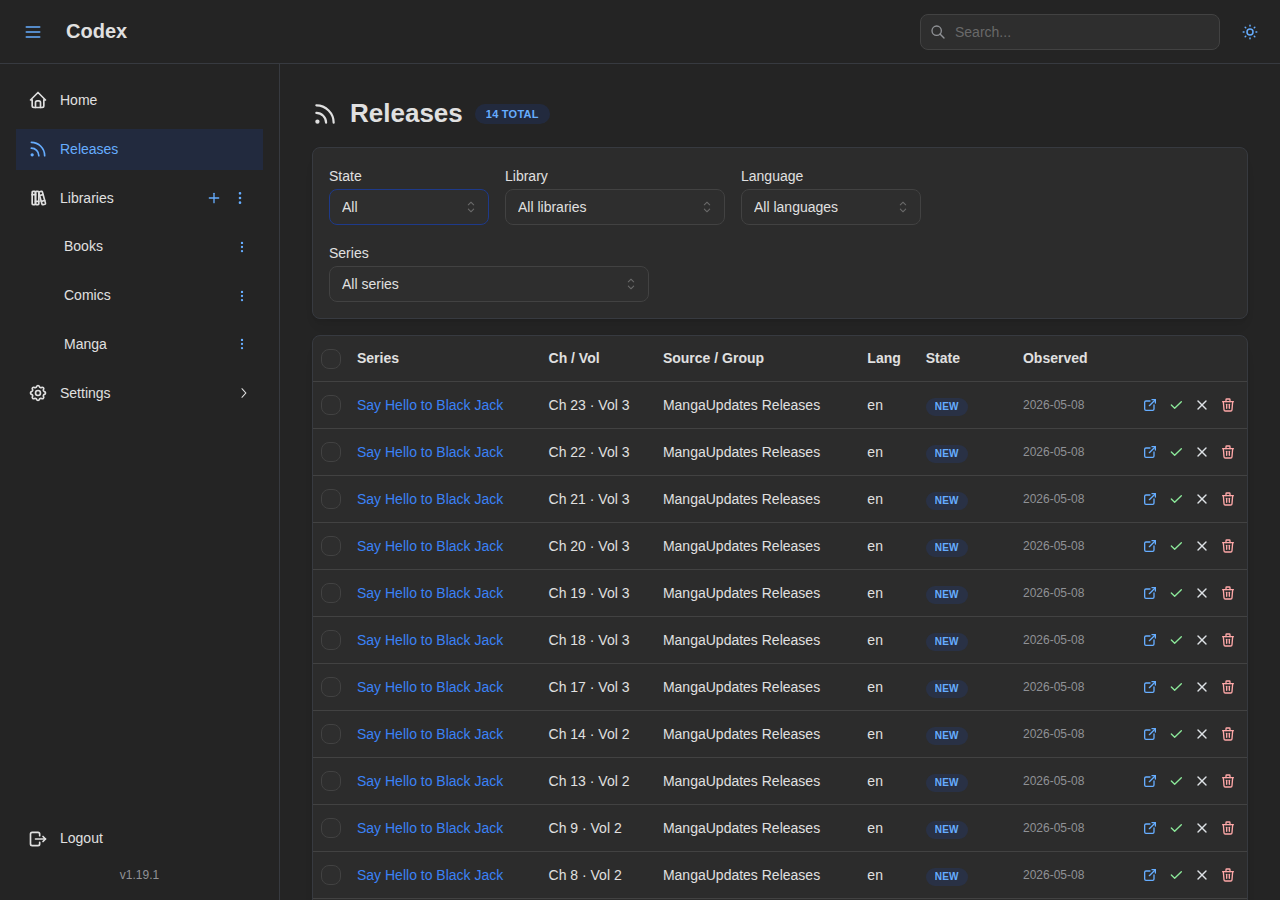
Releases Inbox
The inbox lists every accepted release. Default view shows new entries; the state filter switches to All / Acquired / Dismissed.
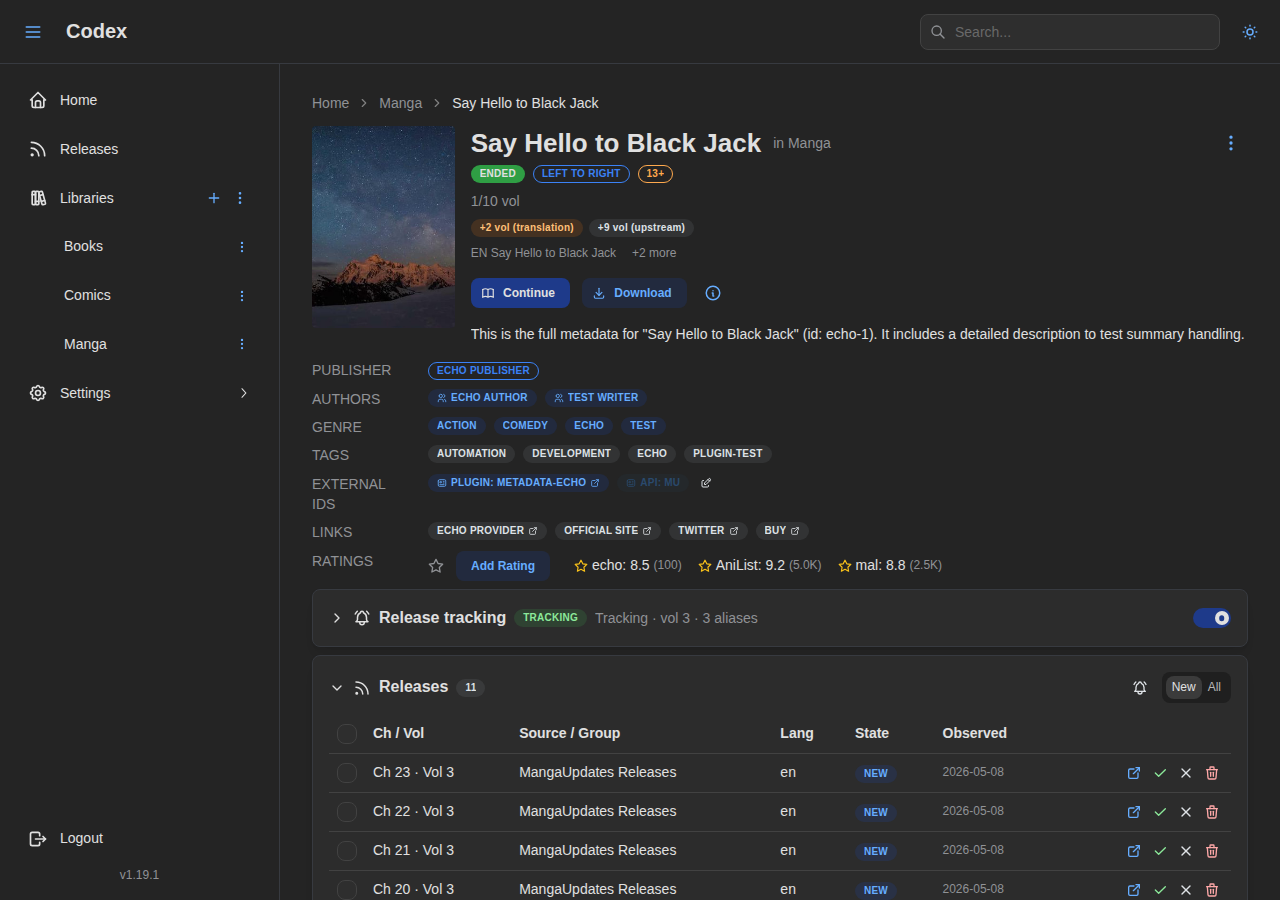
Series Releases Panel
Each tracked series exposes a per-series view of the same ledger.
Readers
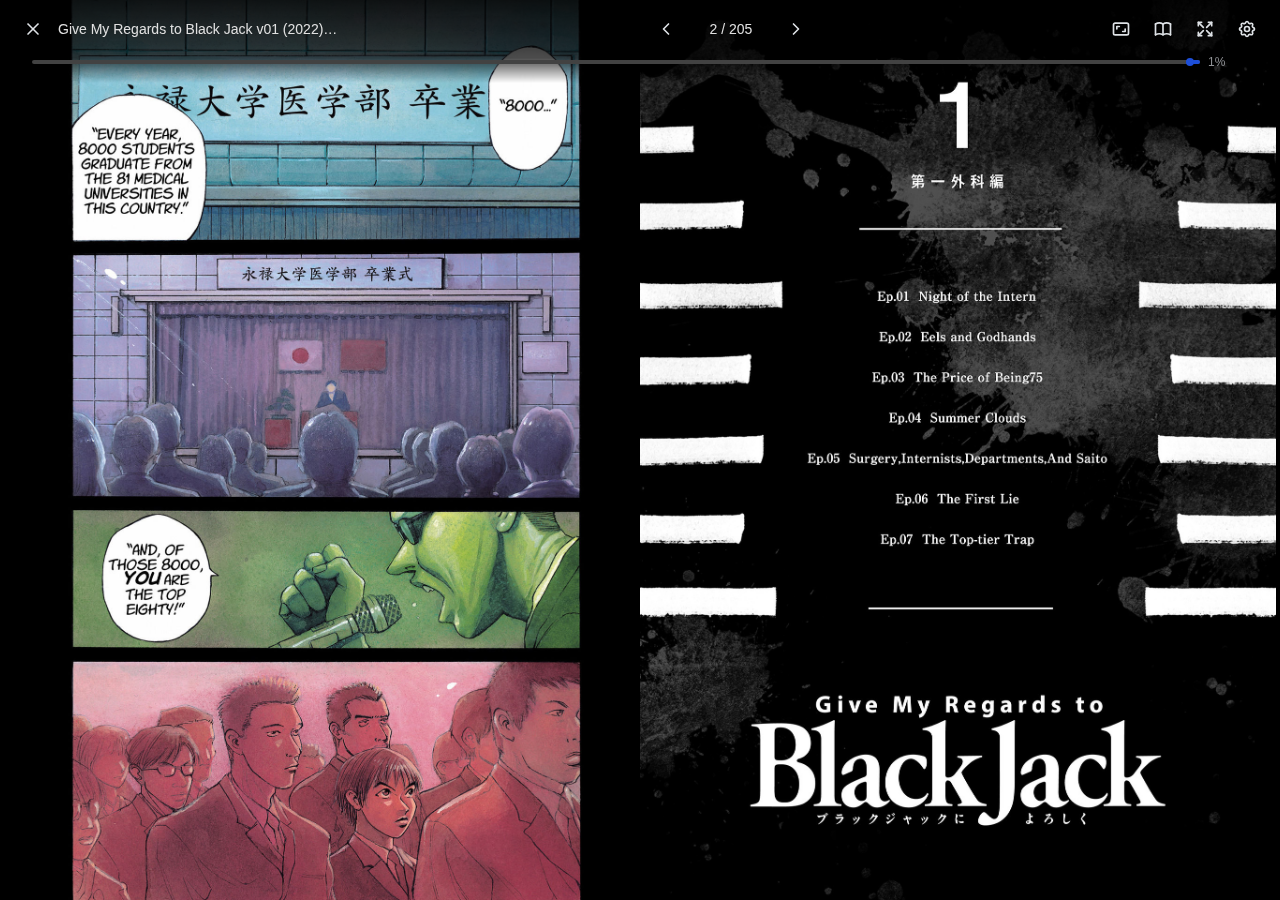
Comic Reader
A powerful comic reader with customizable display settings.

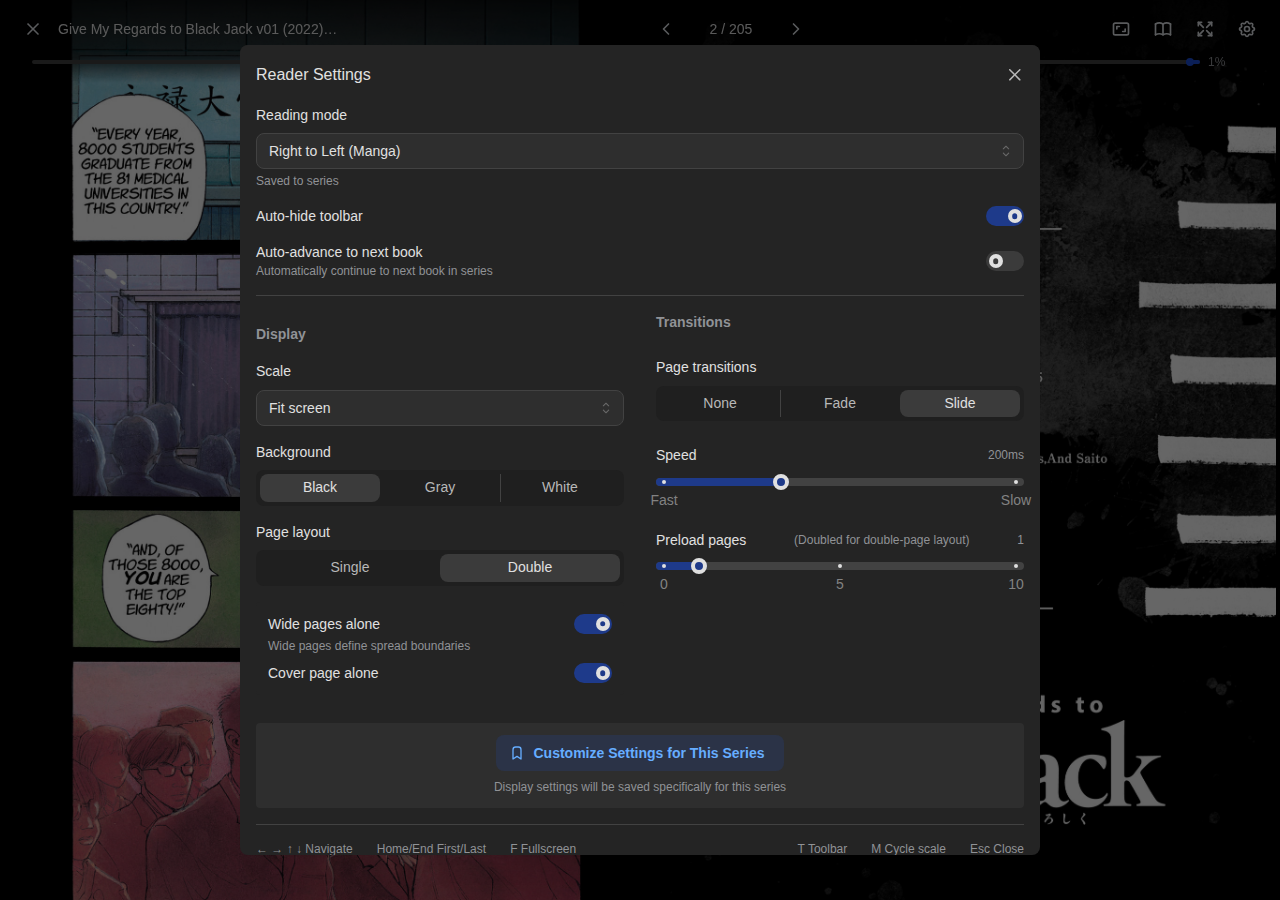
Comic Reader Settings
Customize reading mode, scale, background, and page layout.
EPUB Reader
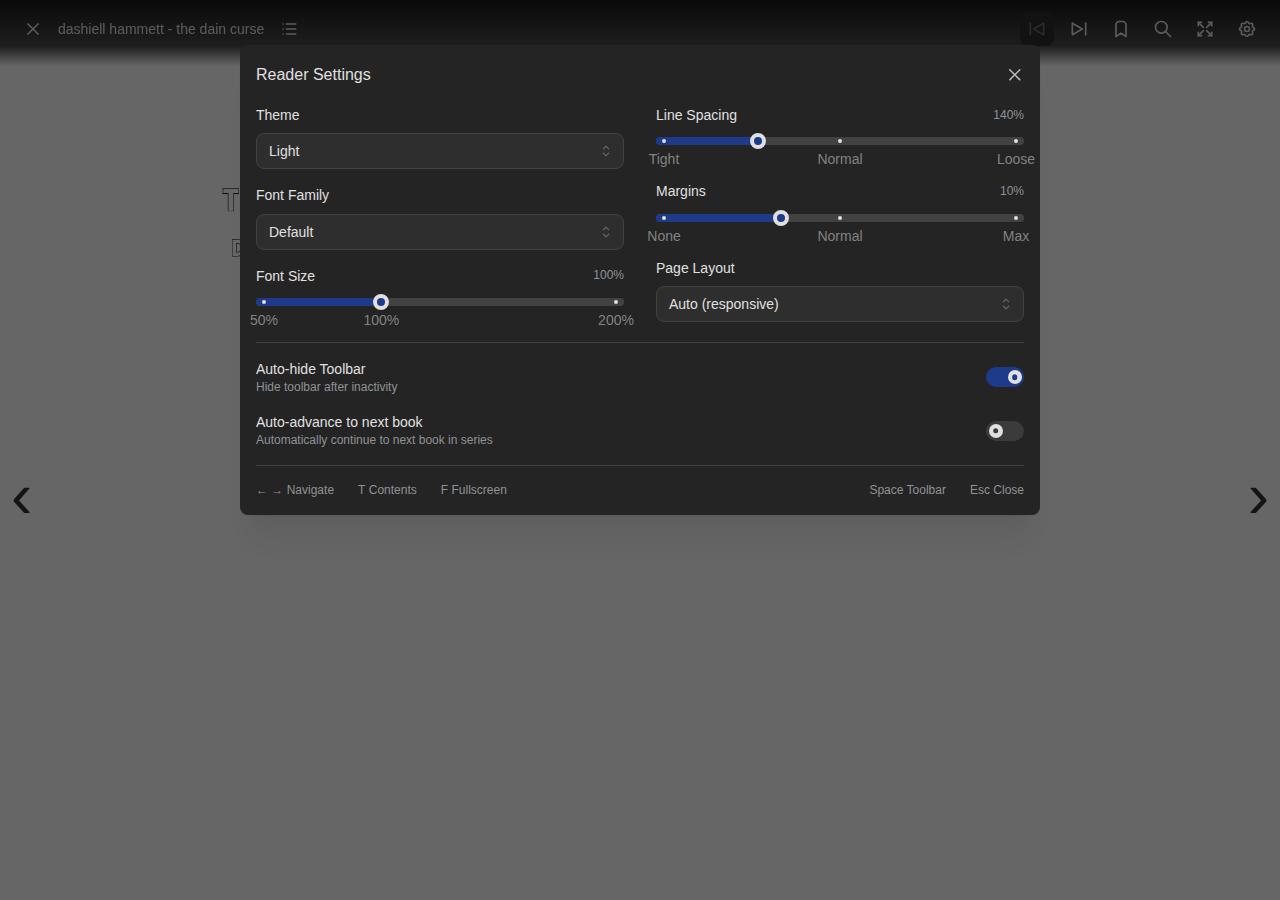
A beautiful EPUB reader with extensive typography controls and themes.

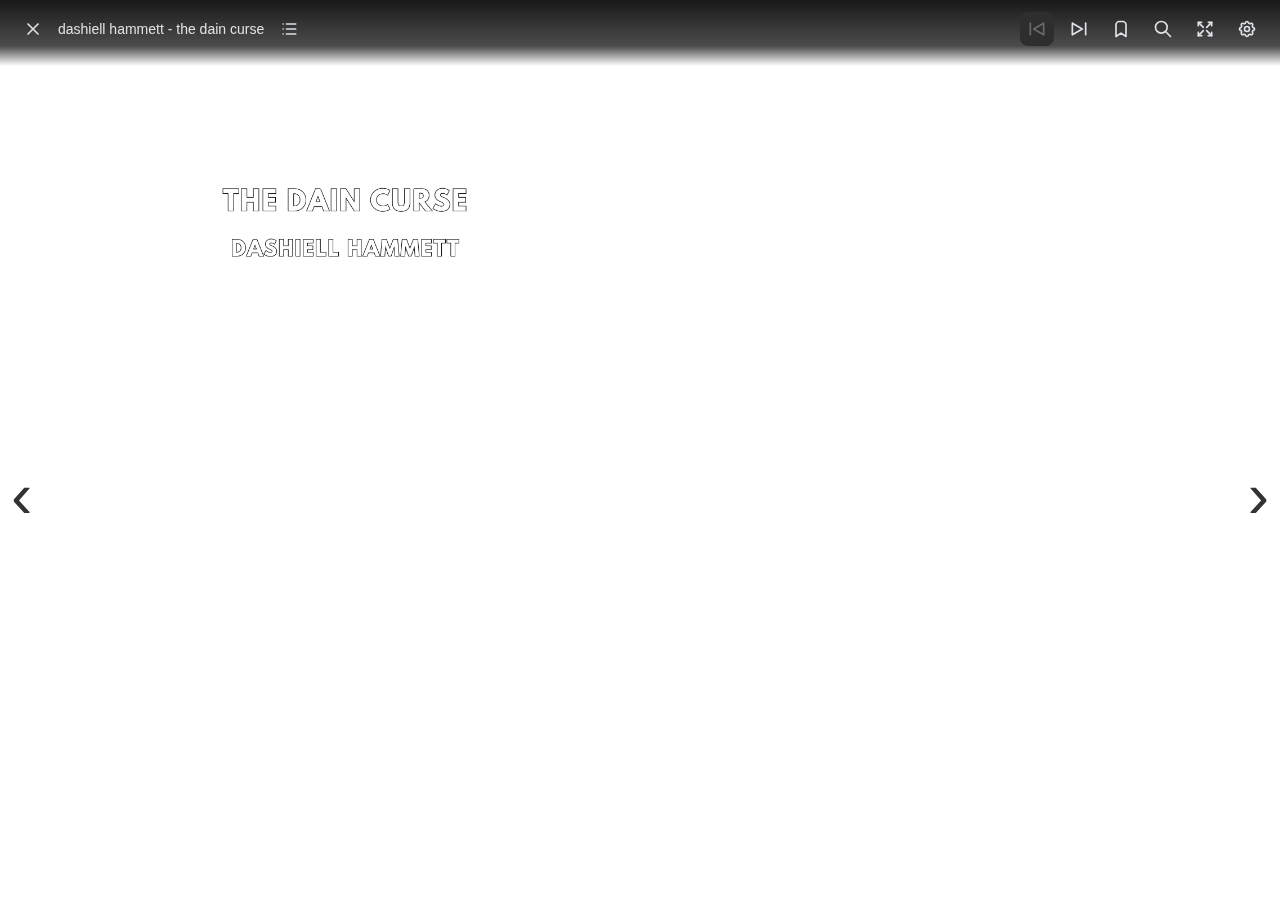
EPUB Settings
Configure fonts, themes, margins, and more.
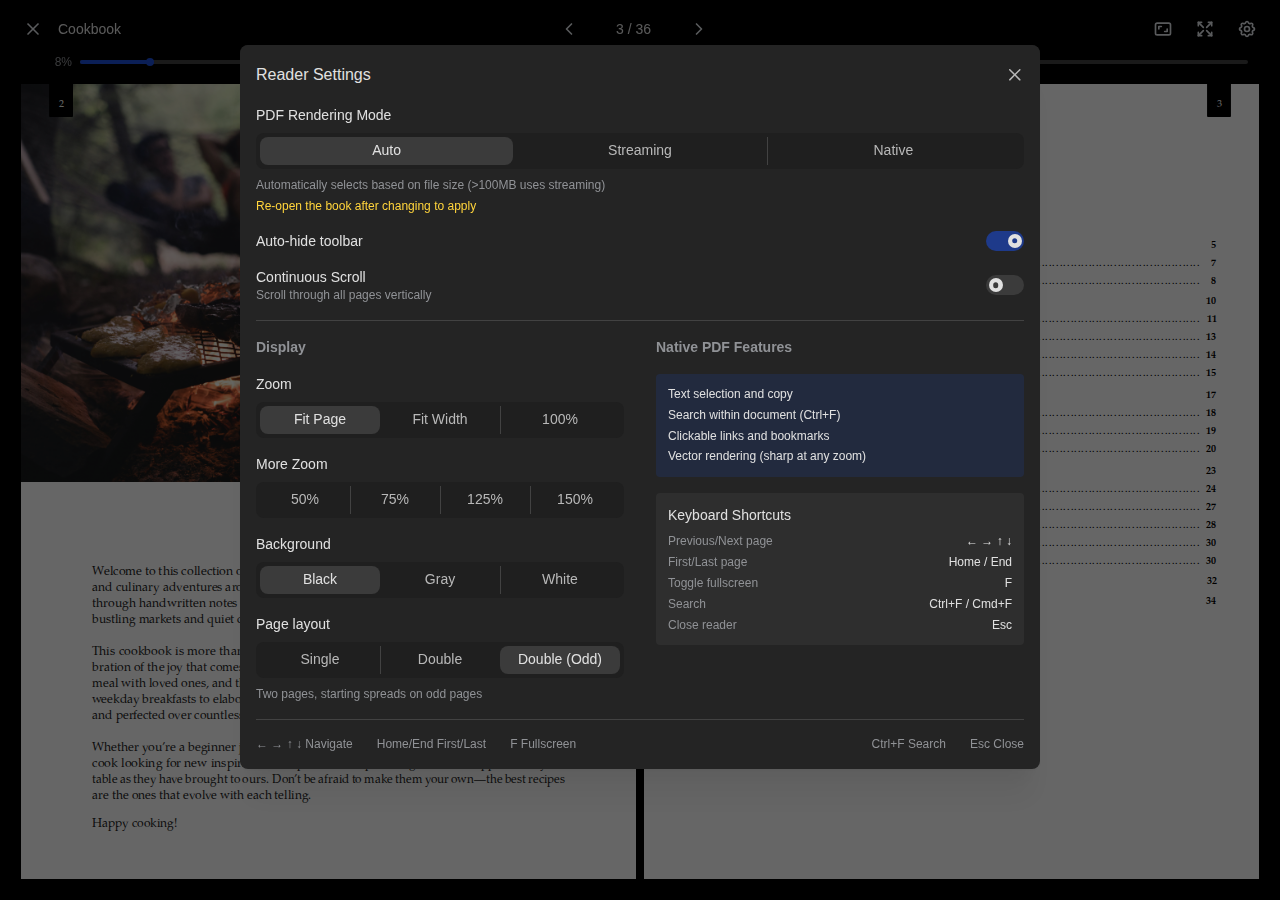
PDF Reader
A native PDF reader with zoom controls and page spread options.


PDF Settings
Configure zoom levels and page spread modes.
Settings & Administration
System
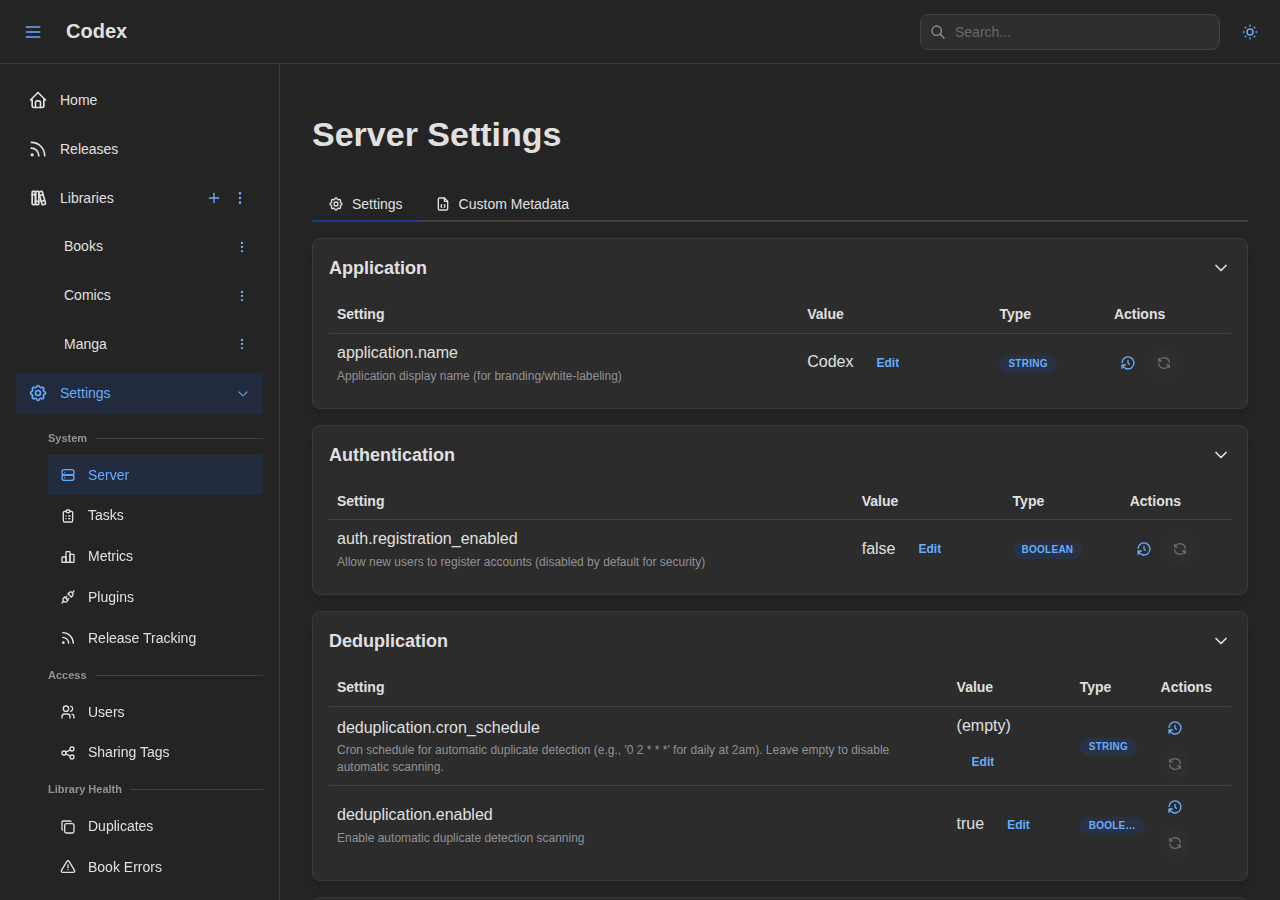
Server
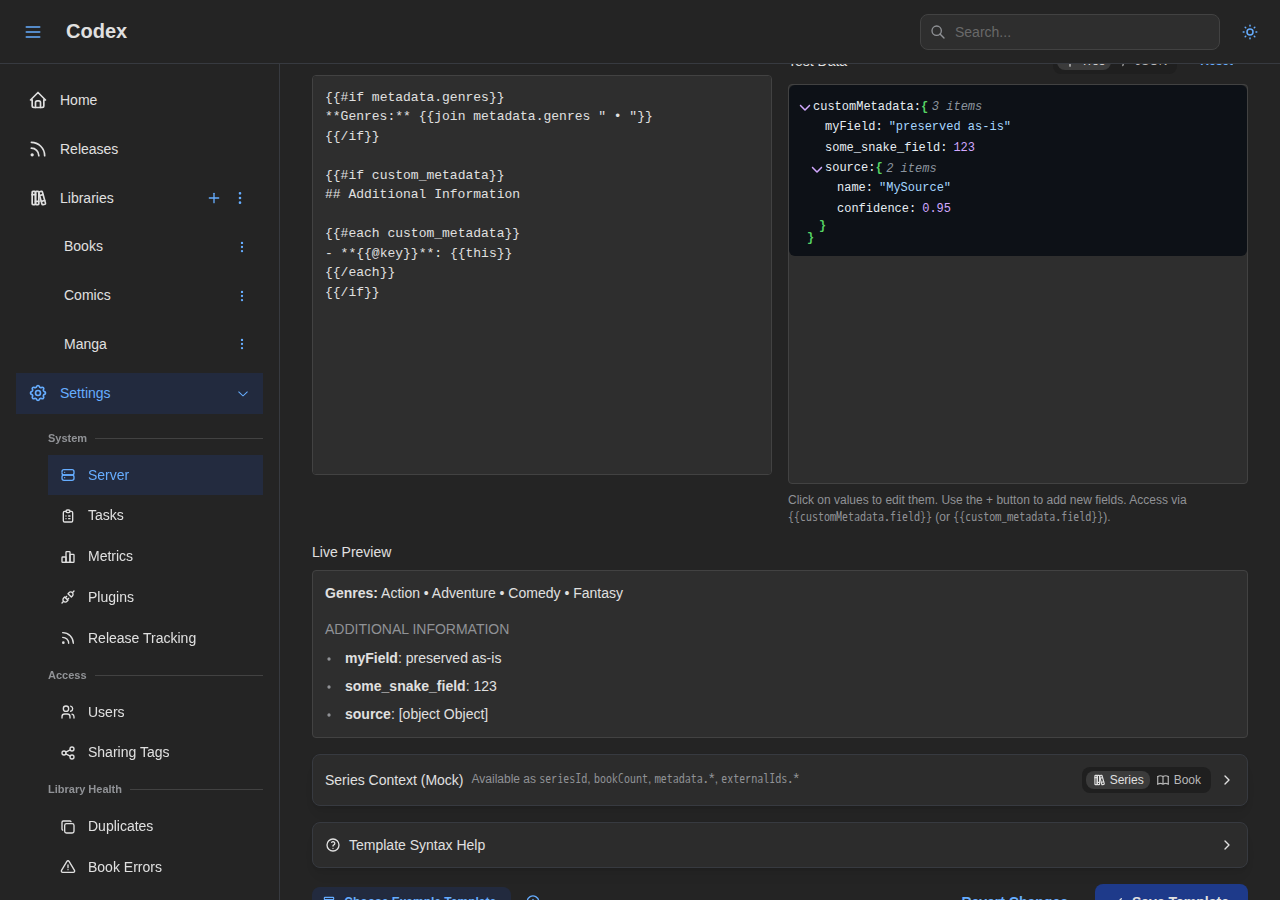
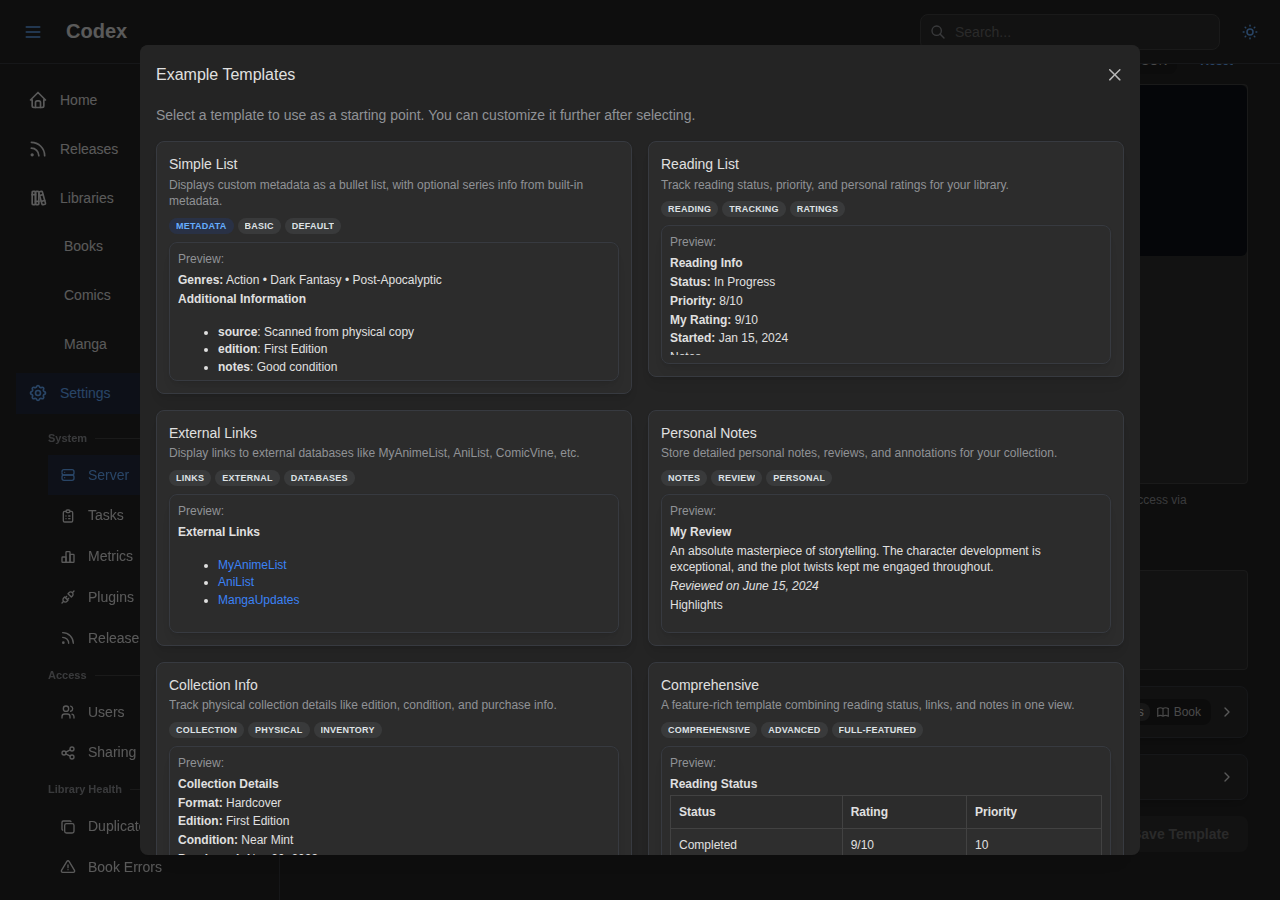
Configure server-wide options and custom metadata templates.
Tasks
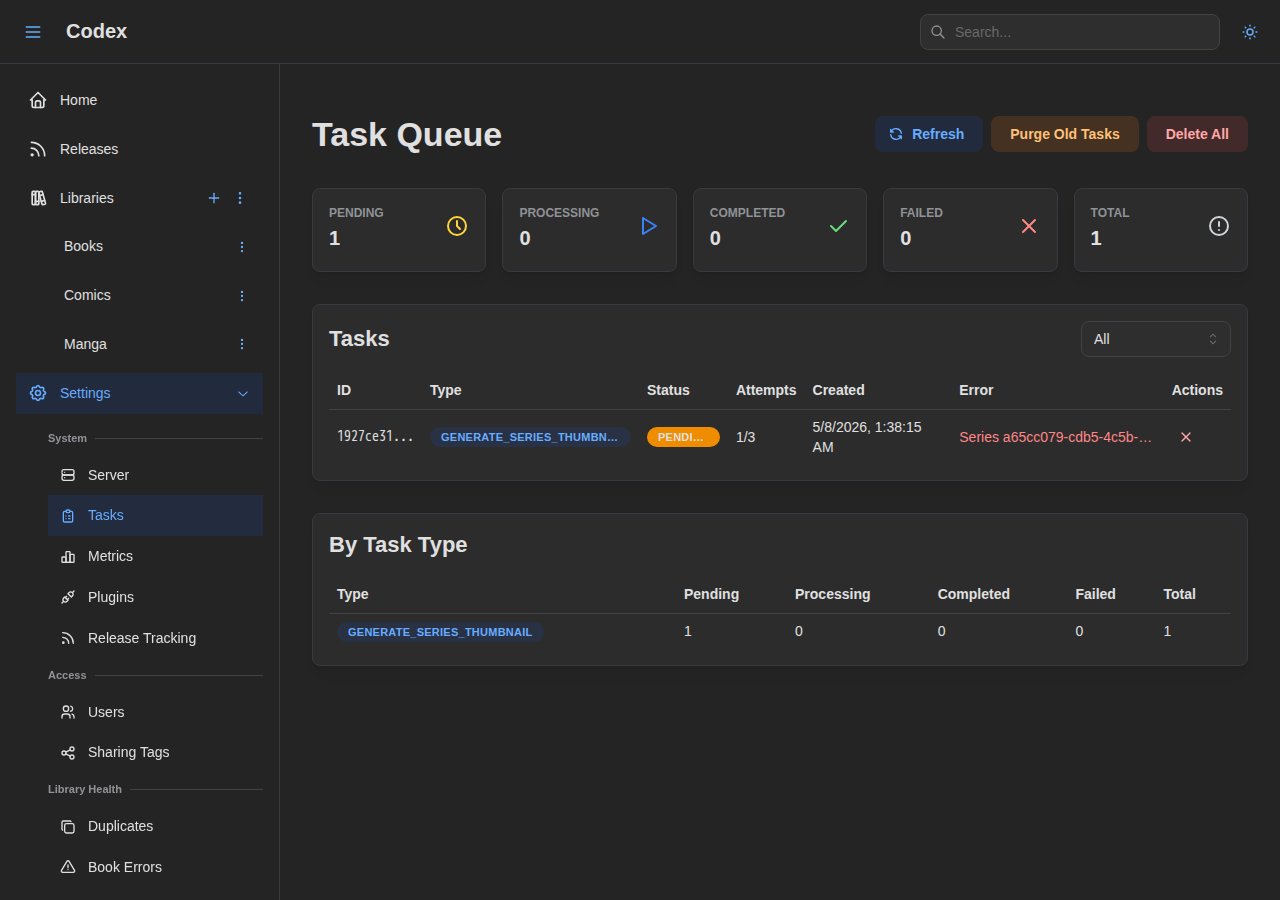
Monitor and manage background tasks like scanning and thumbnail generation.
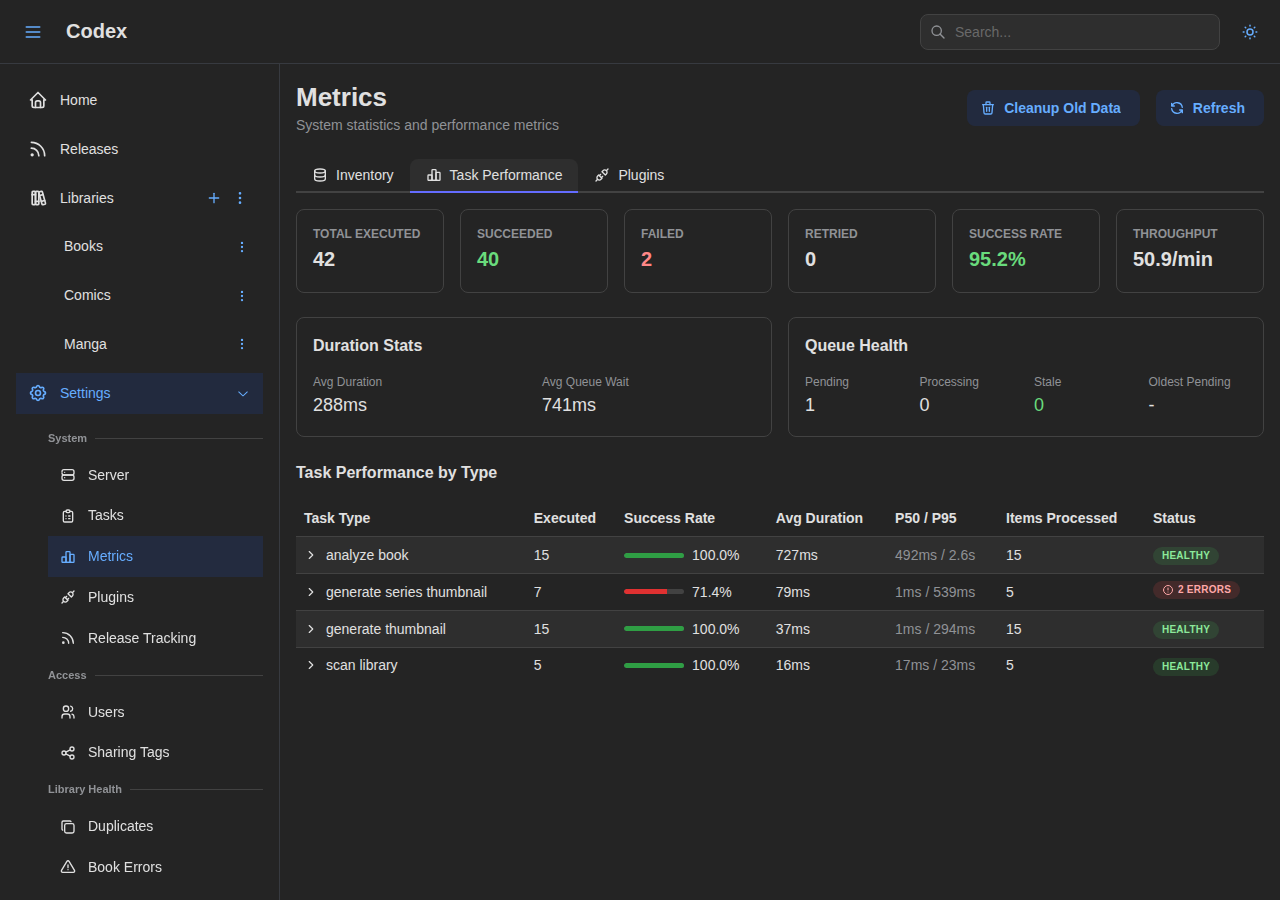
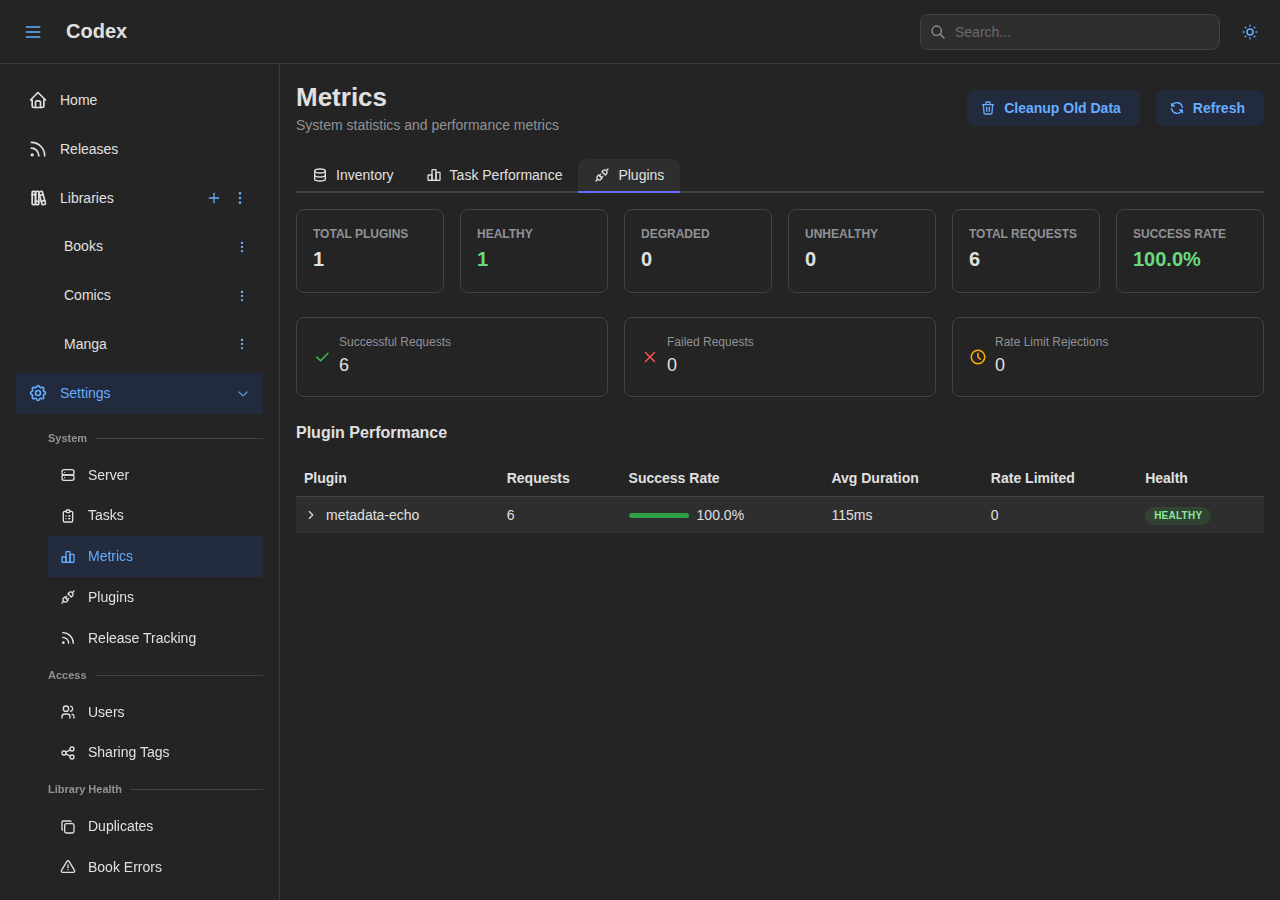
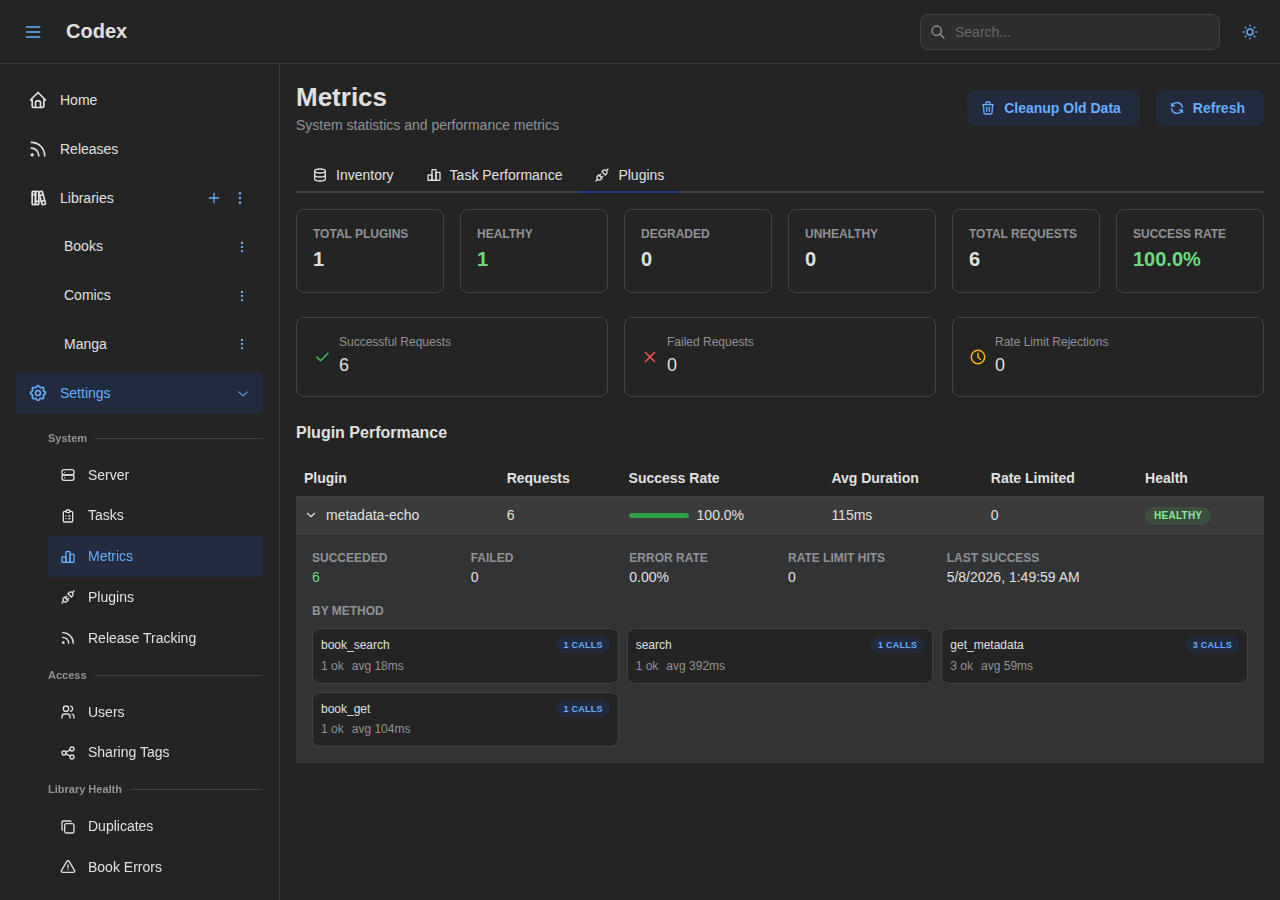
Metrics
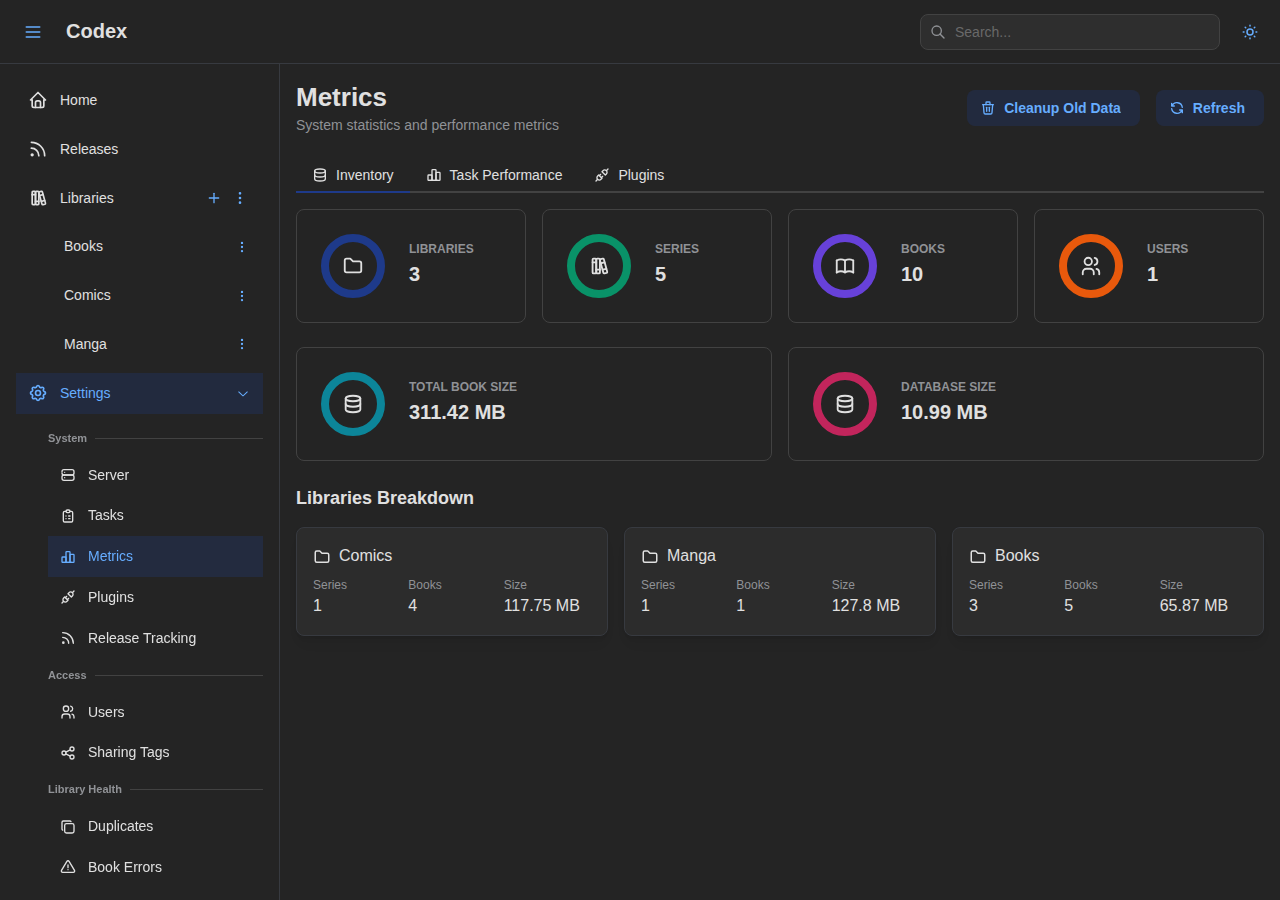
View statistics about your library contents and monitor performance.
Plugins
See the Plugins section below for the full plugin showcase.
Access
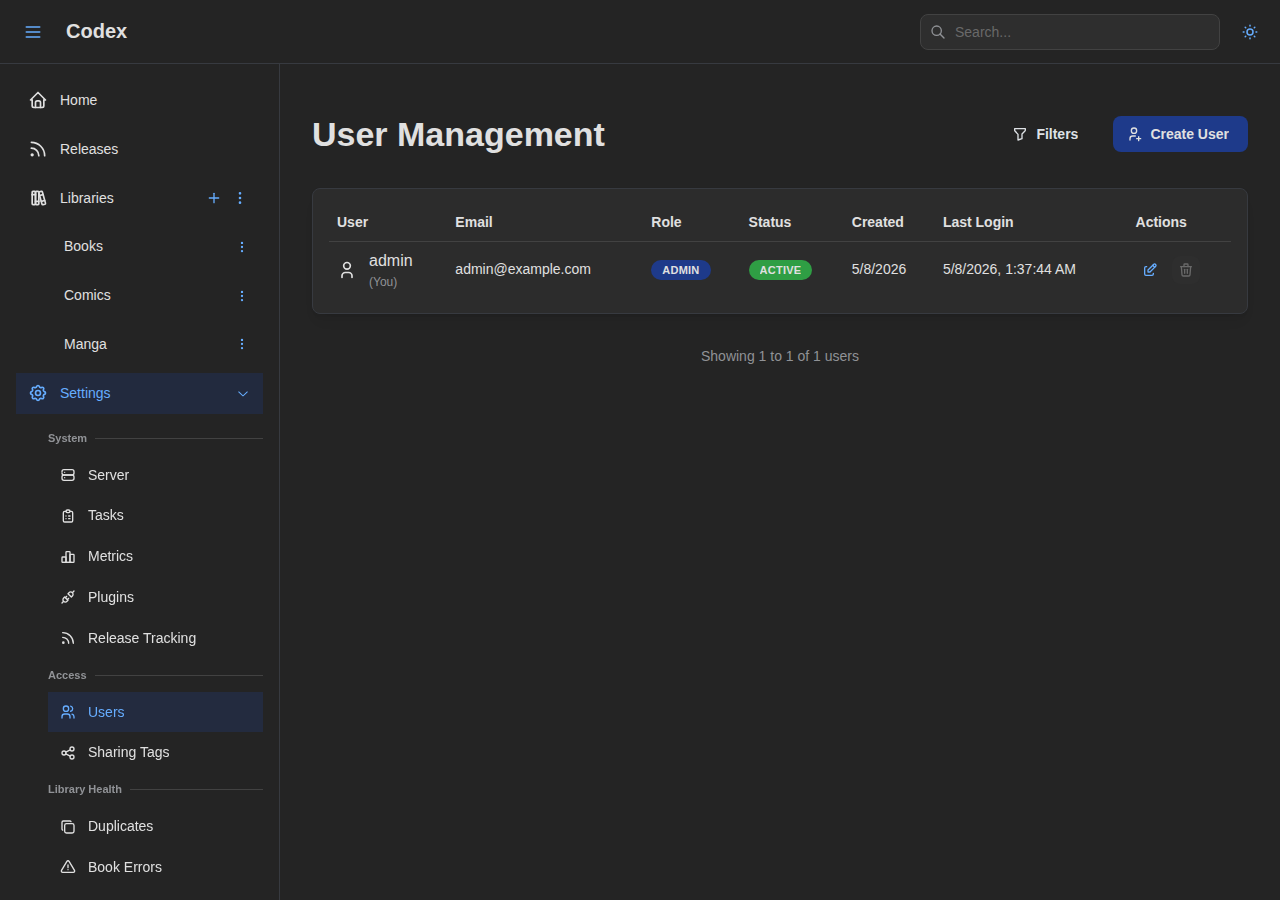
Users
Manage users and their permissions.
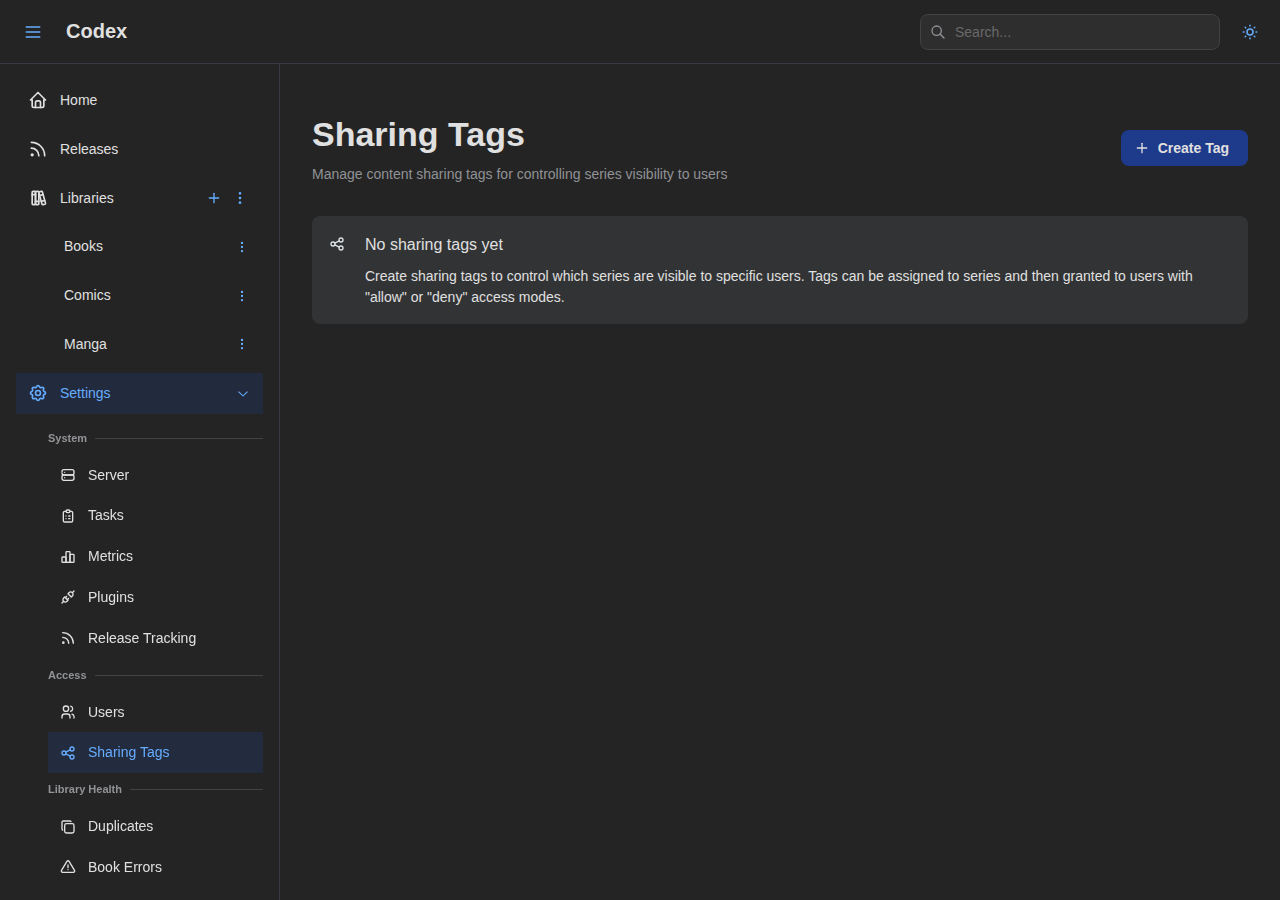
Sharing Tags
Configure sharing tags for library access control.
Library Health
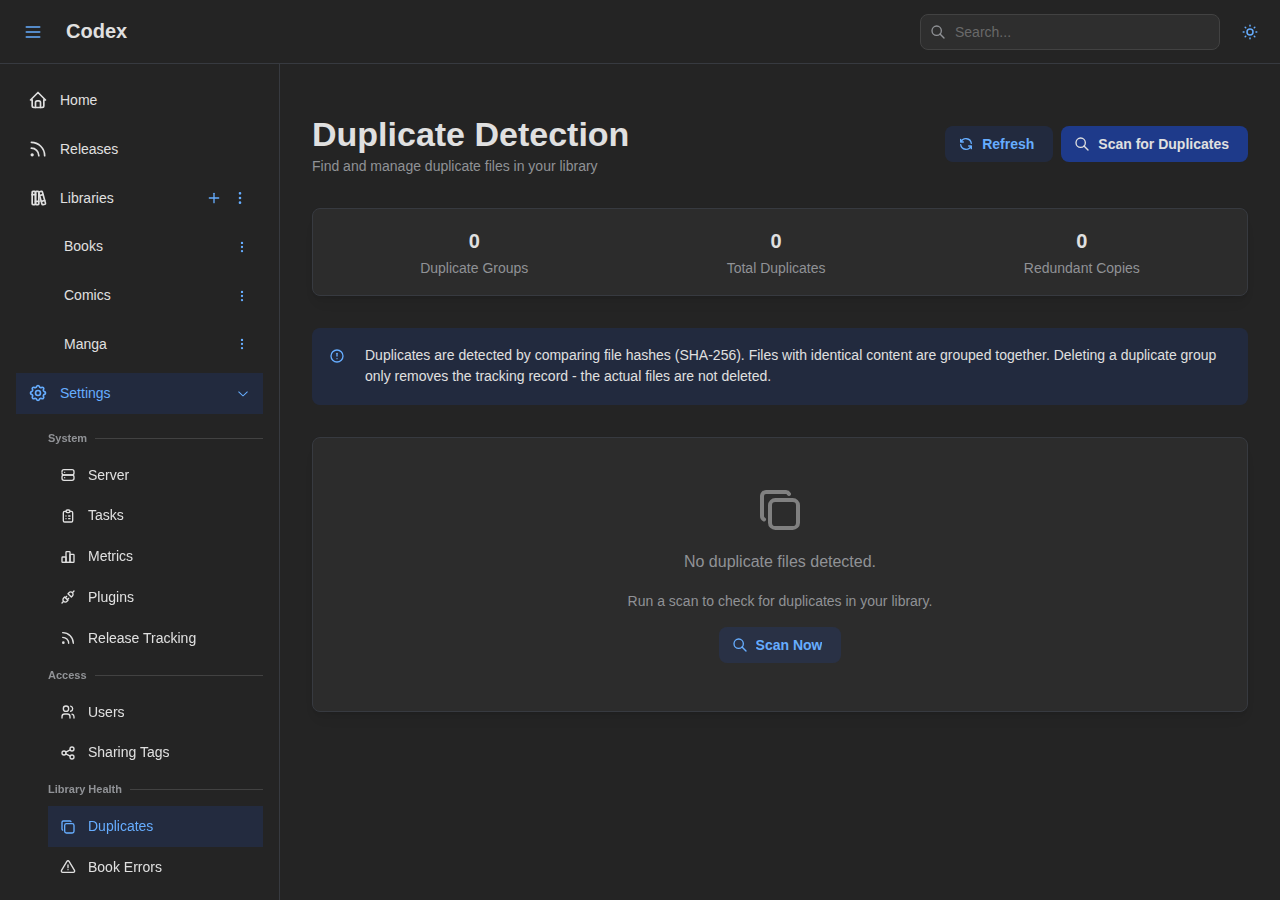
Duplicates
Find and manage duplicate files across your libraries.
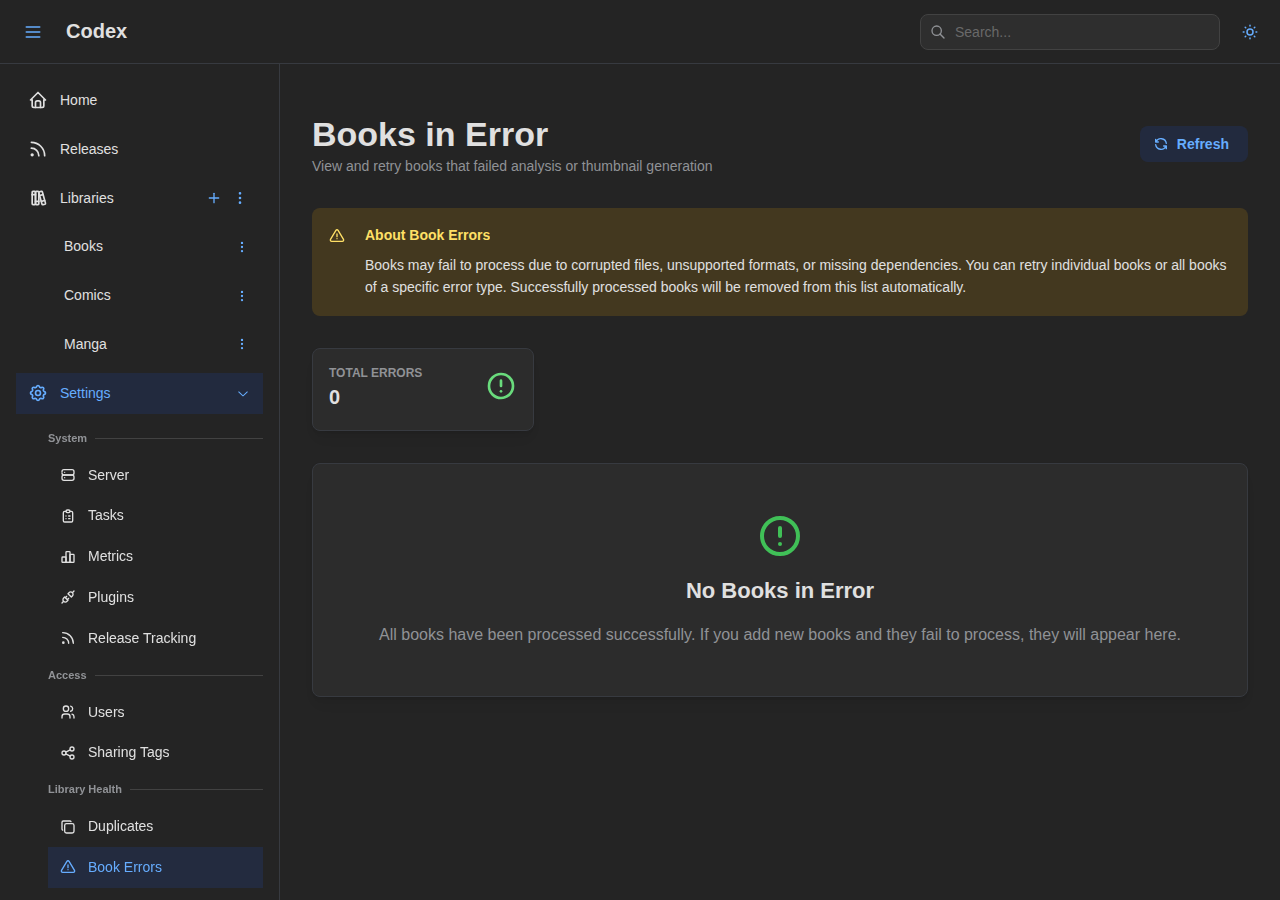
Book Errors
View and manage books with parsing or processing errors.
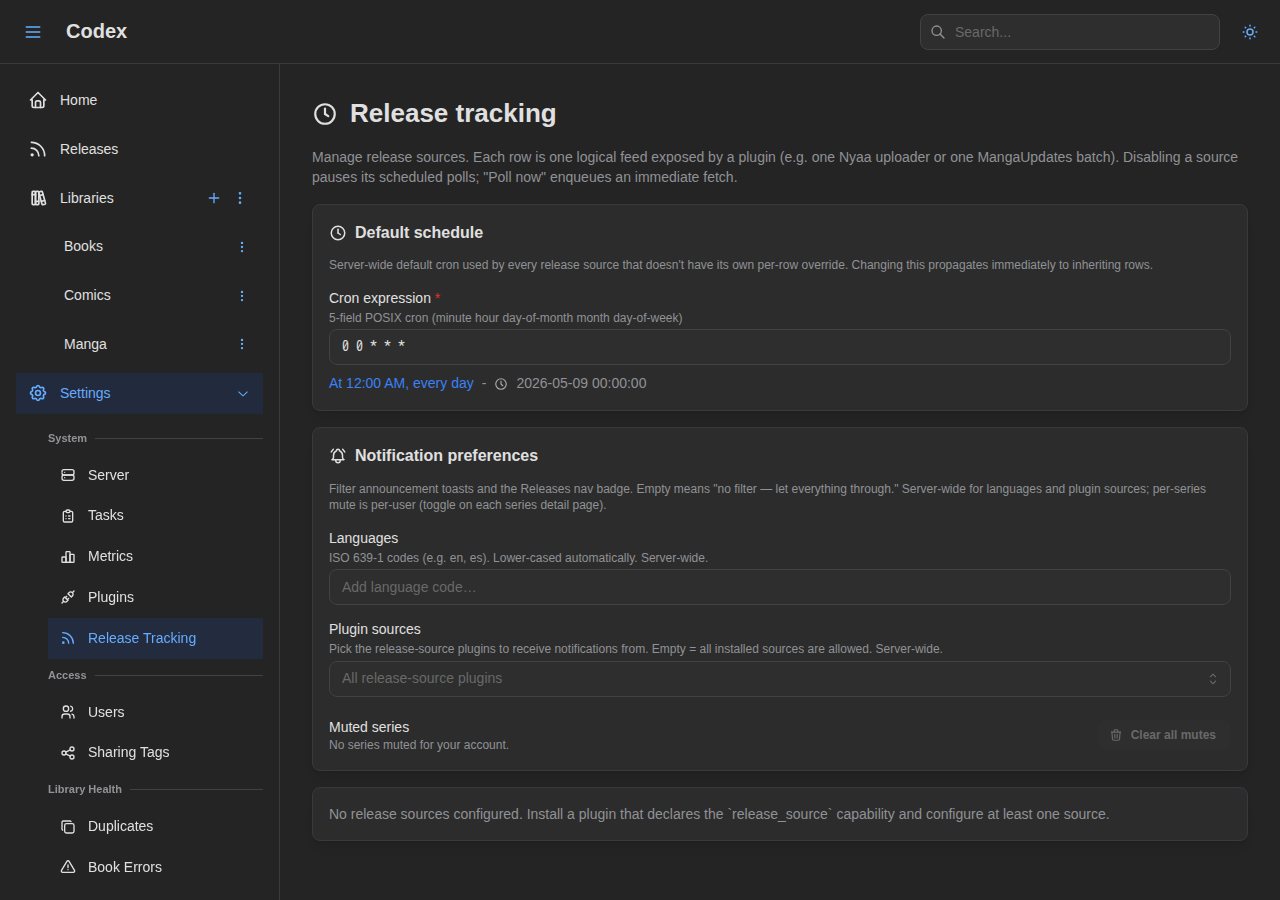
Release Tracking
Configure external sources that announce new chapter and volume releases for tracked series. See the Release tracking guide for the full walkthrough.
Storage
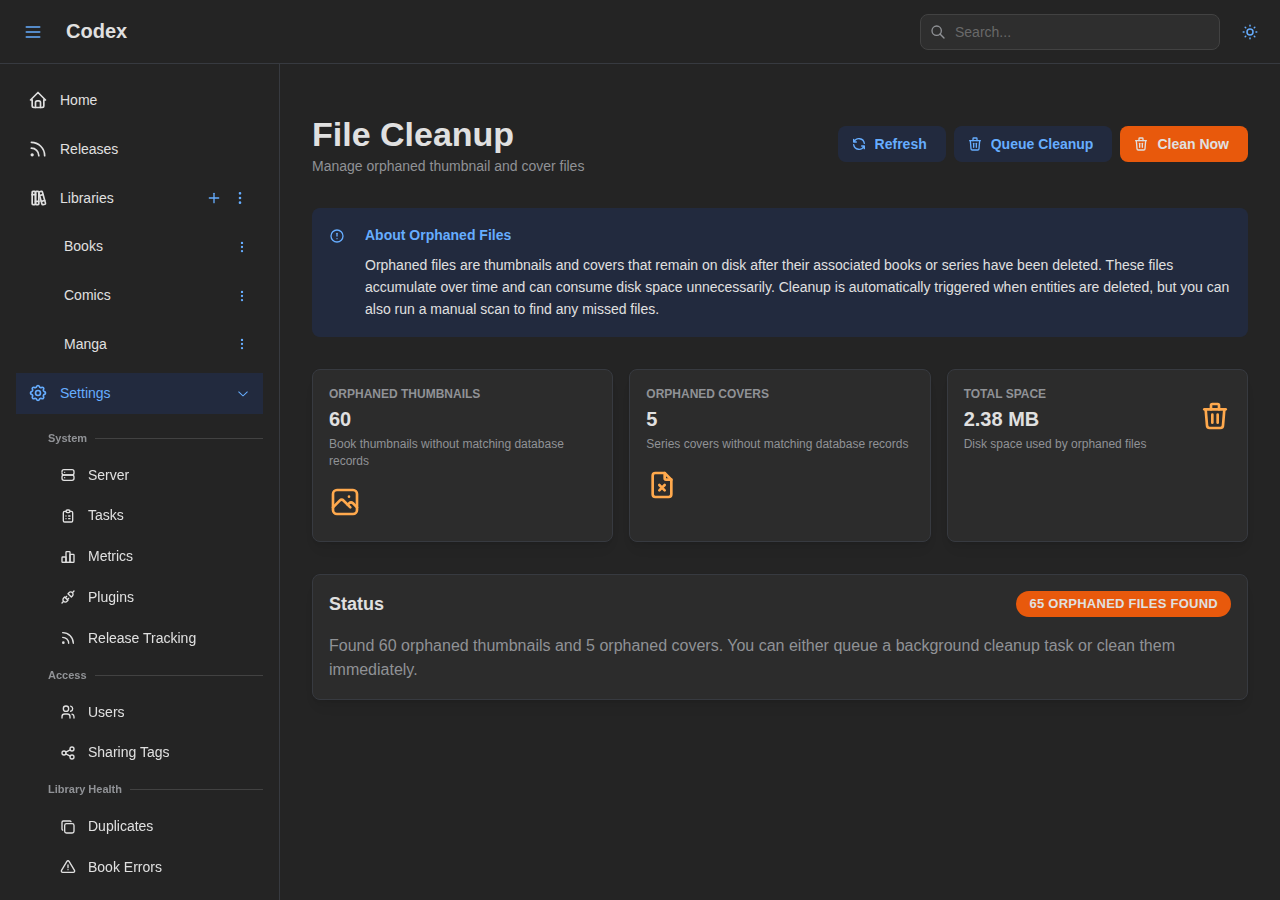
Thumbnails
Clean up orphaned thumbnail files and database entries.
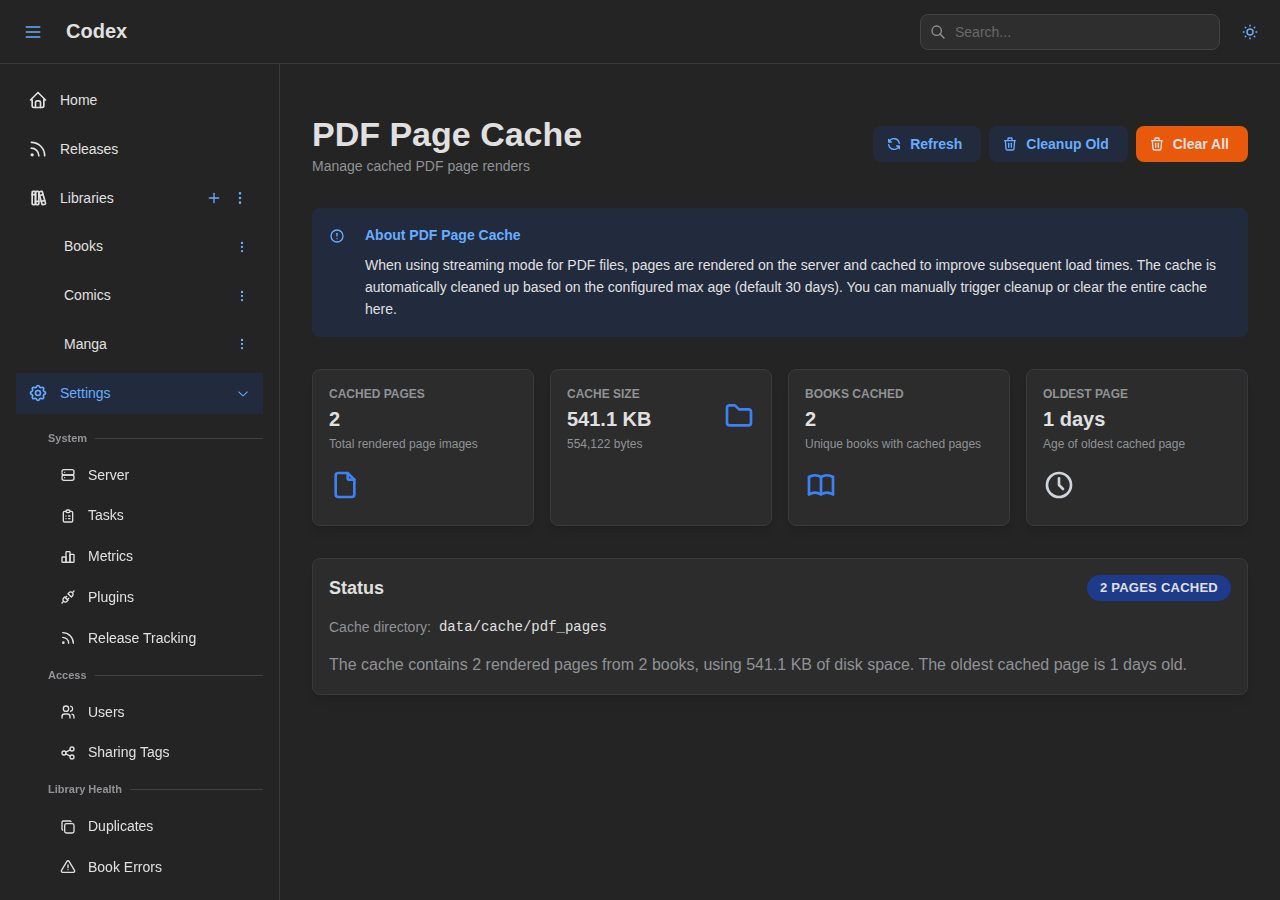
Page Cache
Manage the PDF rendering cache.
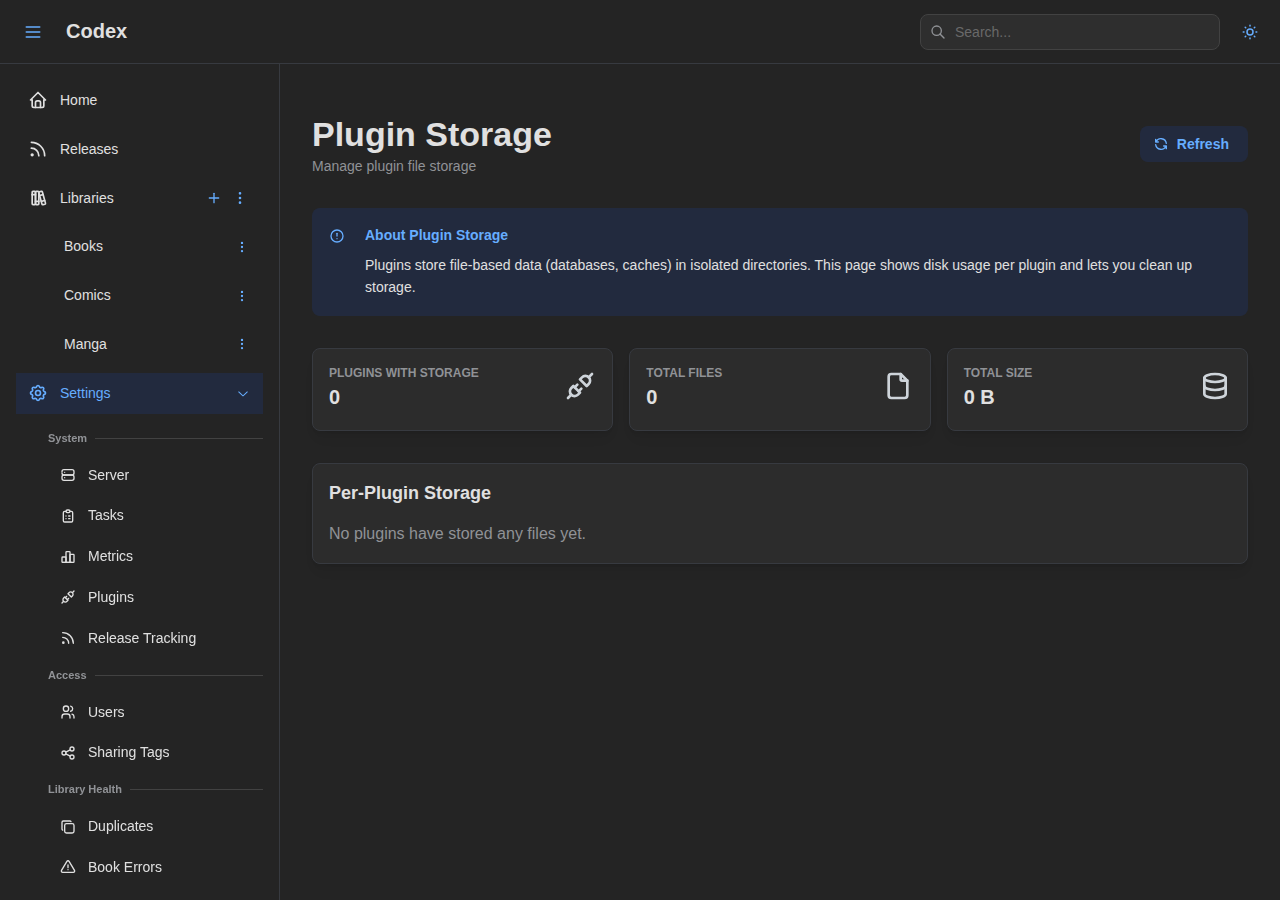
Plugin Storage
Inspect and reclaim disk space used by plugin file storage.
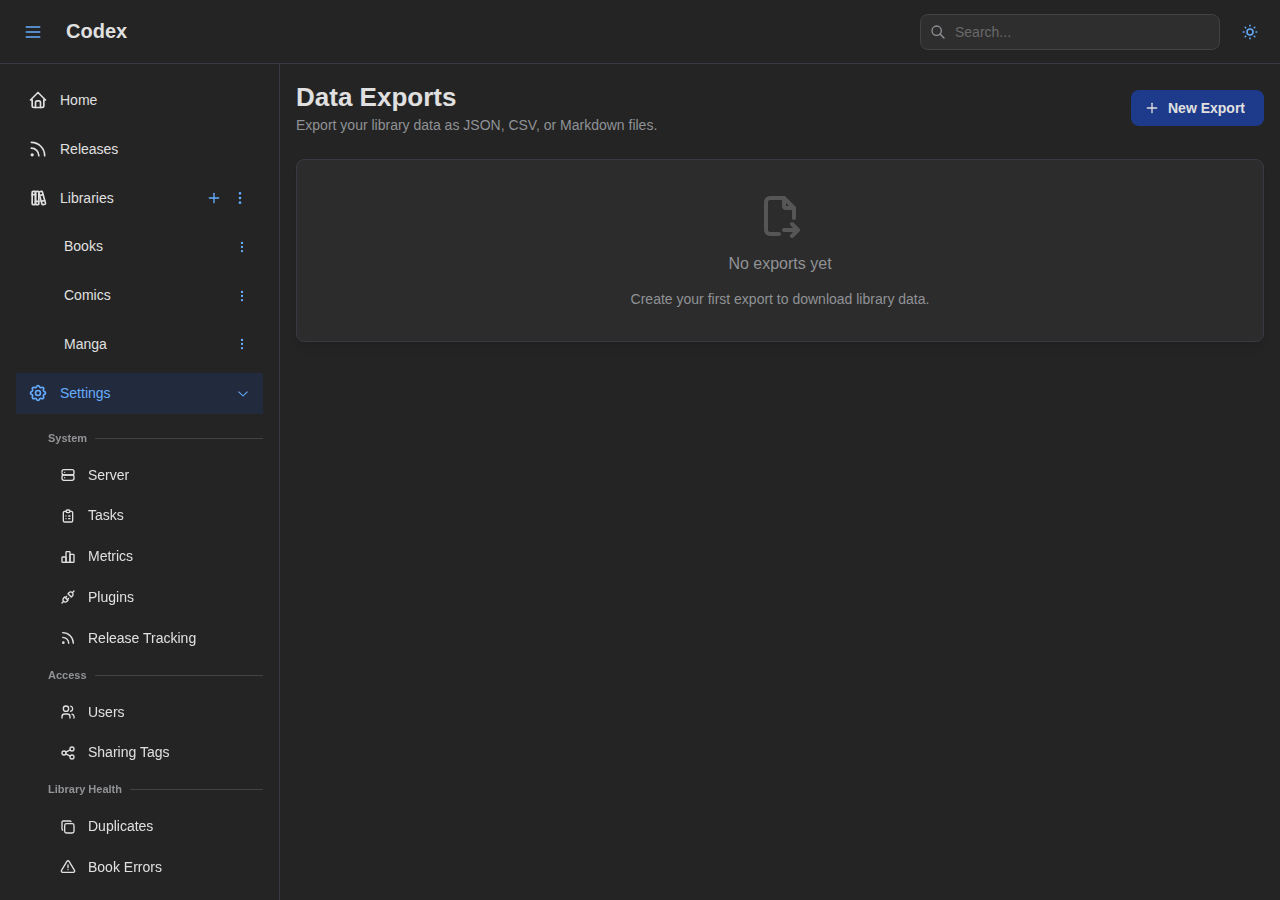
Data Exports
Export your library catalog as JSON, CSV, or Markdown. See the Data Exports guide for details.
Account
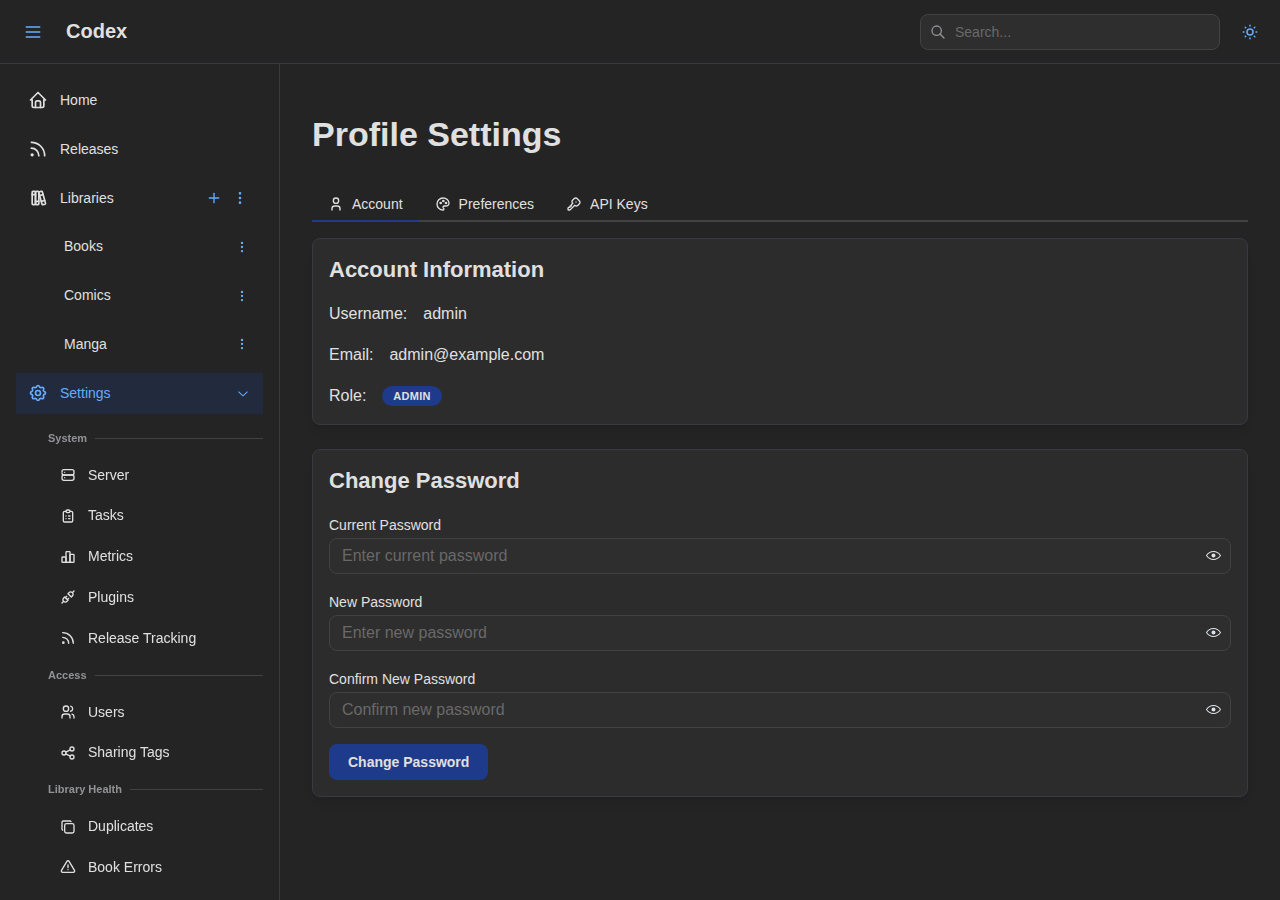
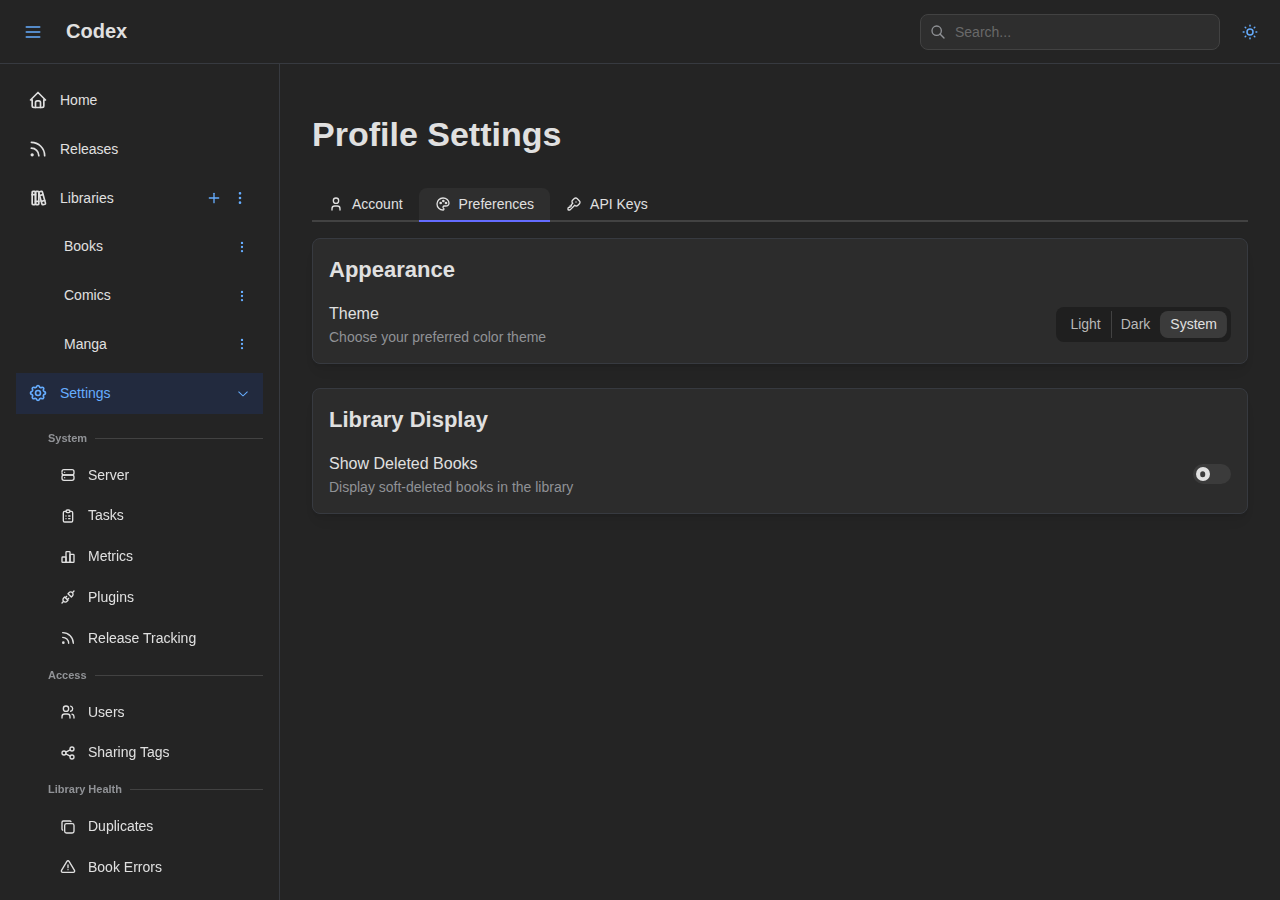
Profile
Manage your account details and preferences.
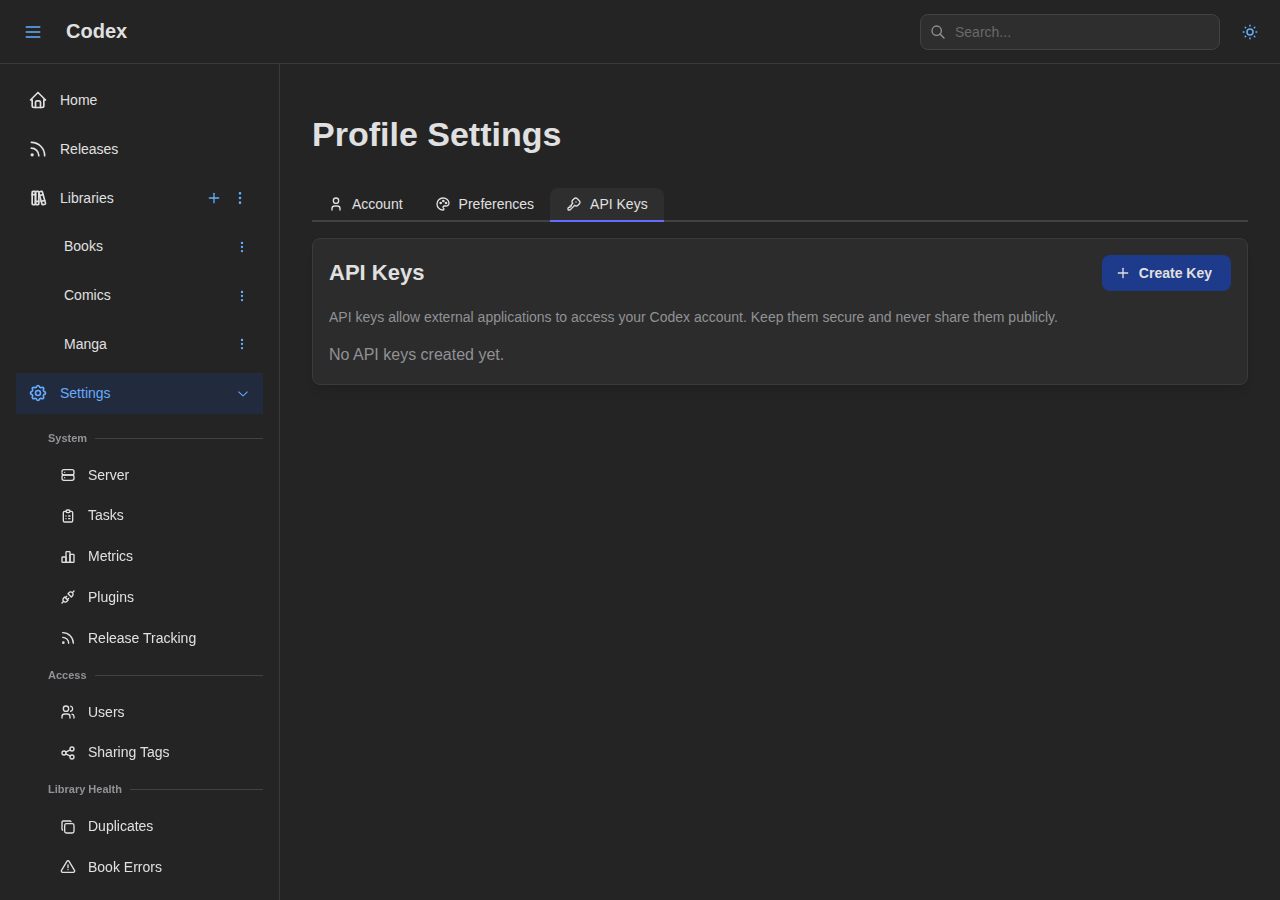
API Keys
Generate and manage API keys for integrations.
Integrations
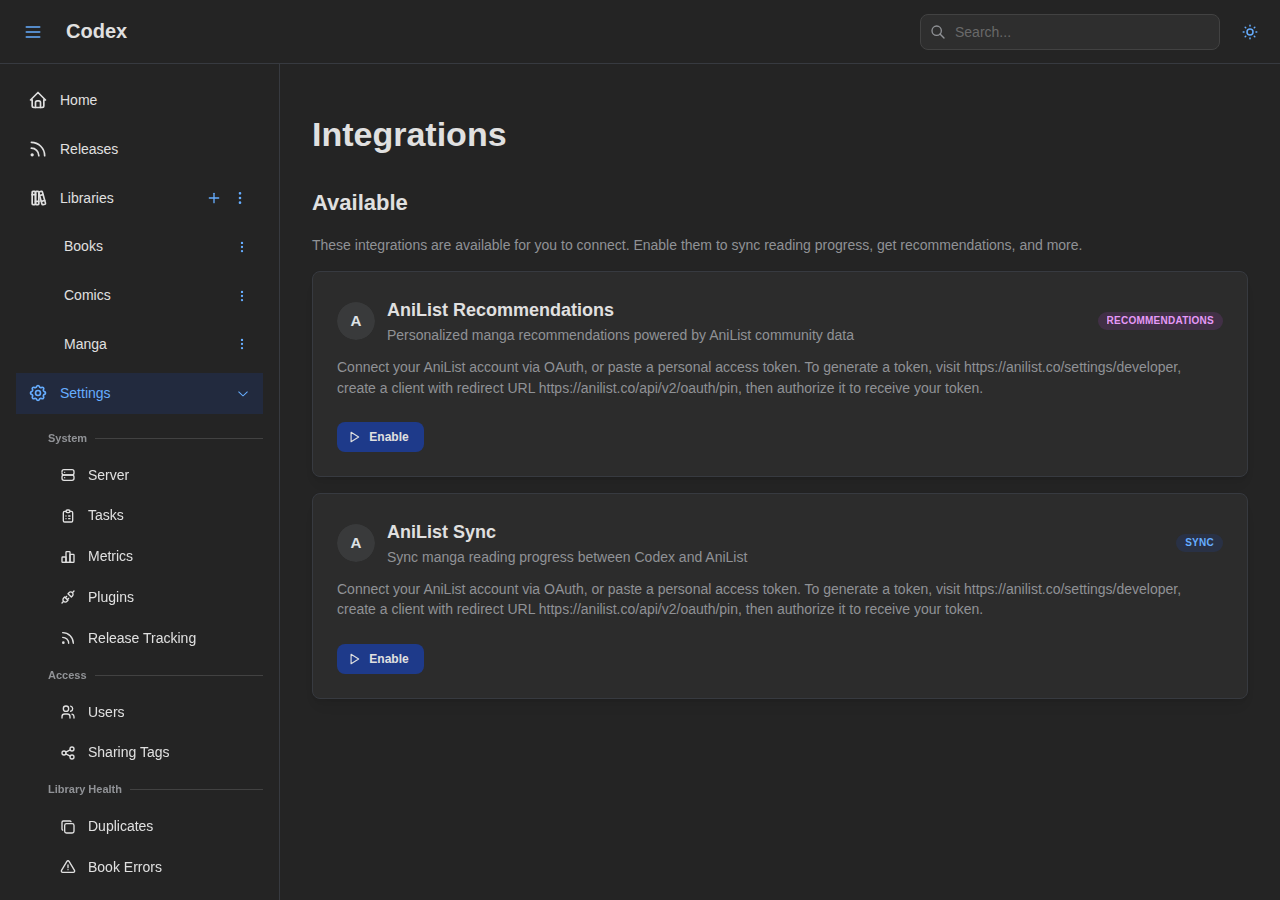
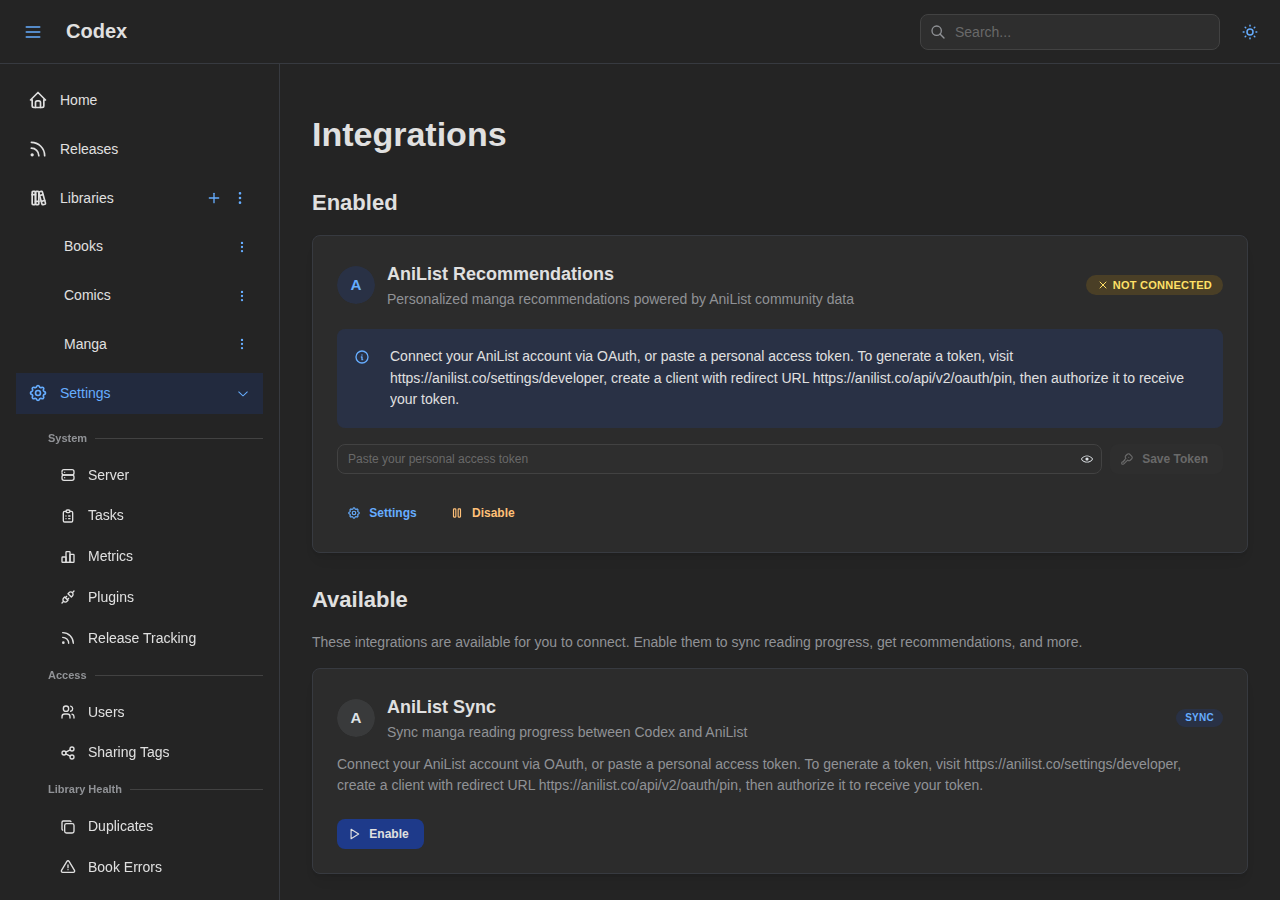
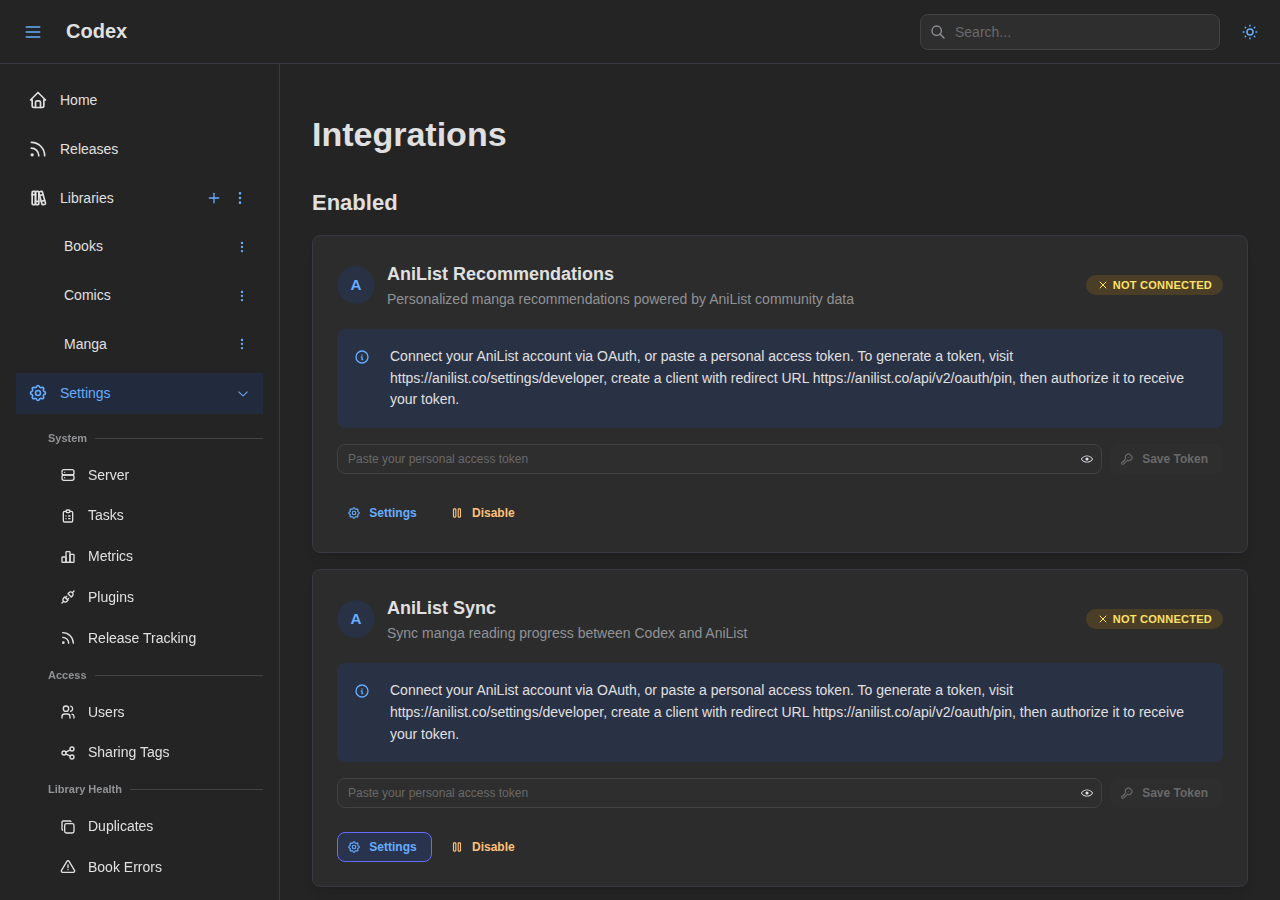
Users connect plugin integrations (sync, recommendations) from this page.
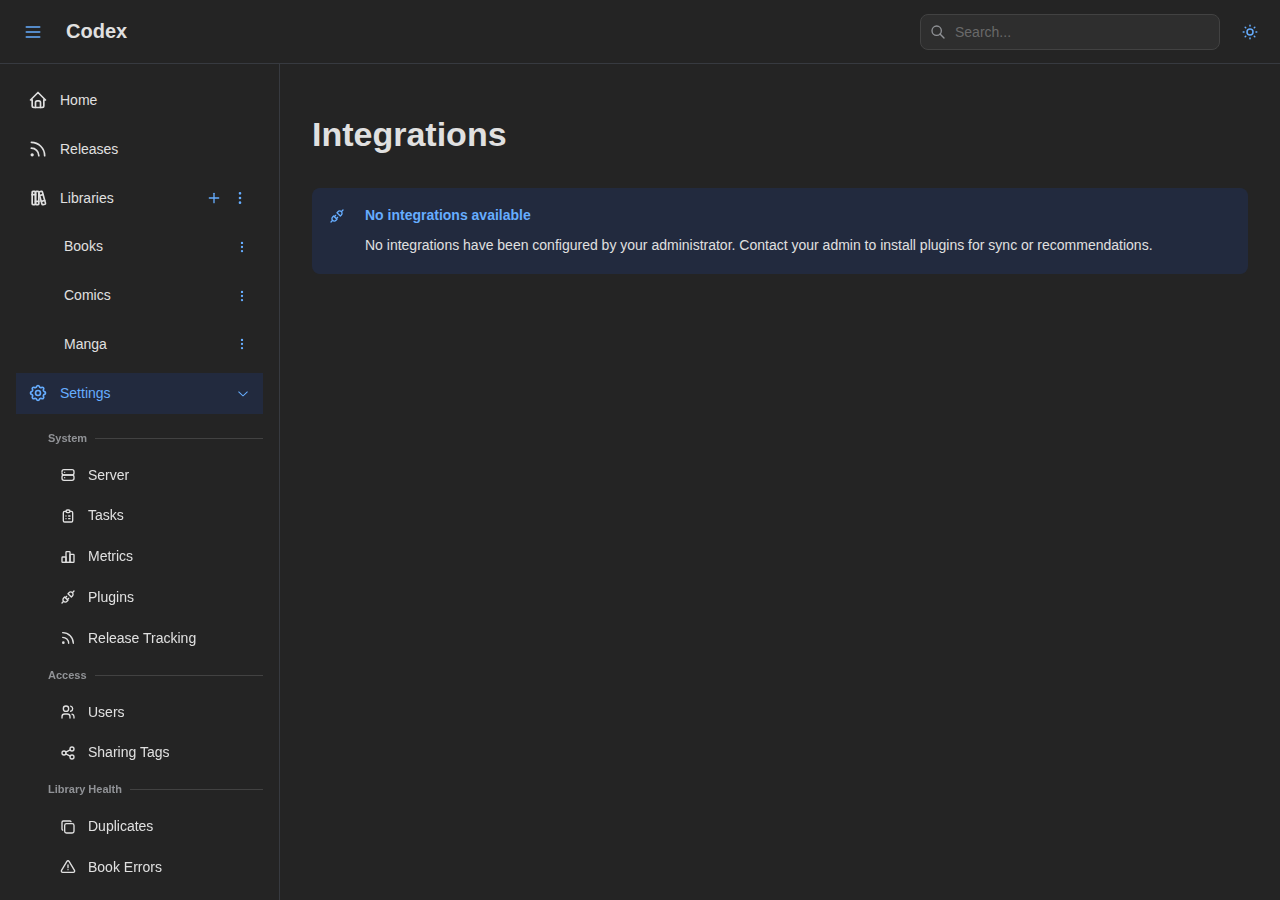
See the User Integrations section under Plugins below for the full flow.
Plugins
Codex supports extensible plugins for metadata enrichment, reading progress sync, and personalized recommendations. Plugins are managed by admins and connected by users.
Plugin Management
The plugins page in Settings lets admins manage installed plugins.
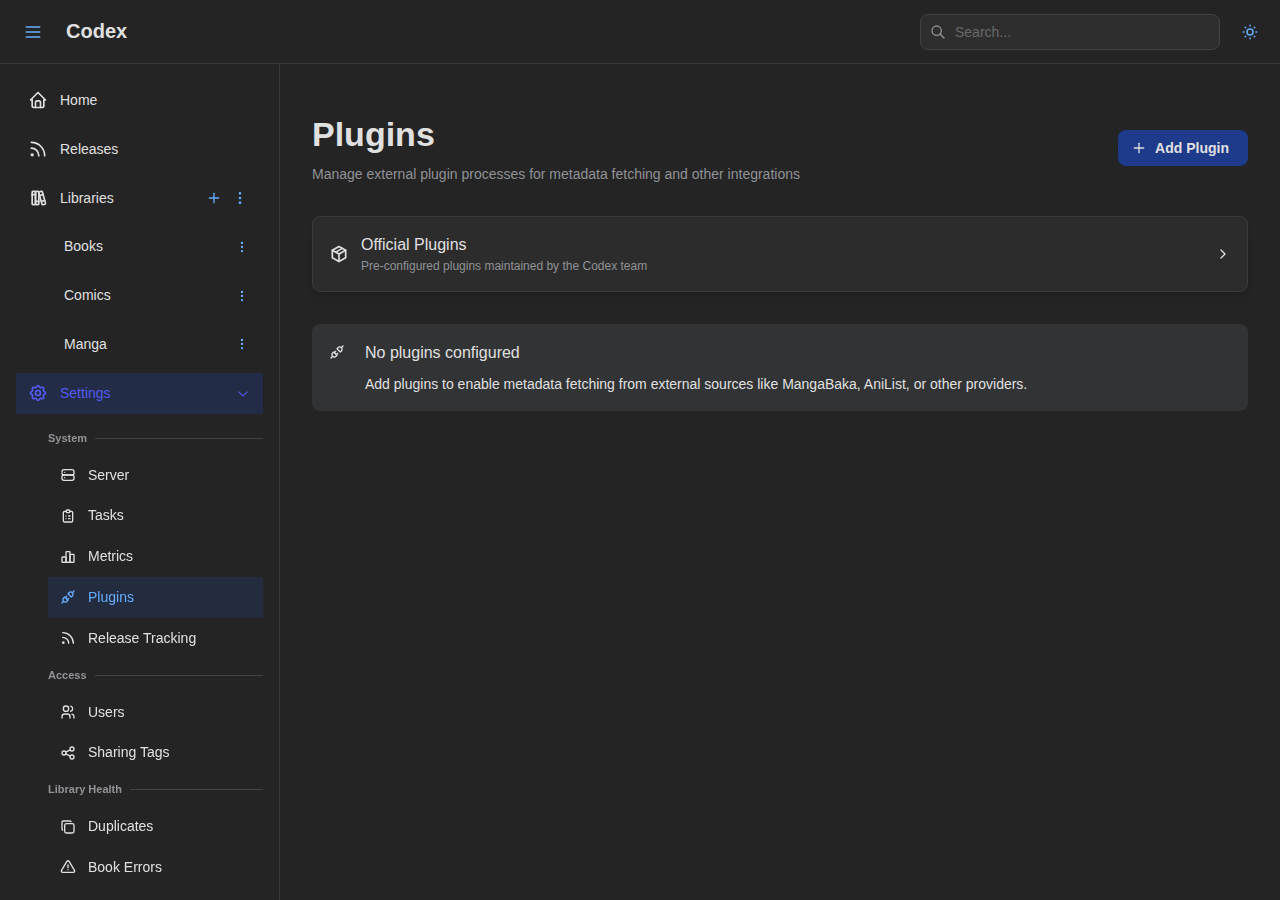
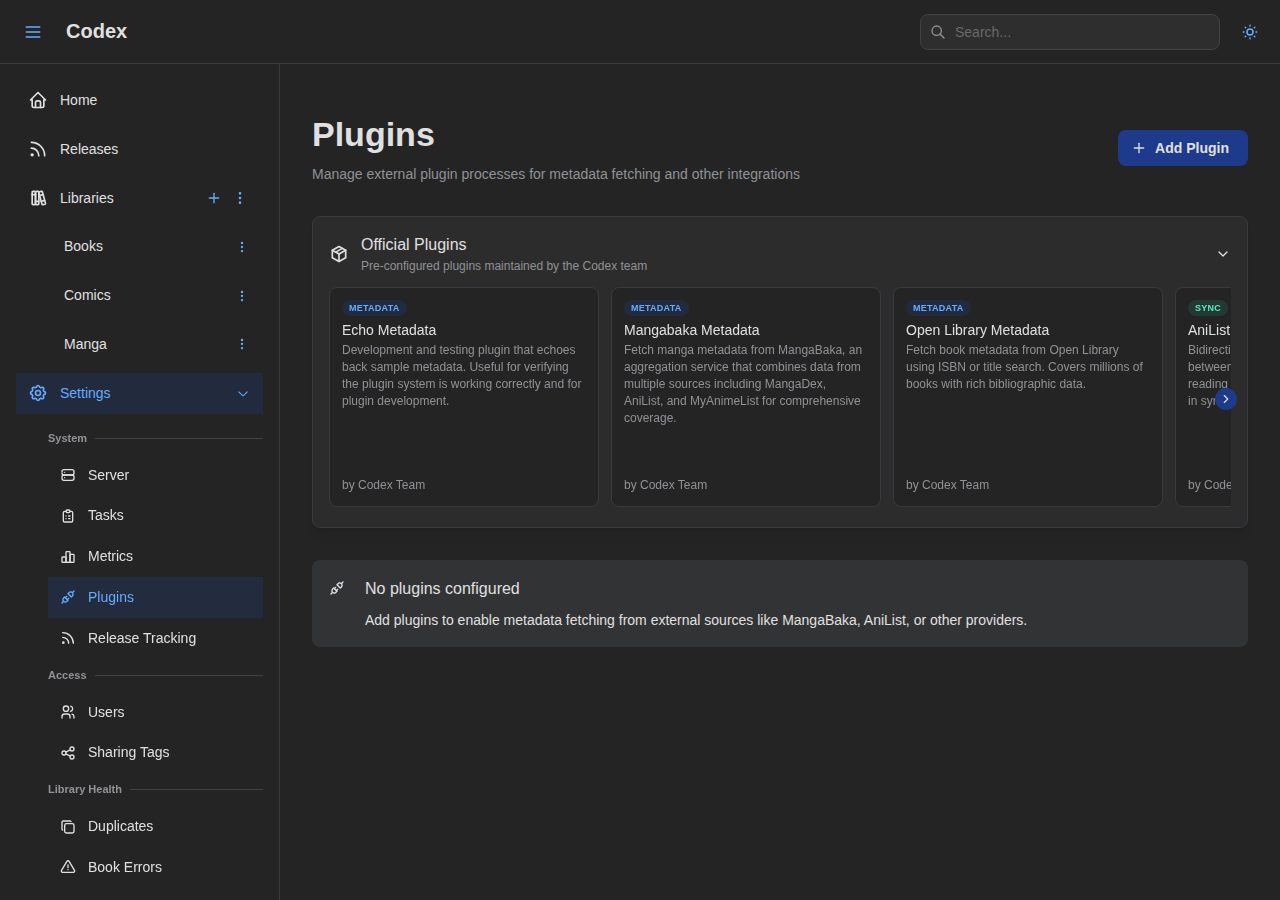
Official Plugin Store
Install plugins from the built-in store with pre-configured settings.
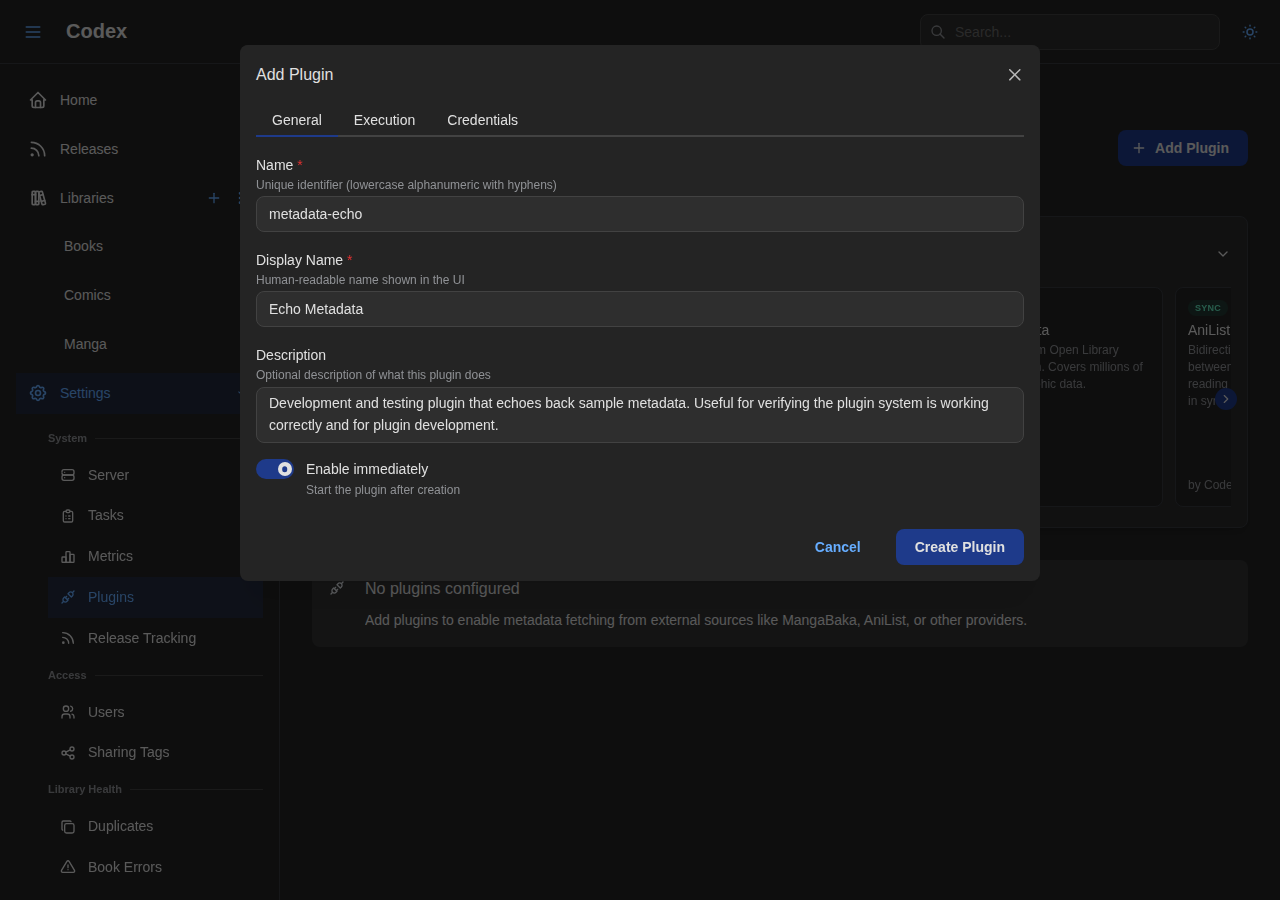
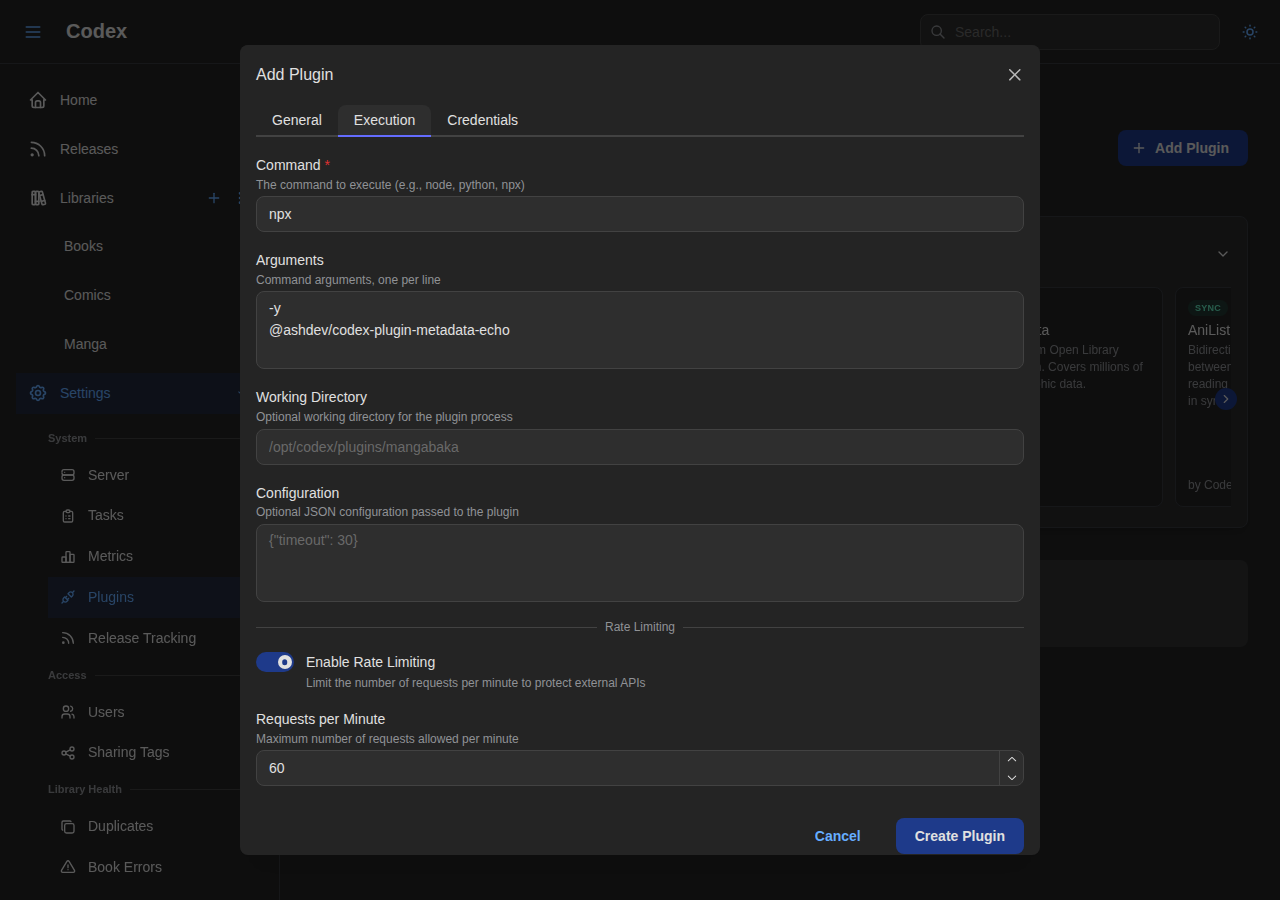
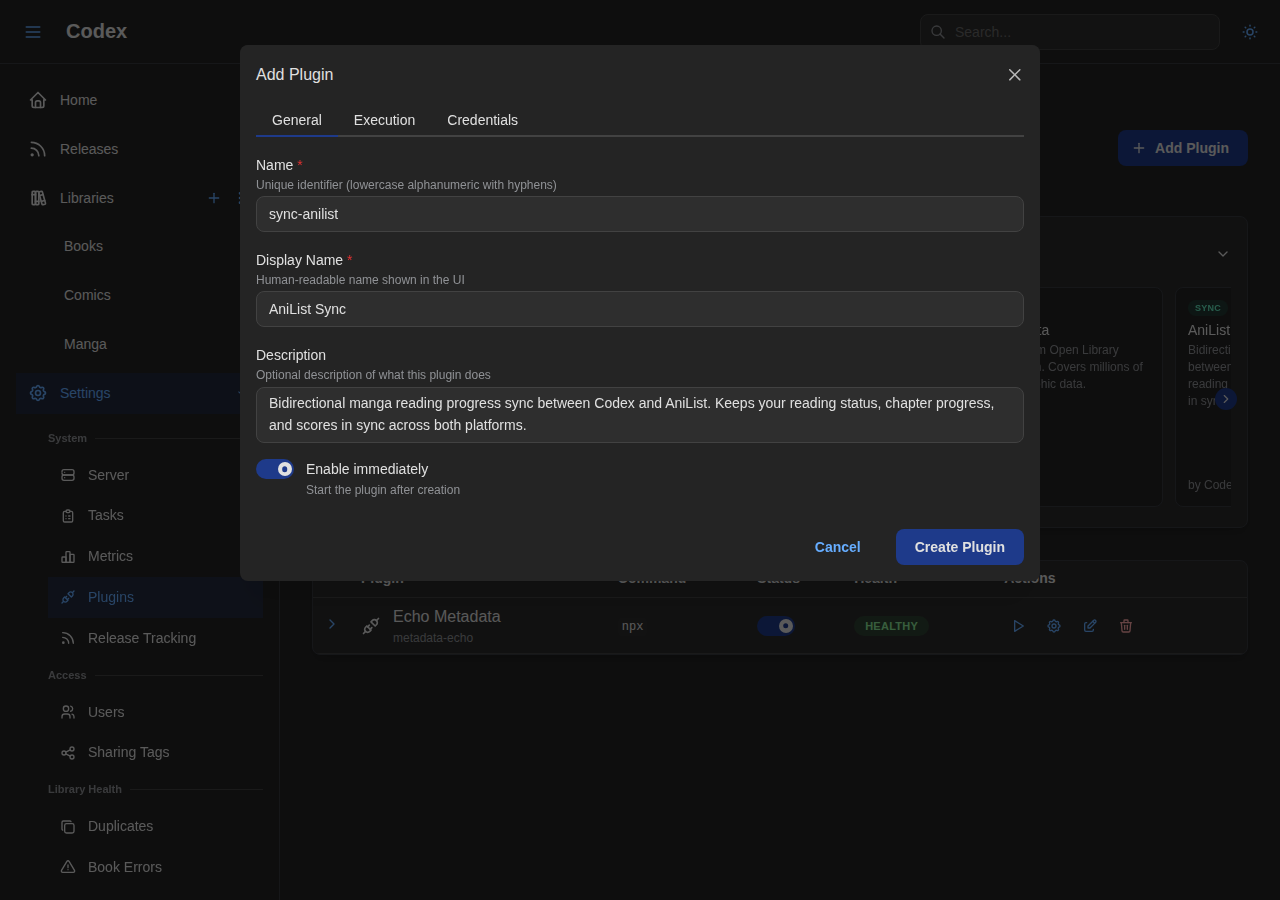
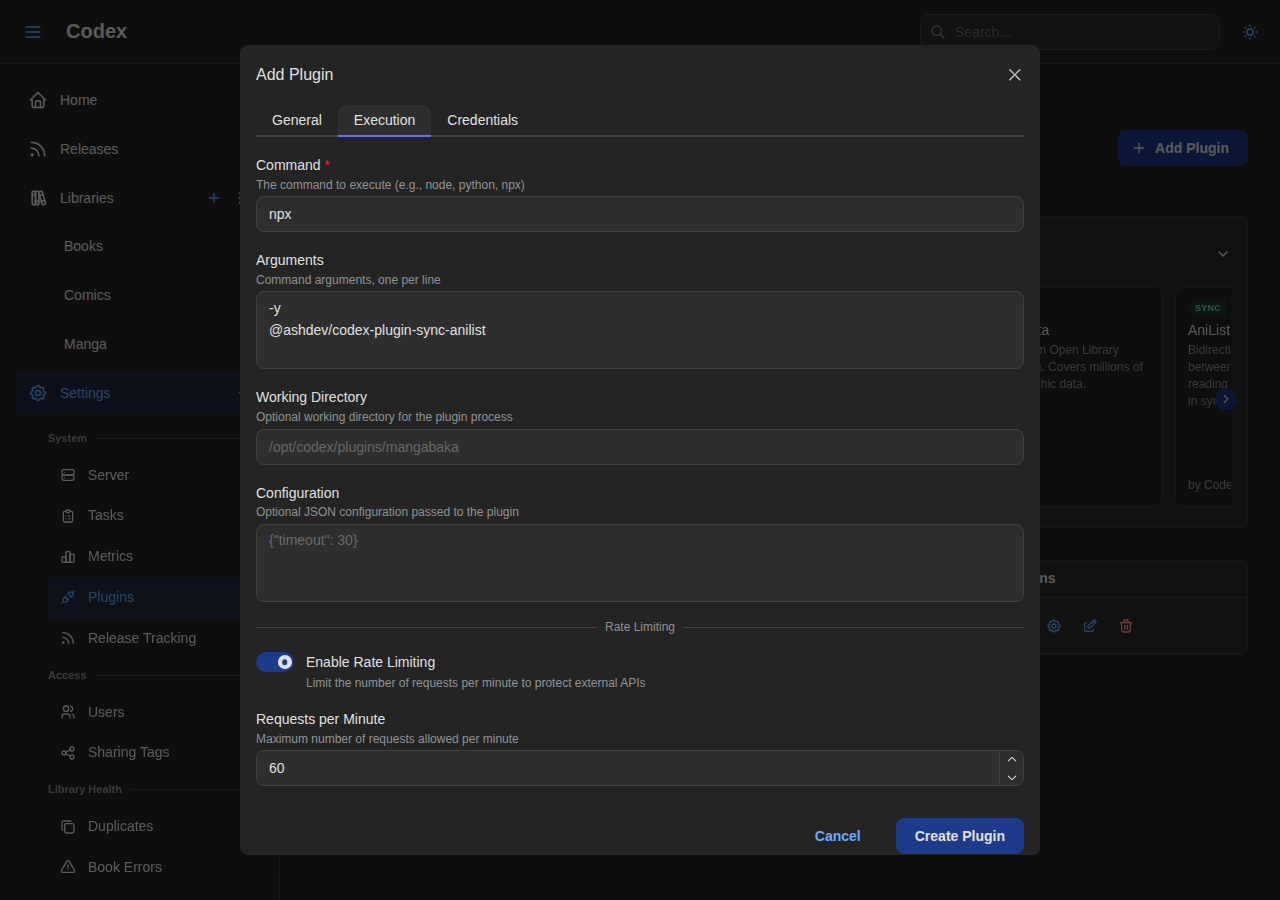
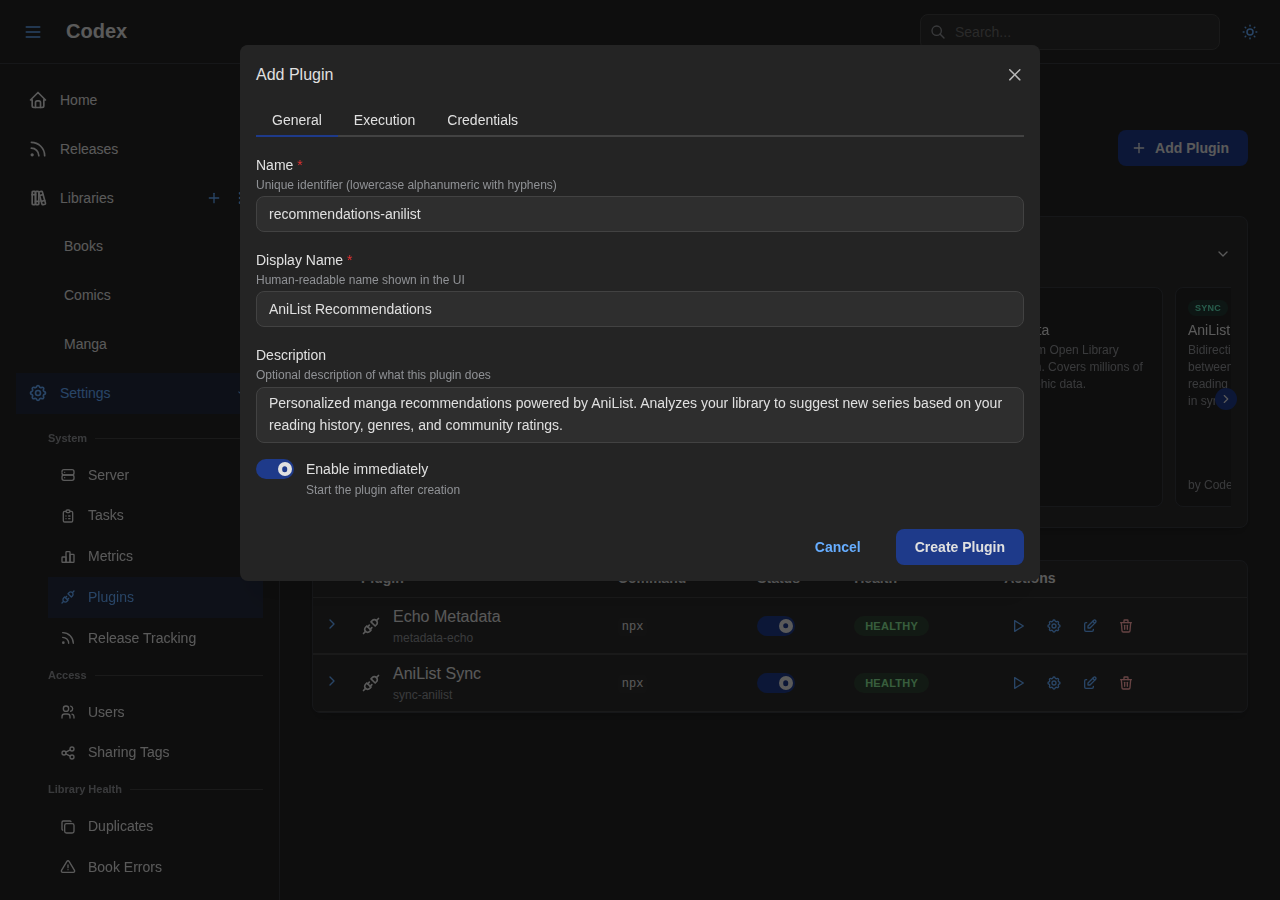
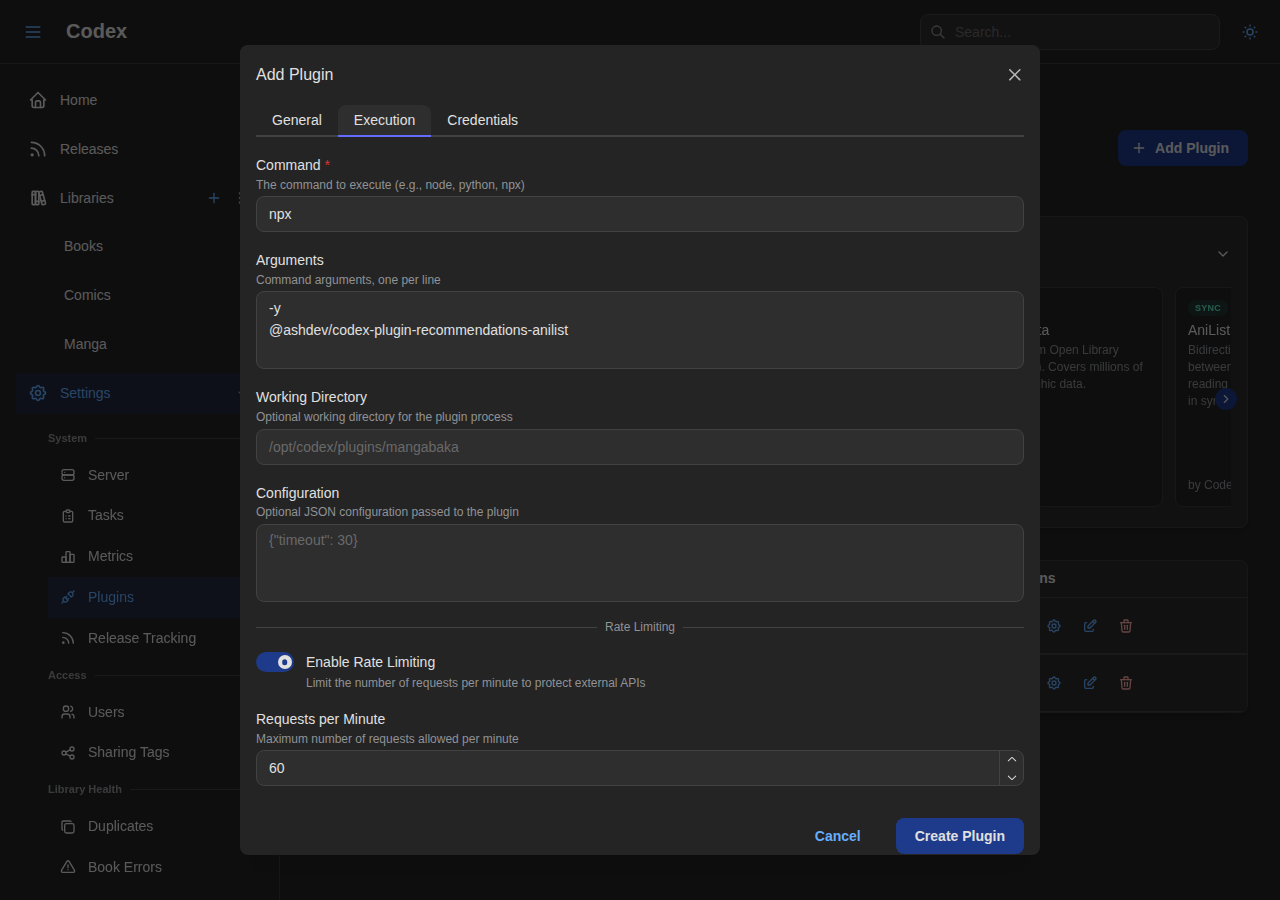
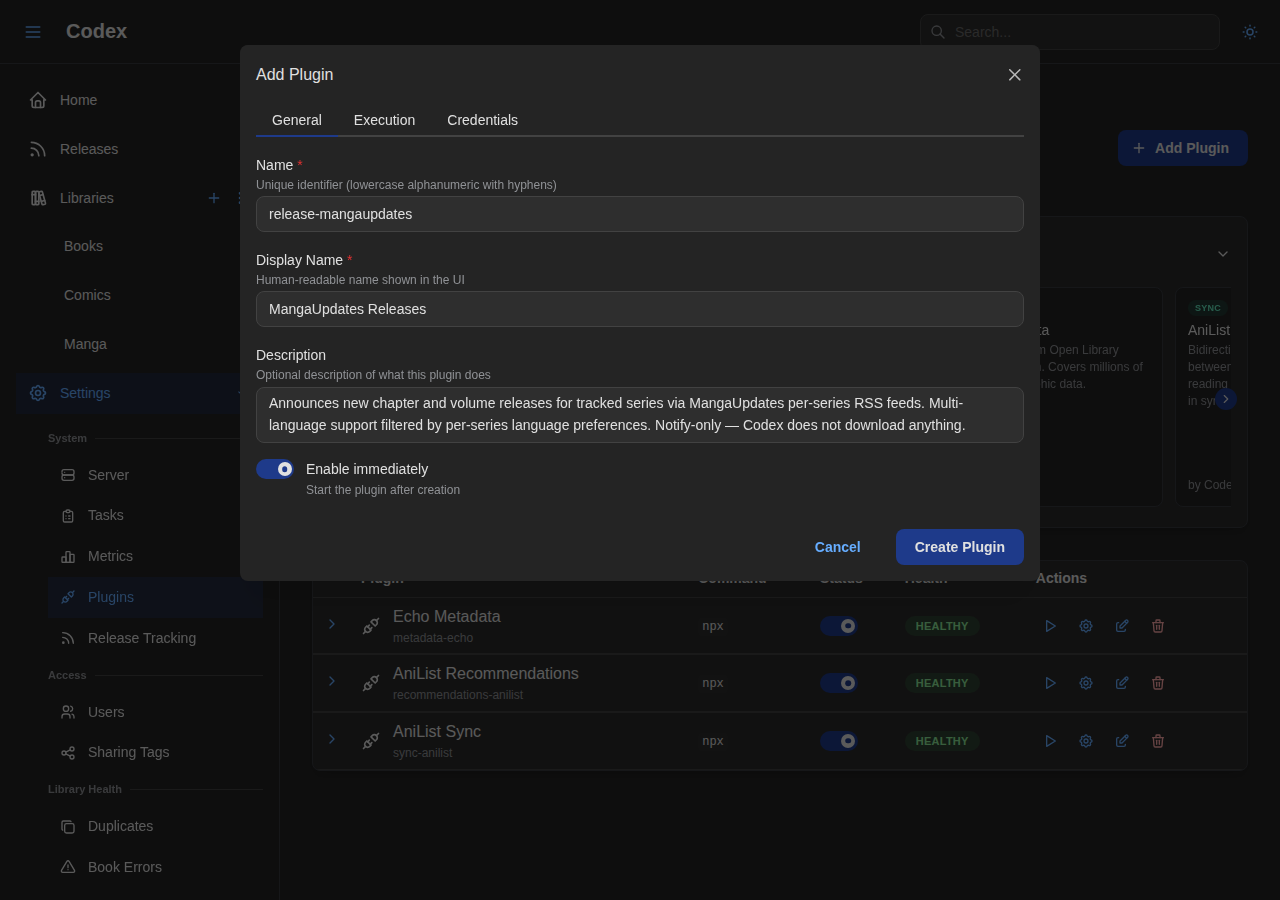
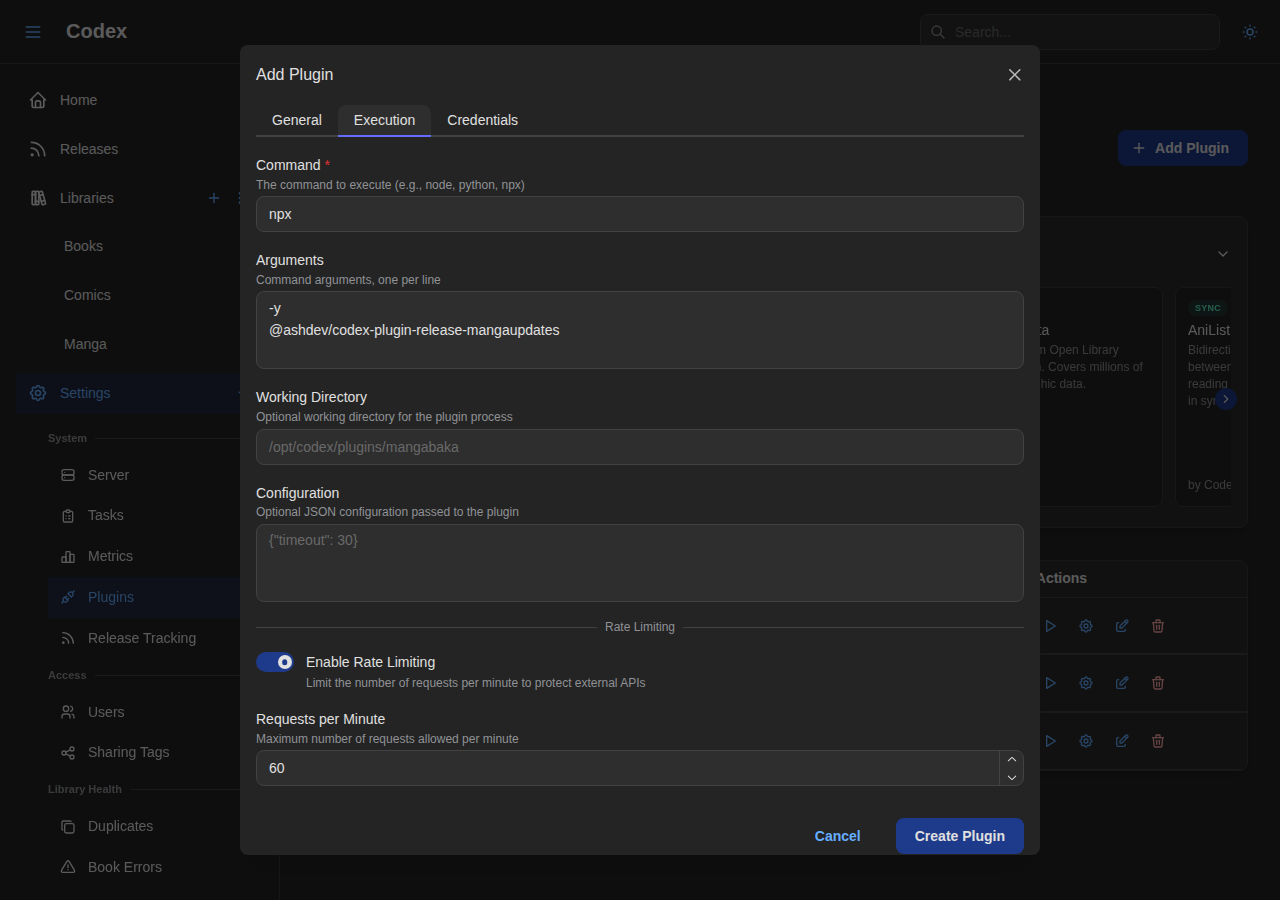
Clicking "Add" on a plugin opens a pre-filled creation form with the plugin's recommended settings.
Echo Metadata Plugin:
AniList Sync Plugin:
AniList Recommendations Plugin:
MangaUpdates Releases Plugin:
Installed Plugins
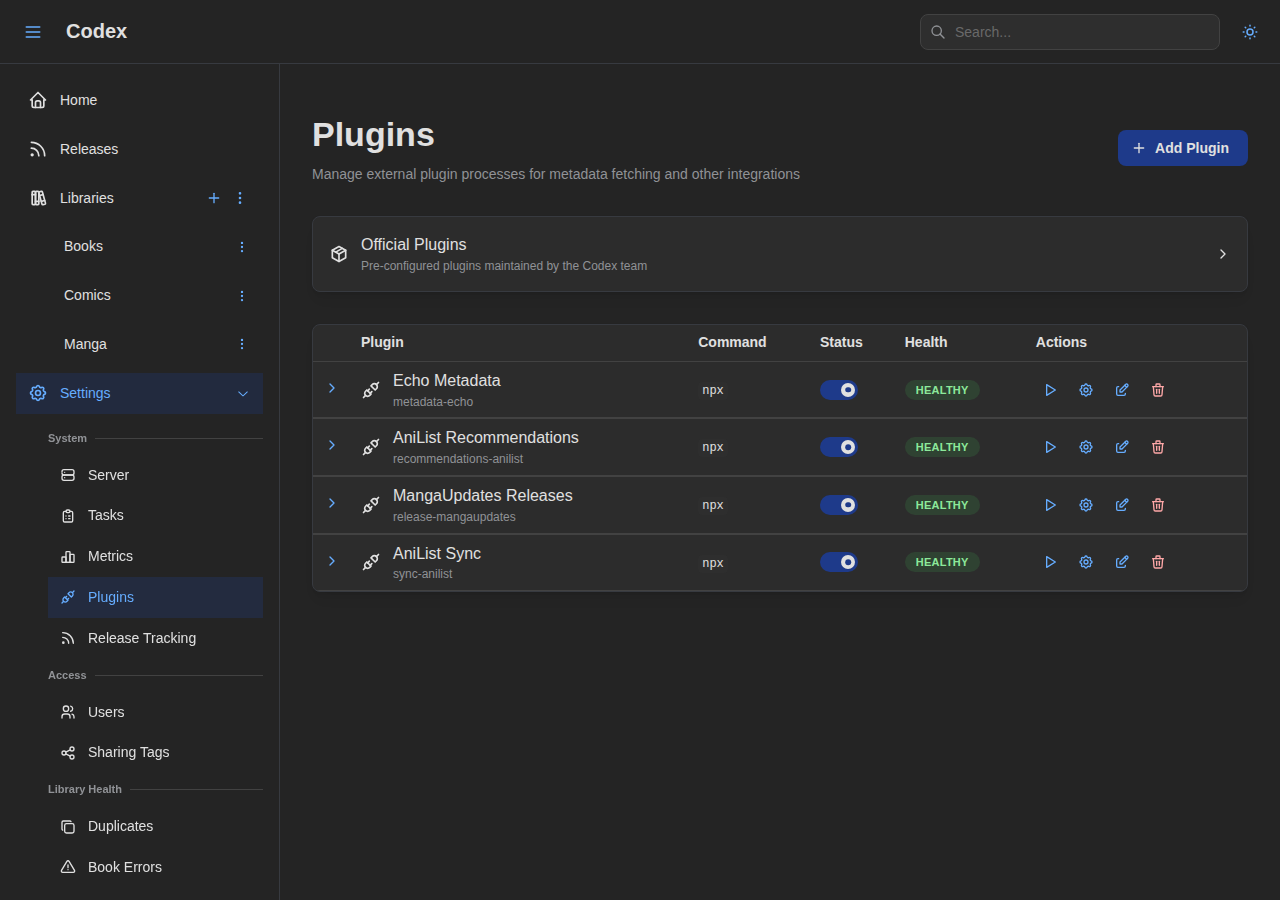
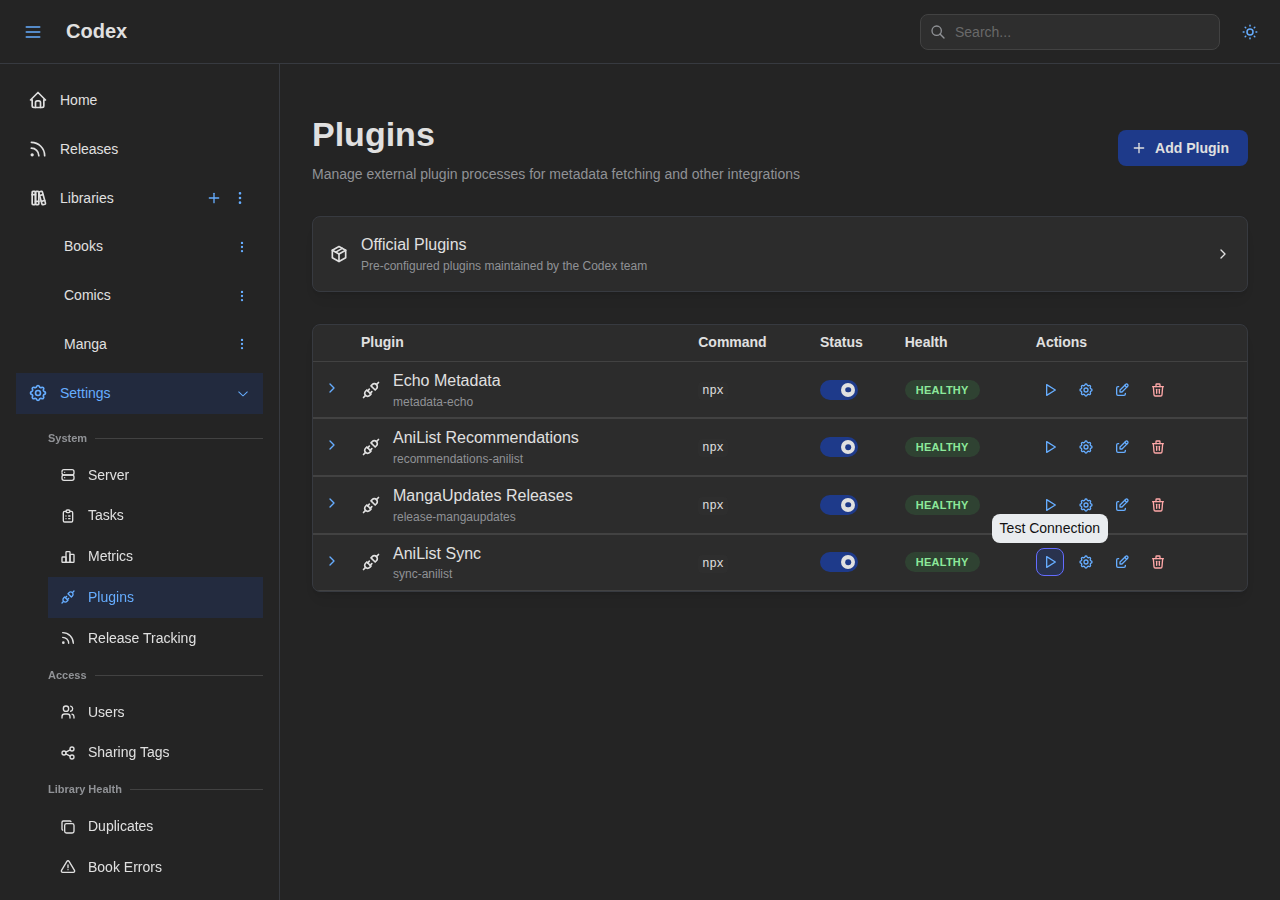
View and manage installed plugins, their status, and health.
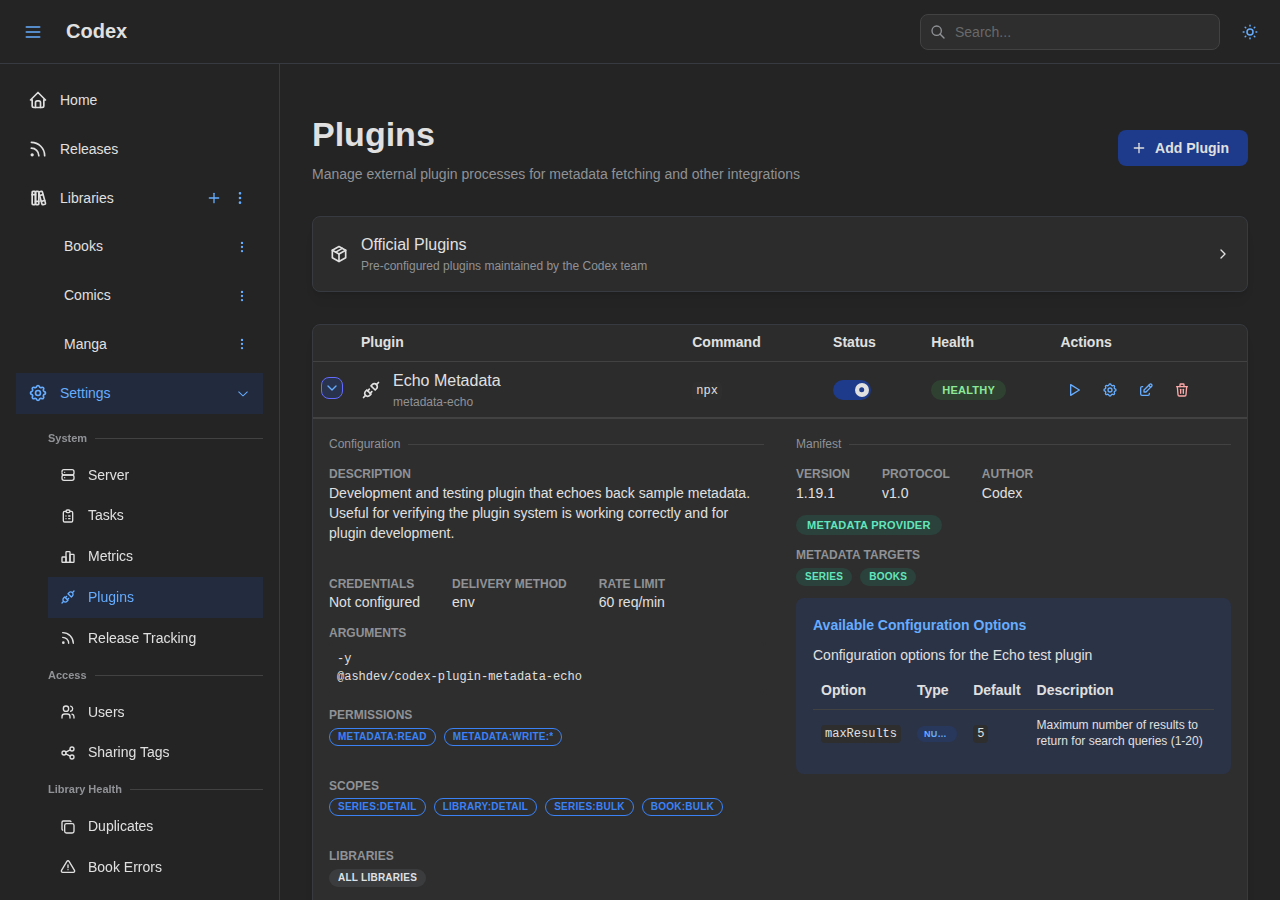
You can test plugin connectivity using the "Test Connection" action.
Configuring a Plugin
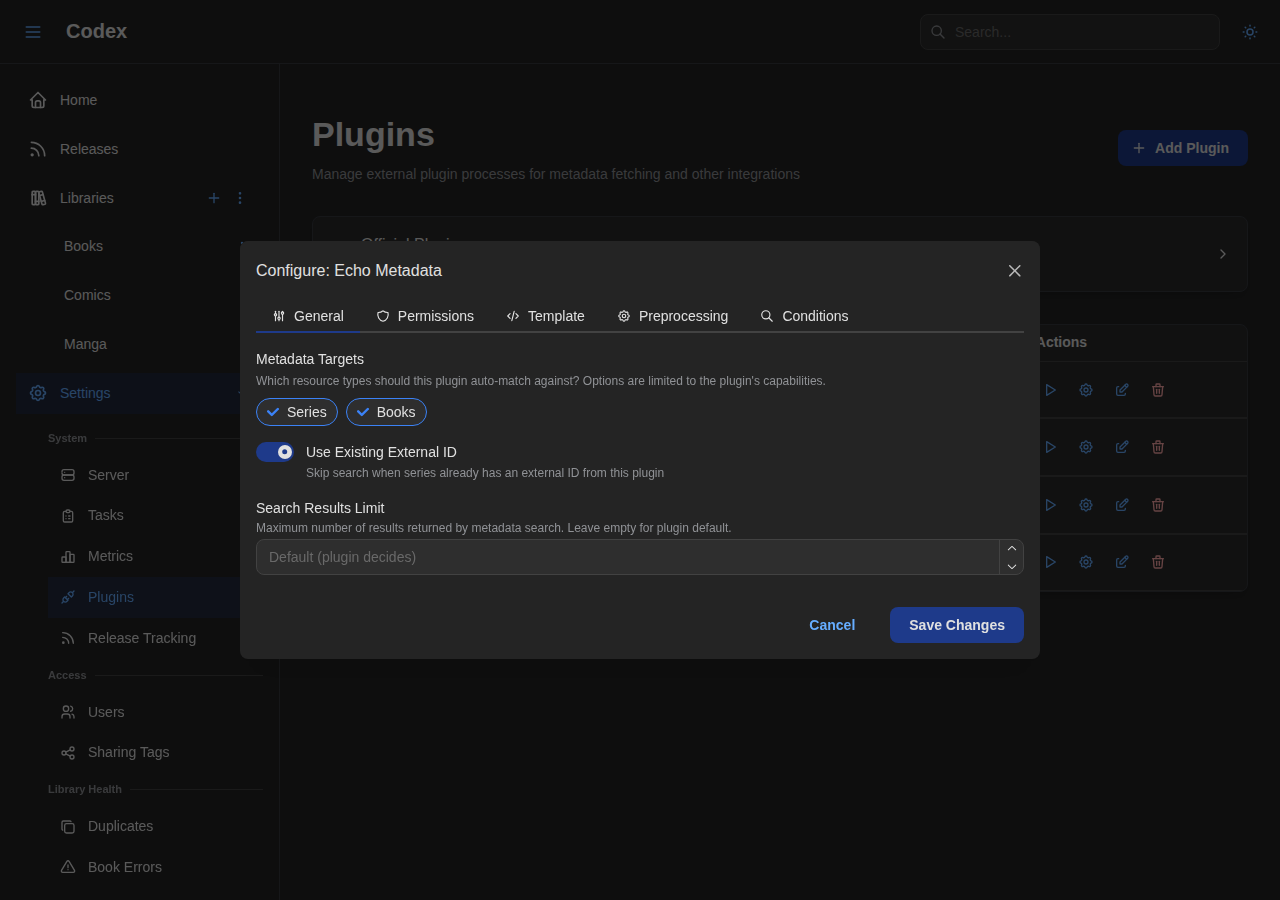
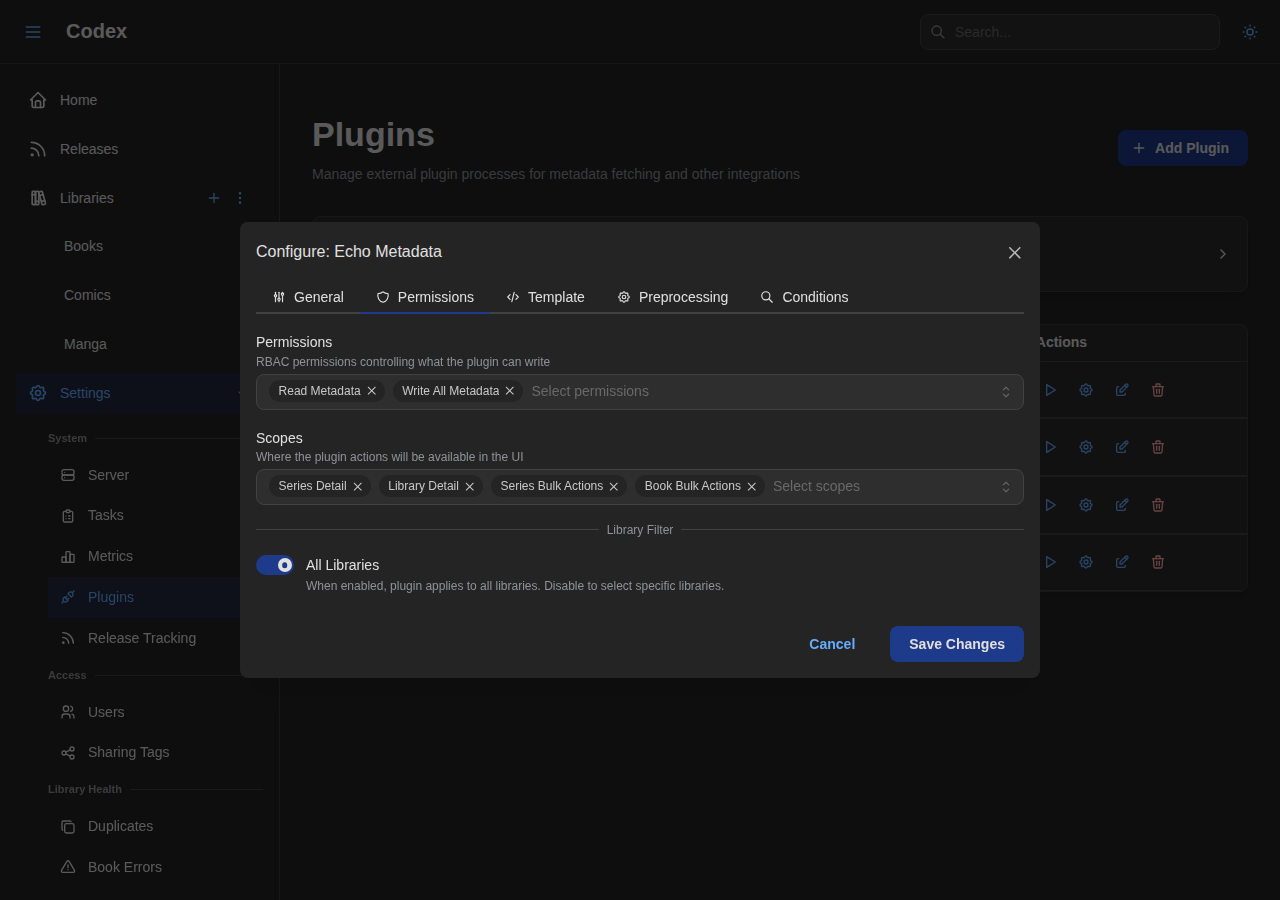
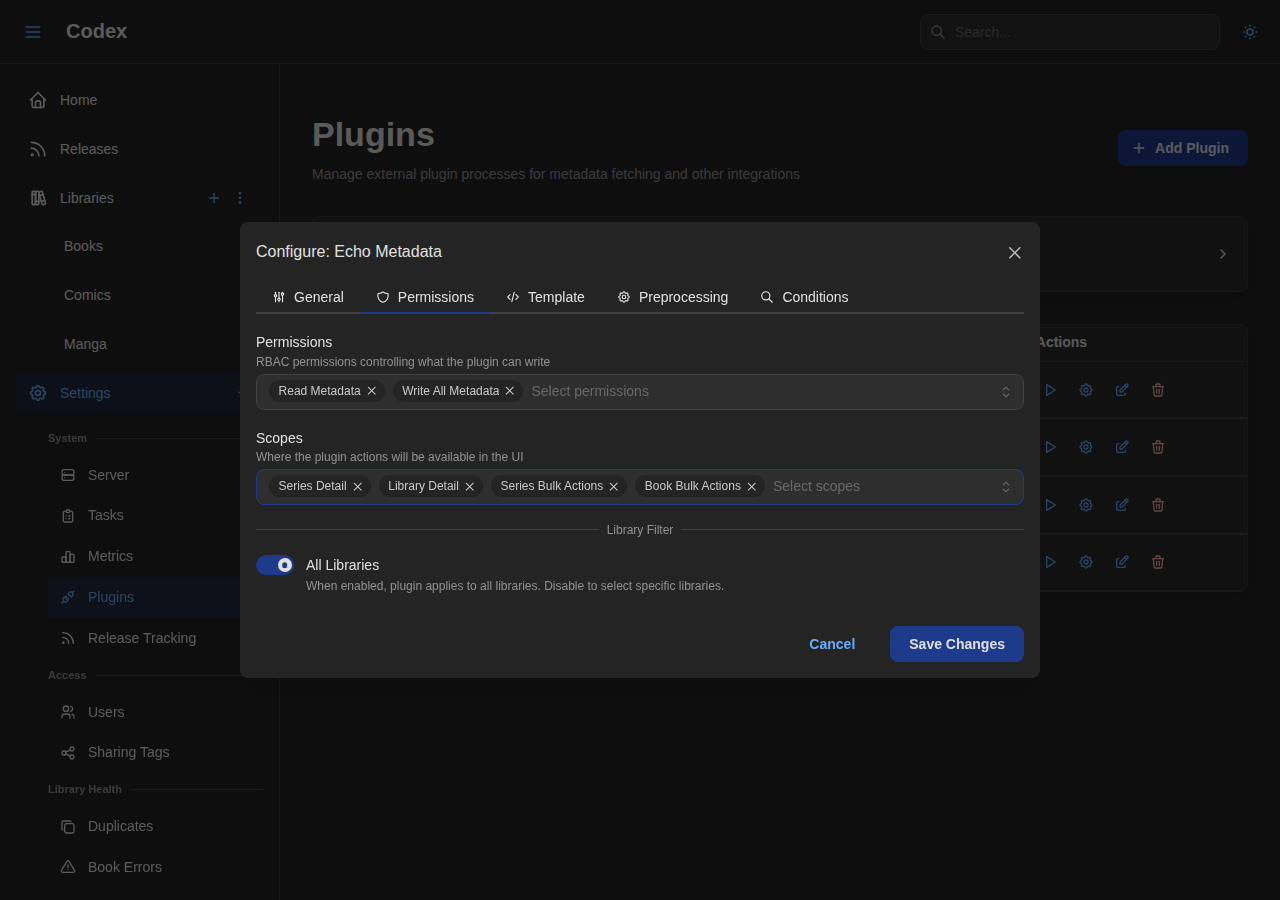
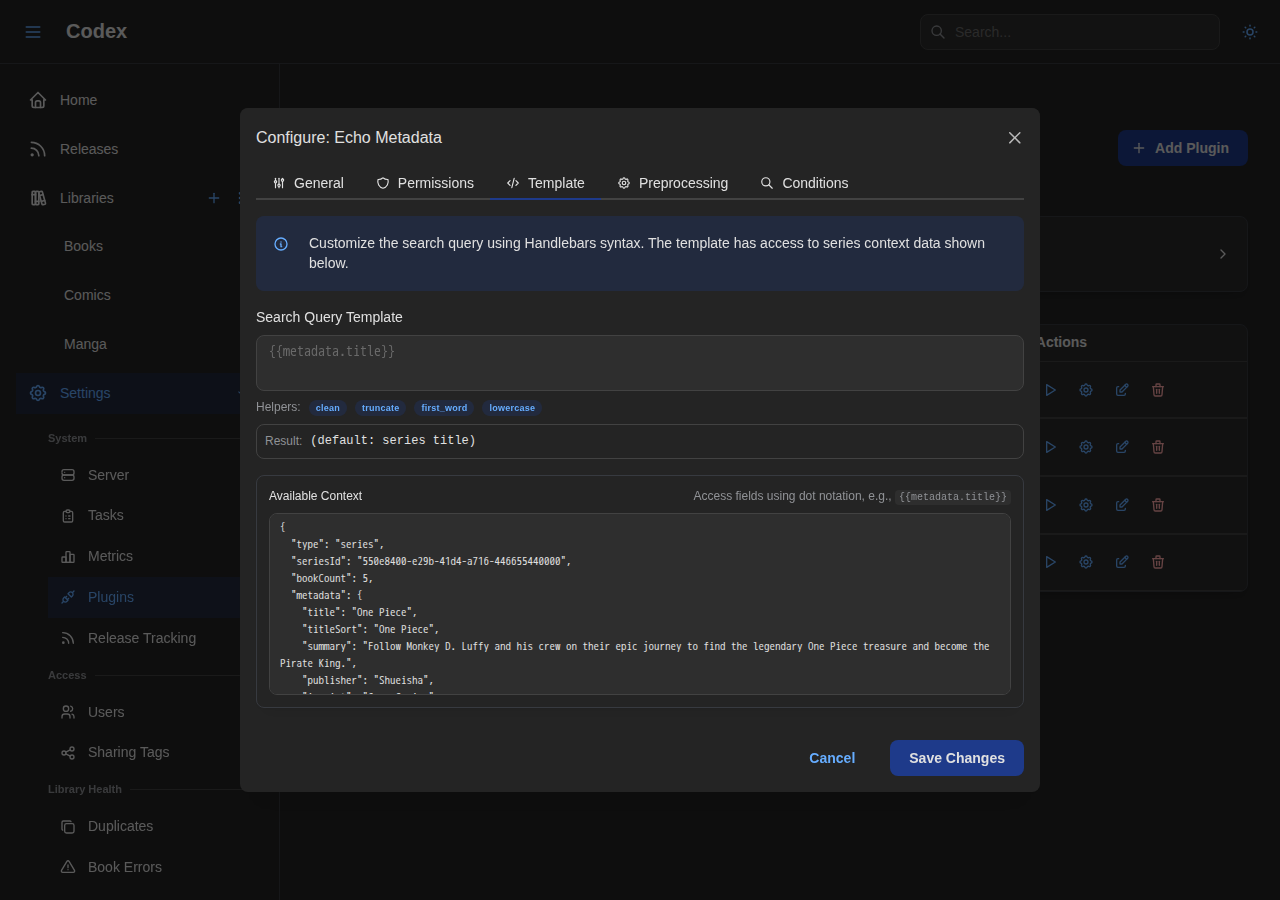
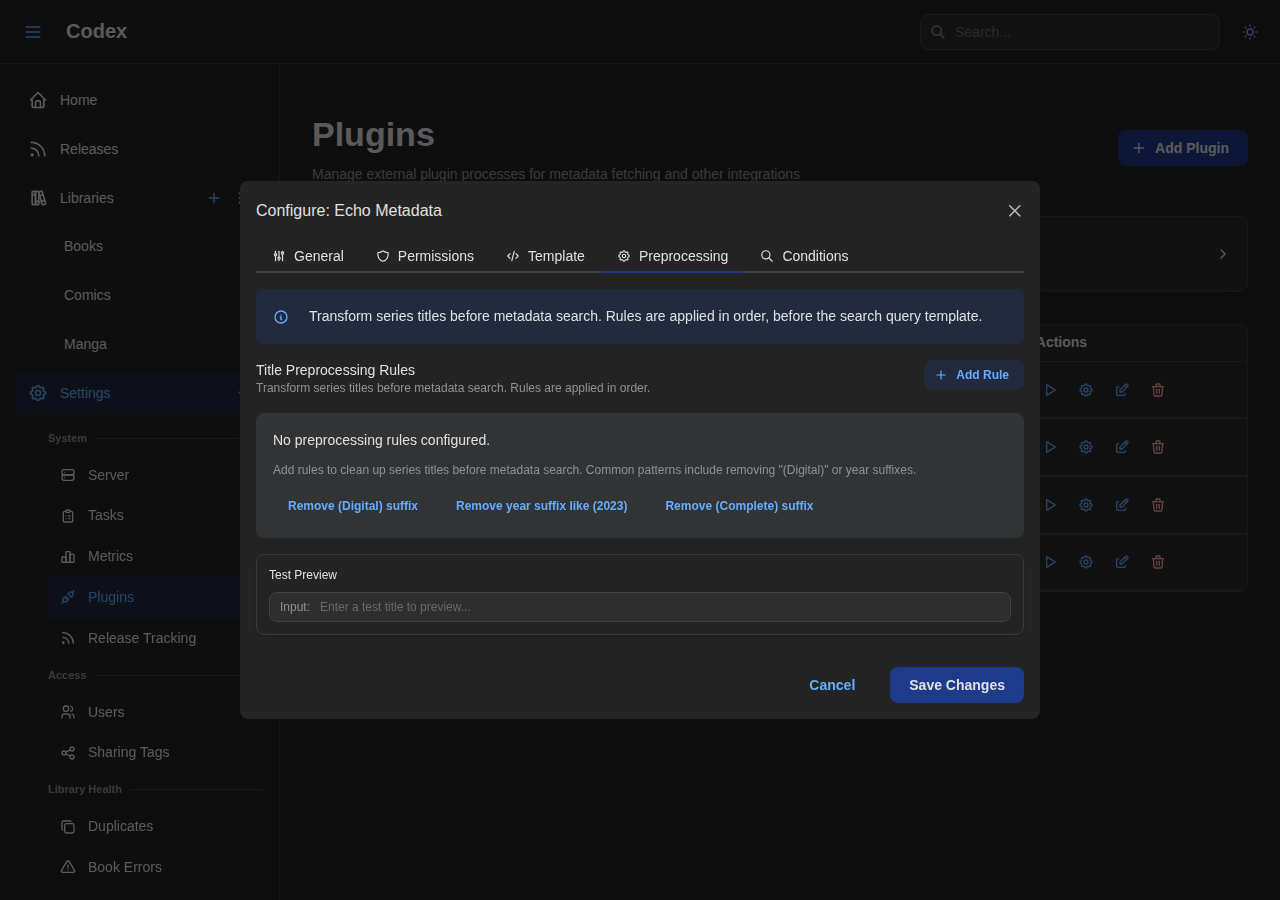
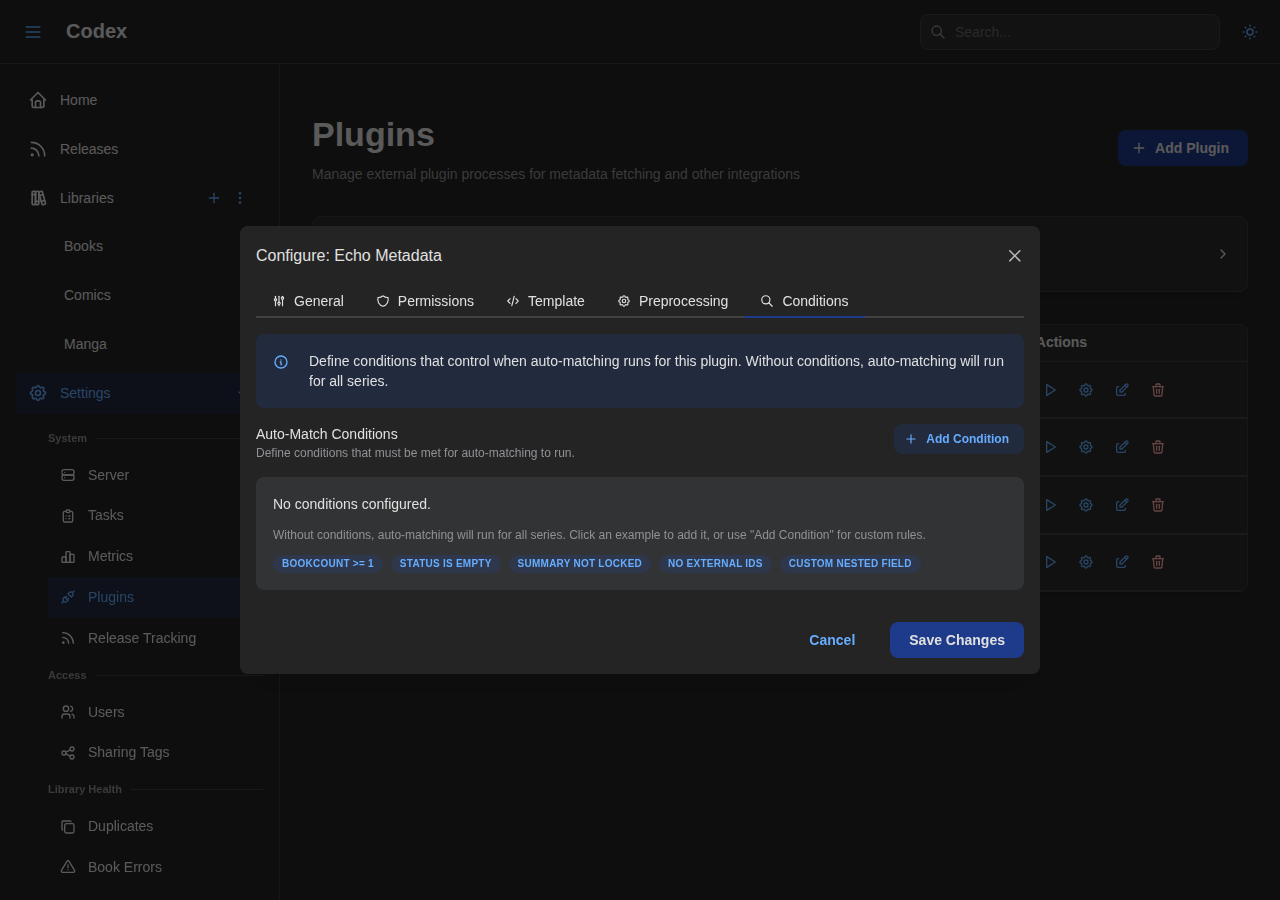
After installing a plugin, open its configuration modal to set permissions, scopes, search templates, preprocessing rules, and conditions.
Using Plugins
Access plugin actions from the library sidebar or series detail pages.
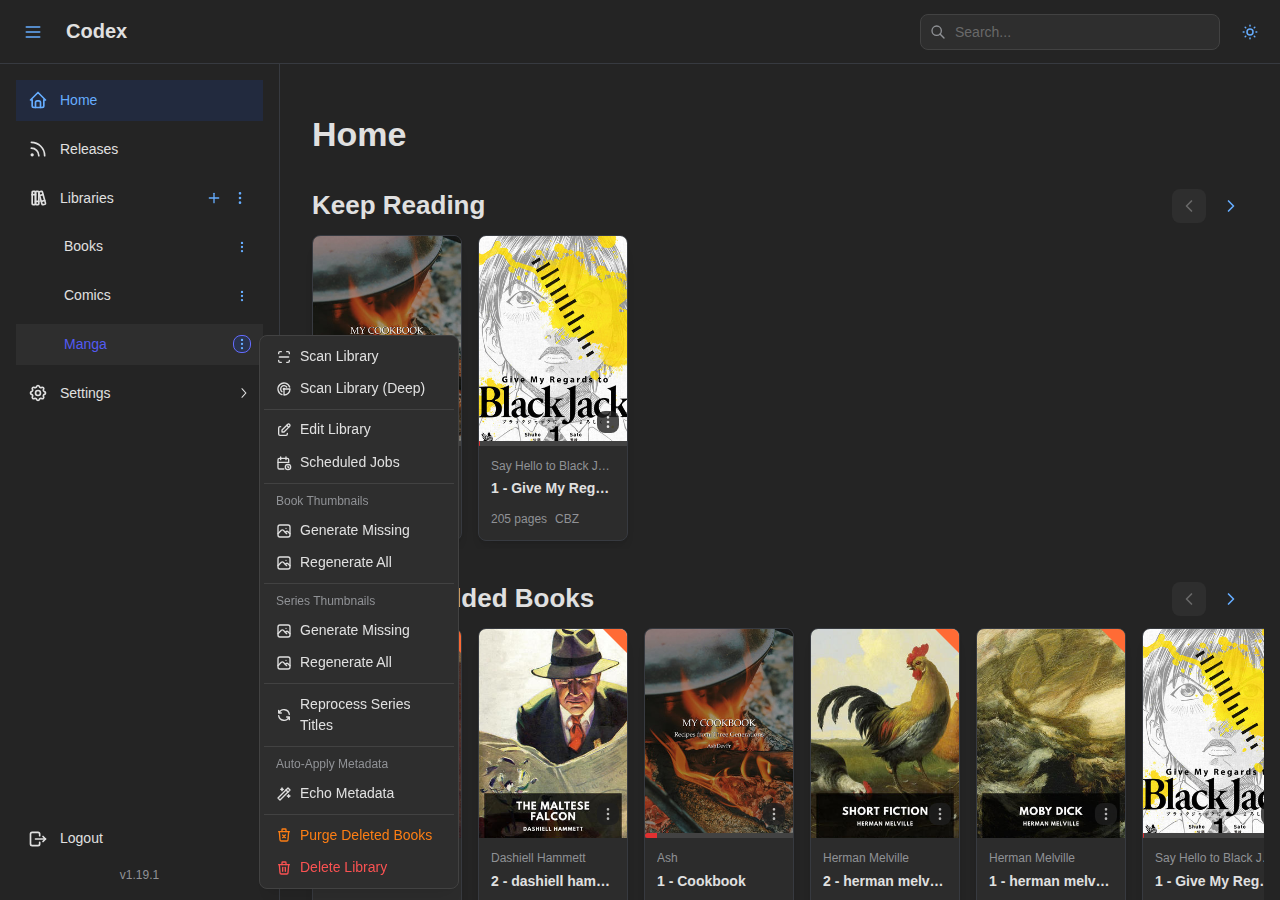
If the plugin is enabled and has the library scope, you will see the plugin dropdown in the library sidebar.
If the plugin is enabled and has the series scope, you will see the plugin dropdown in the series detail page.
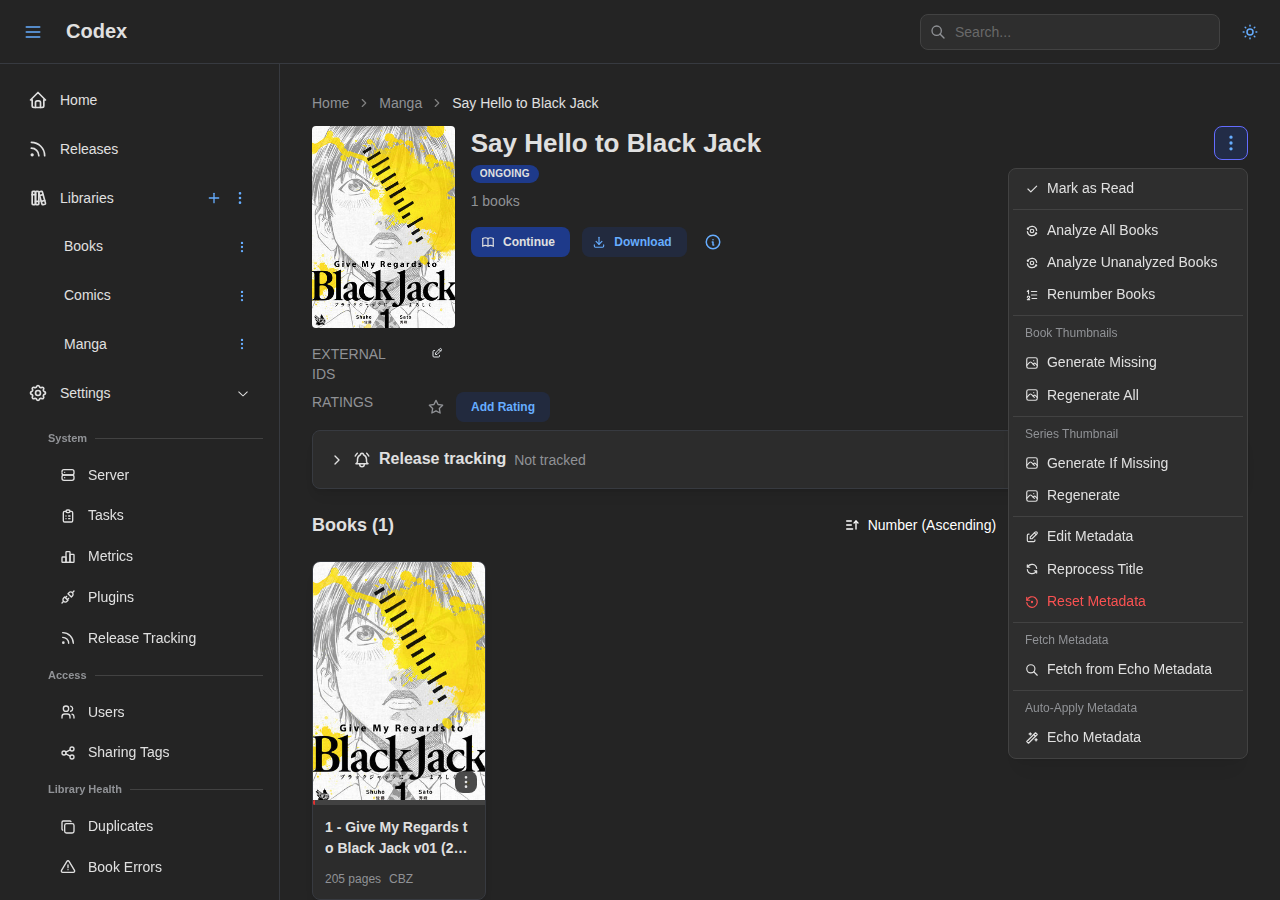
Plugin Results
View results after running plugins on your library content.
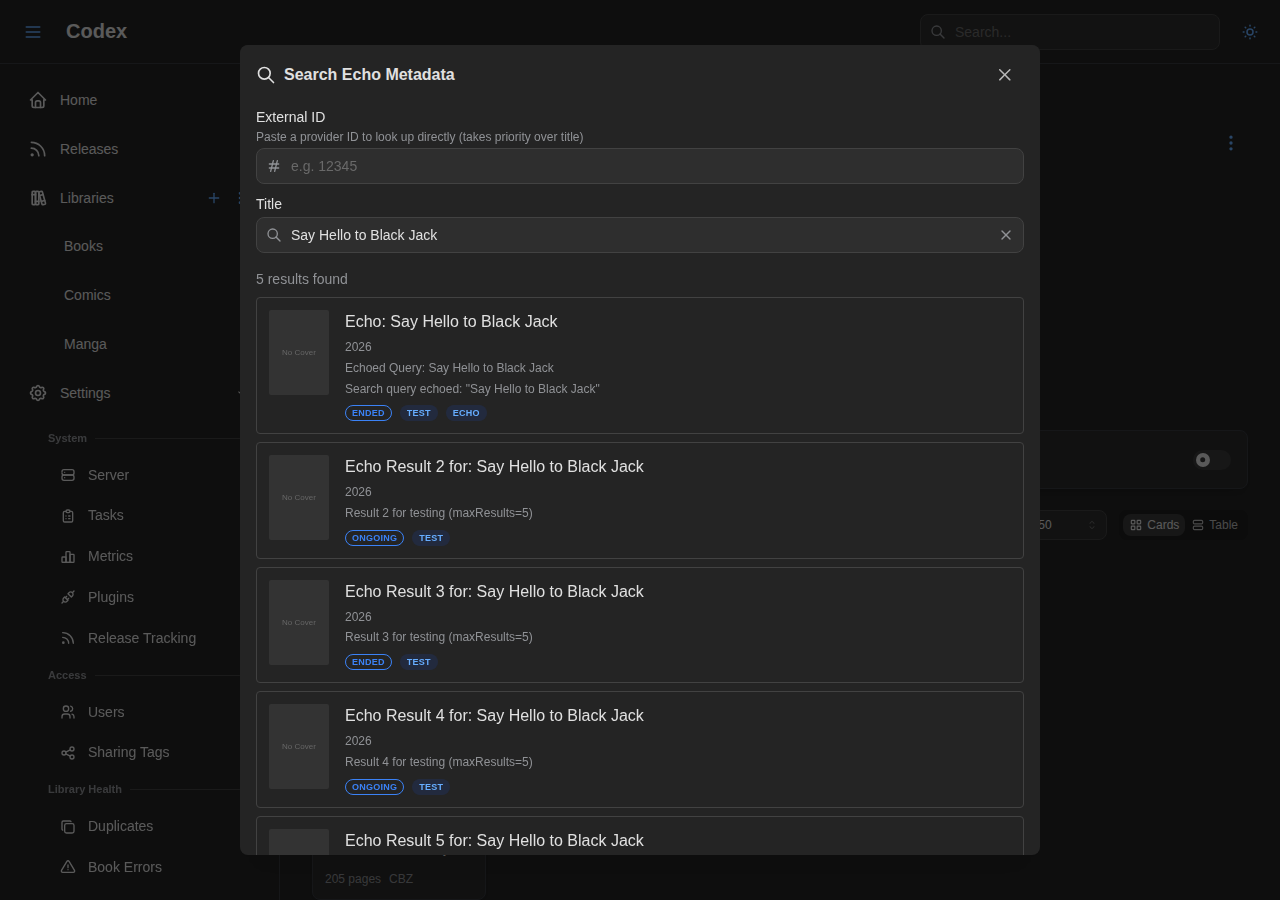
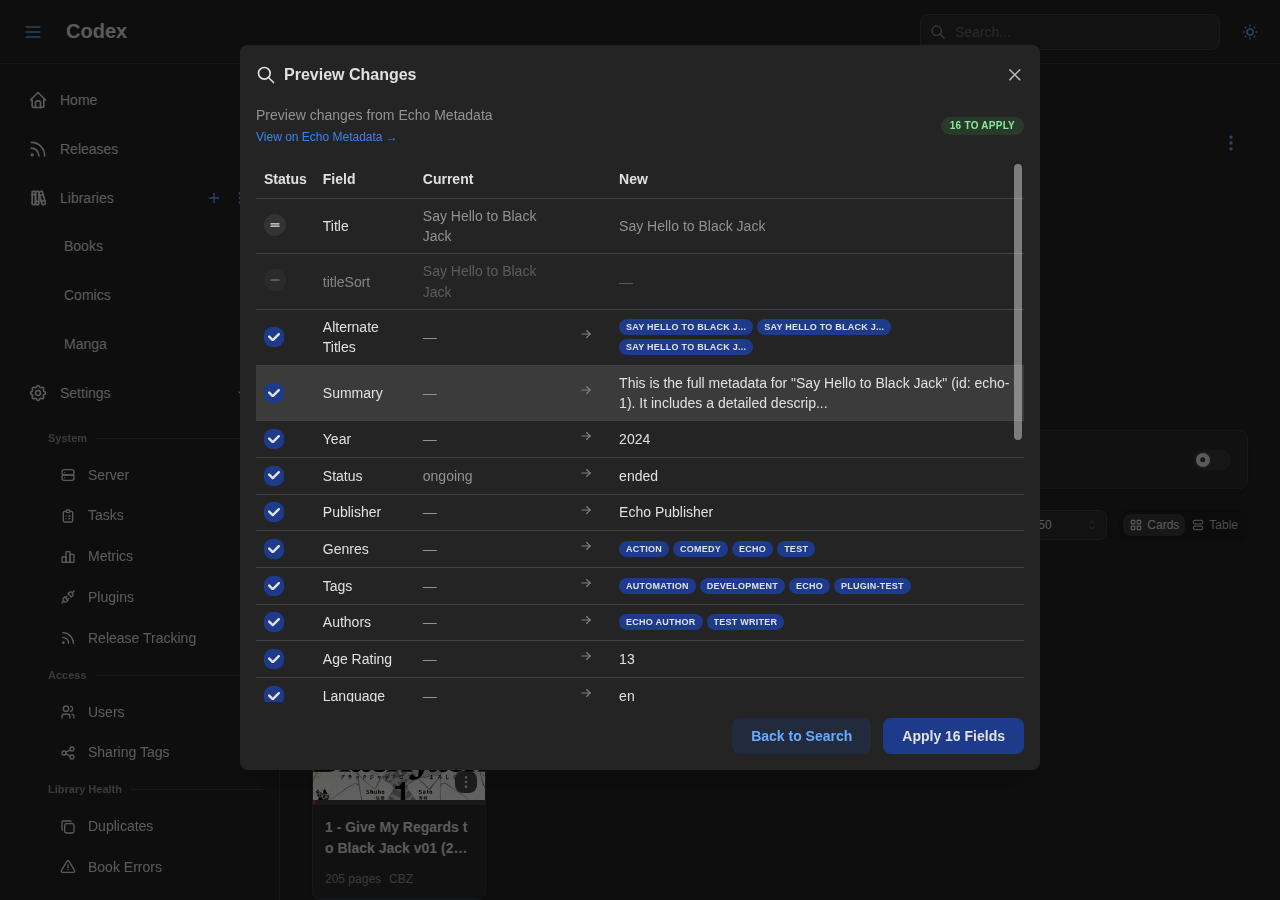
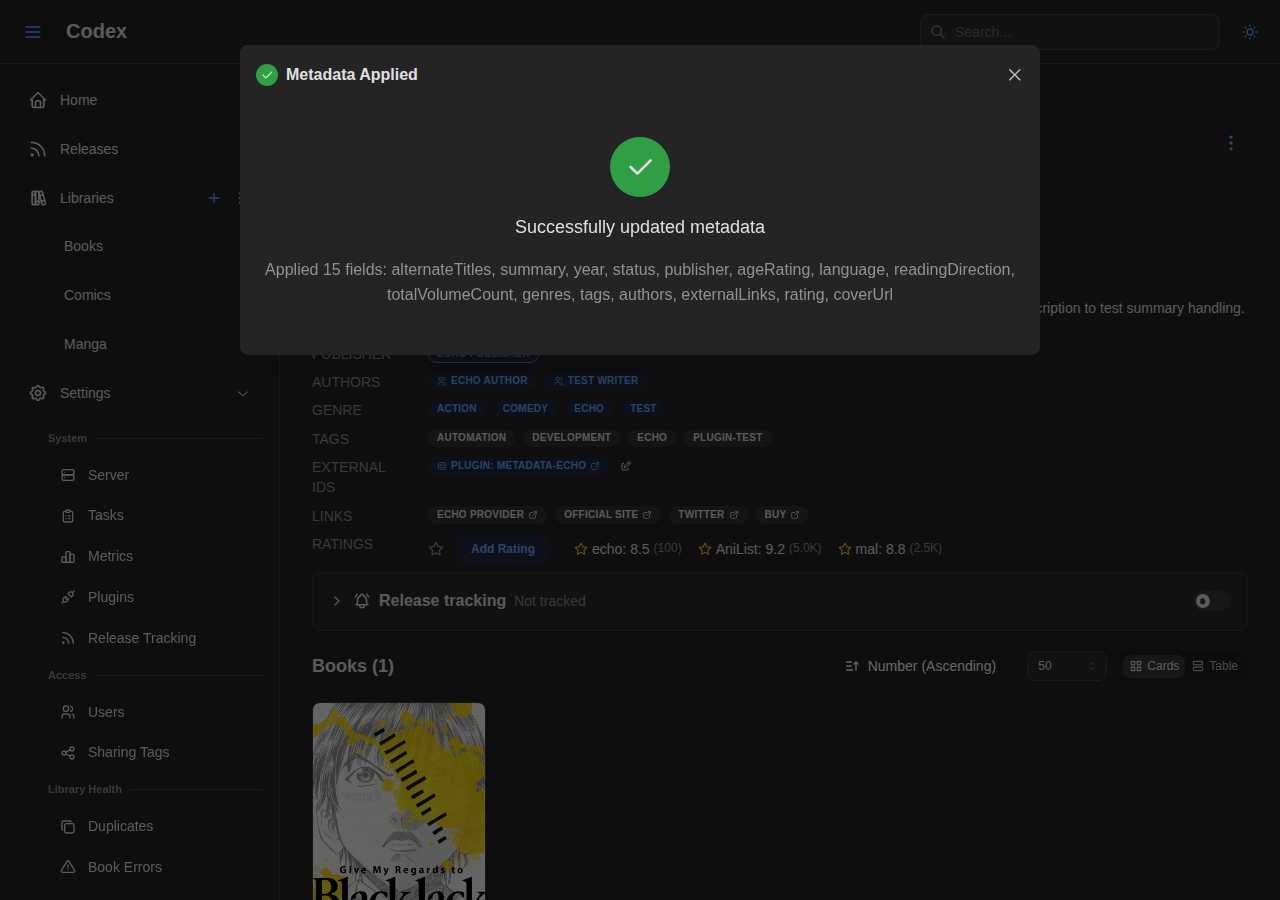
User Integrations
Users can enable or disable plugin integrations from their account settings, such as sync and recommendation services.
Recommendations
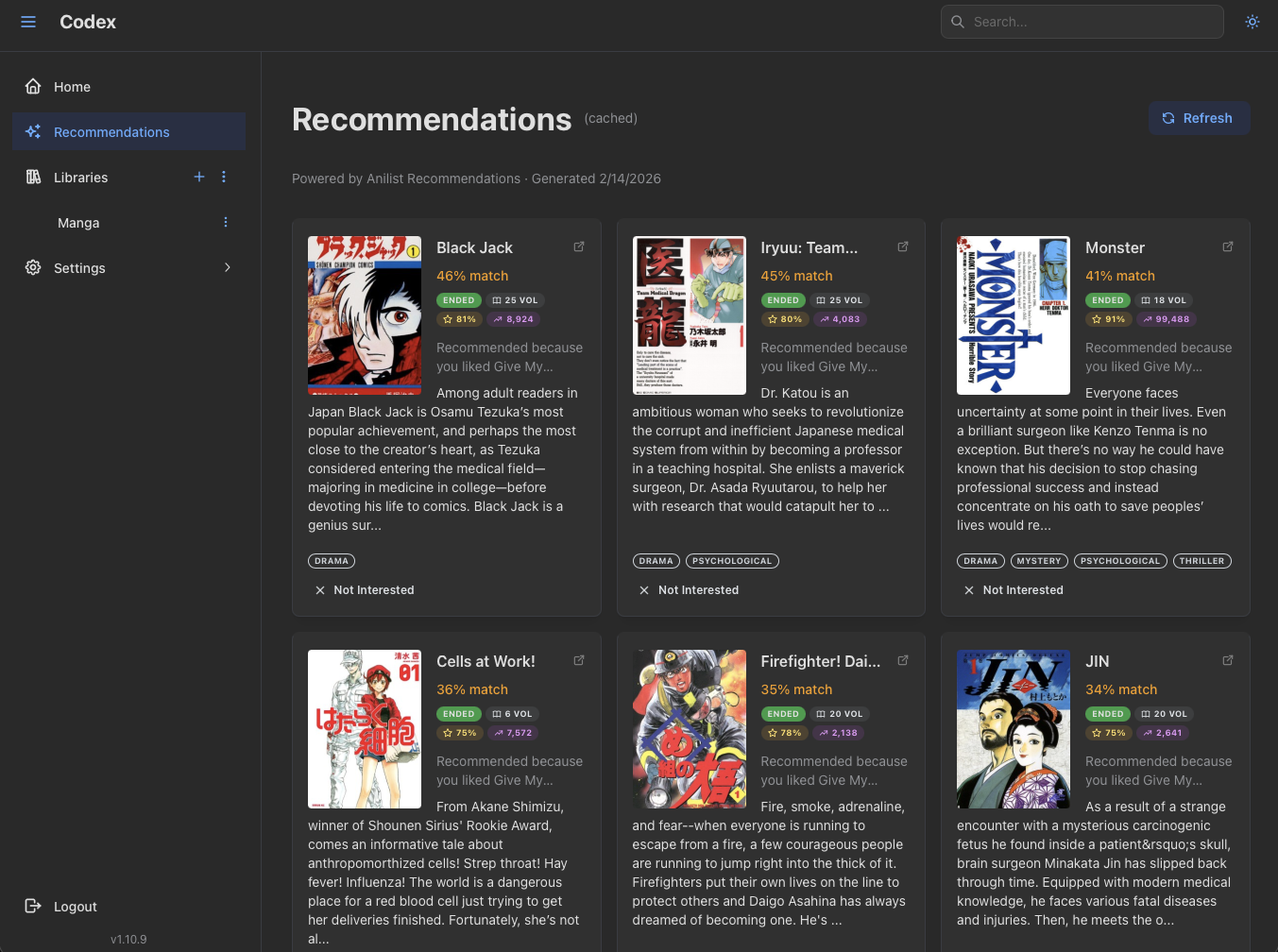
When a recommendations plugin is connected, users get personalized suggestions based on their library and reading history.
Authentication
Login
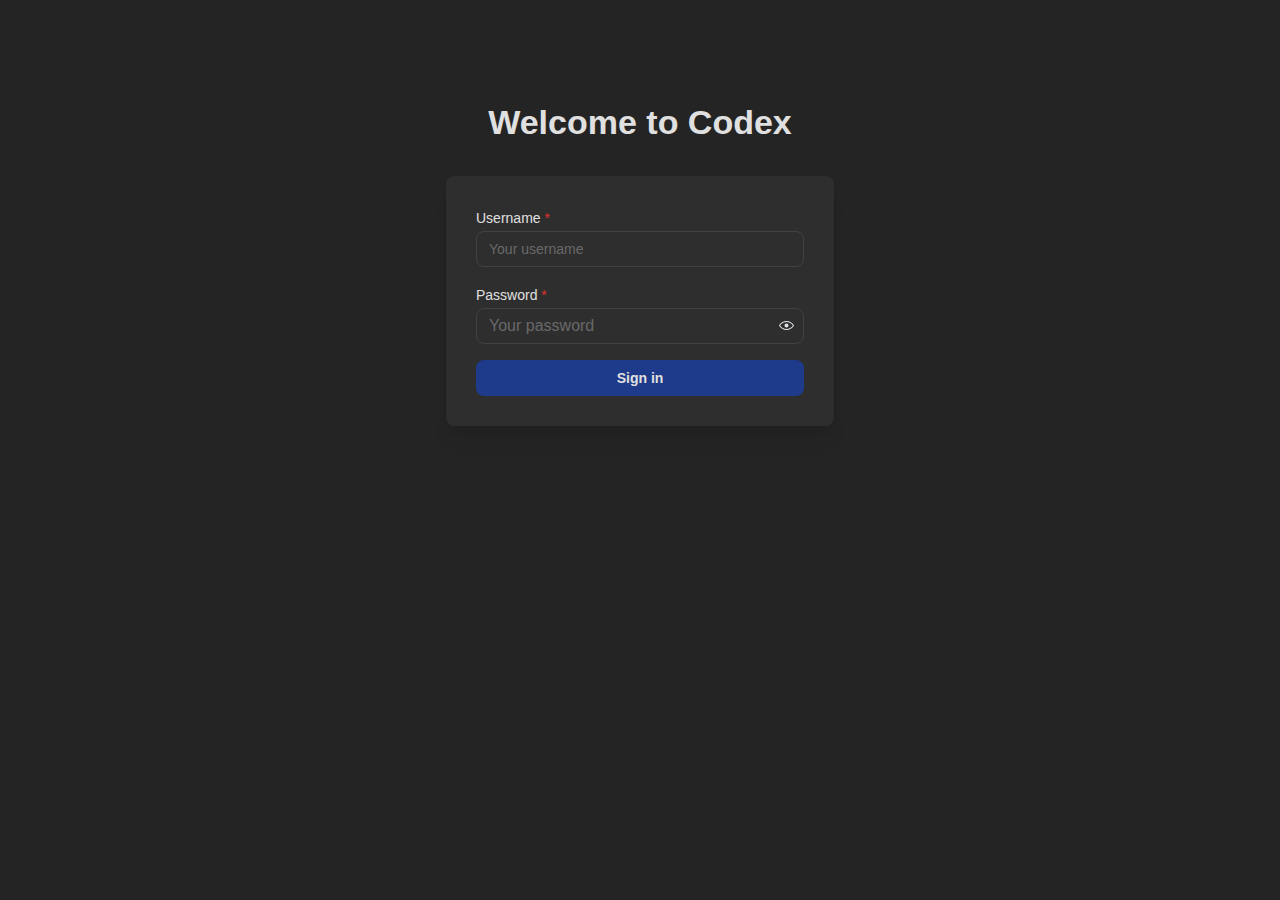
Secure authentication for your library.
Setup Wizard
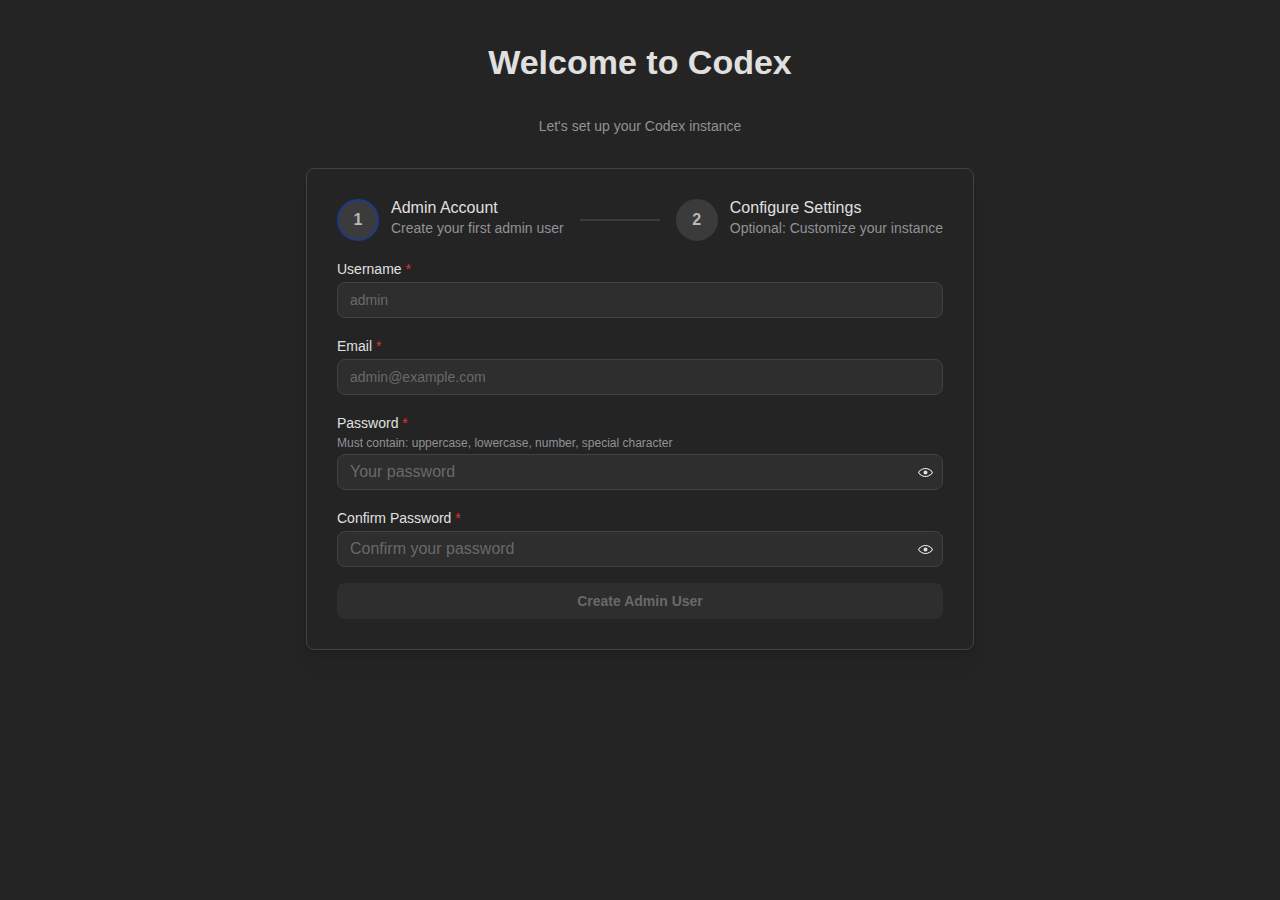
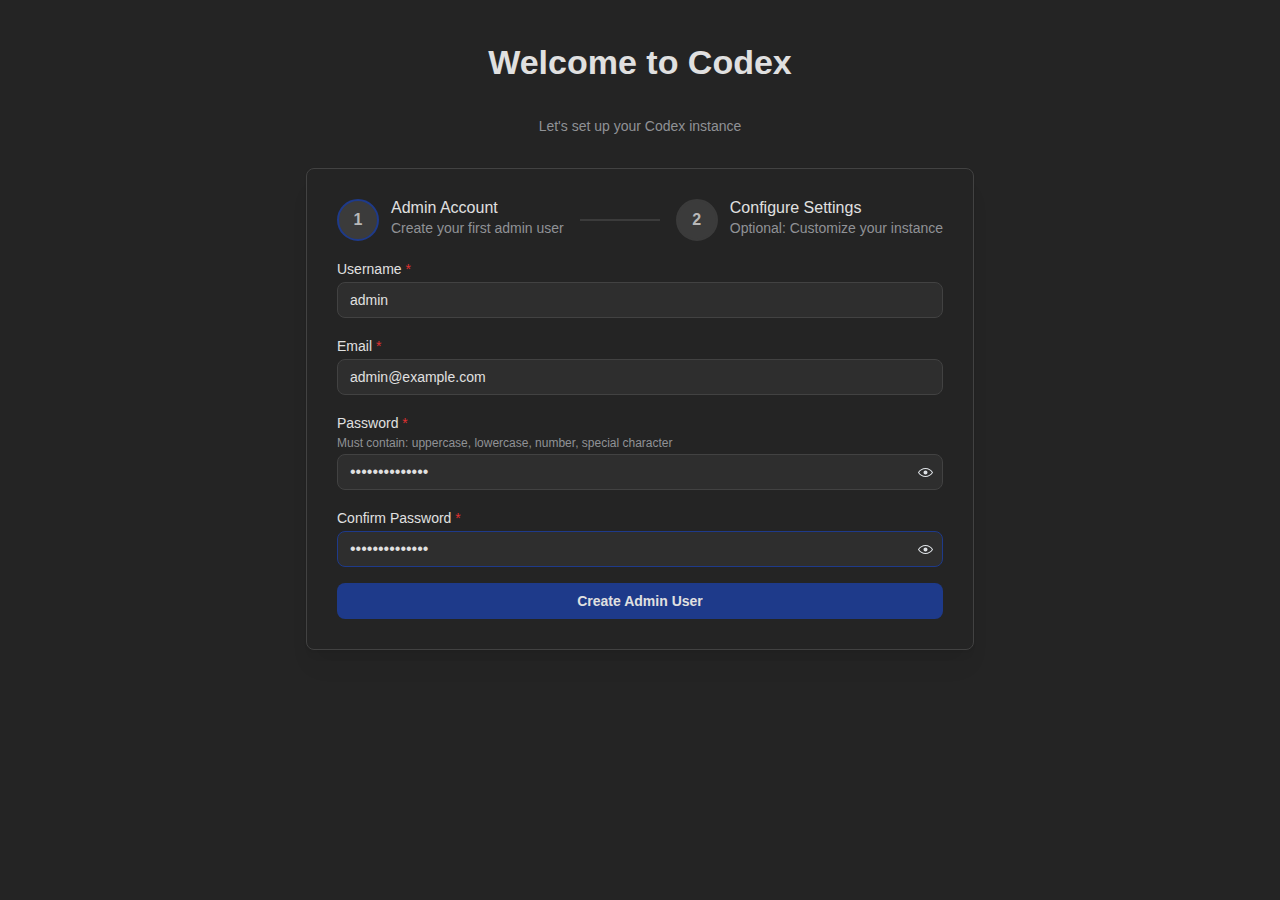
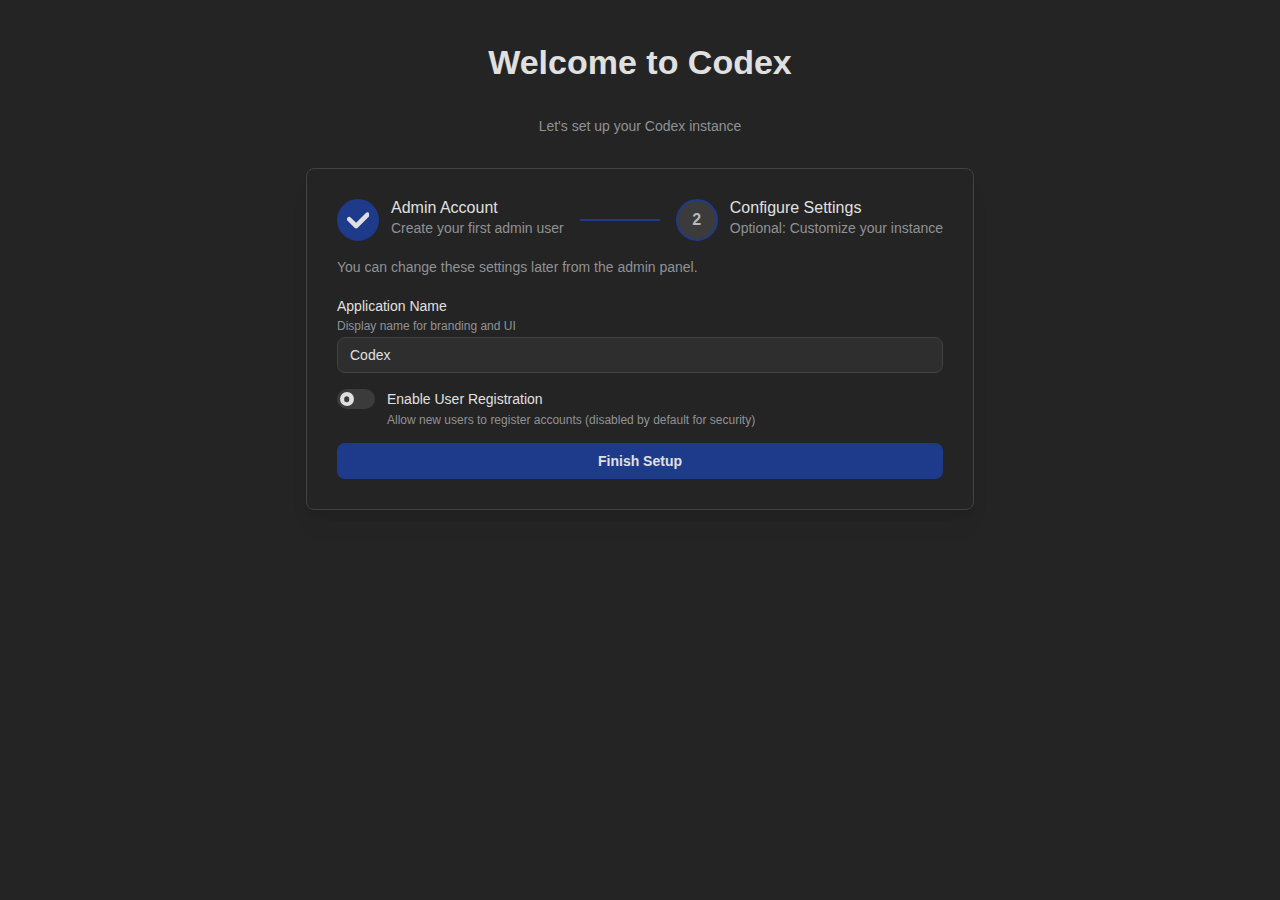
First-time setup for creating your admin account.
Navigation
Sidebar
The sidebar provides quick access to settings and navigation.
Search
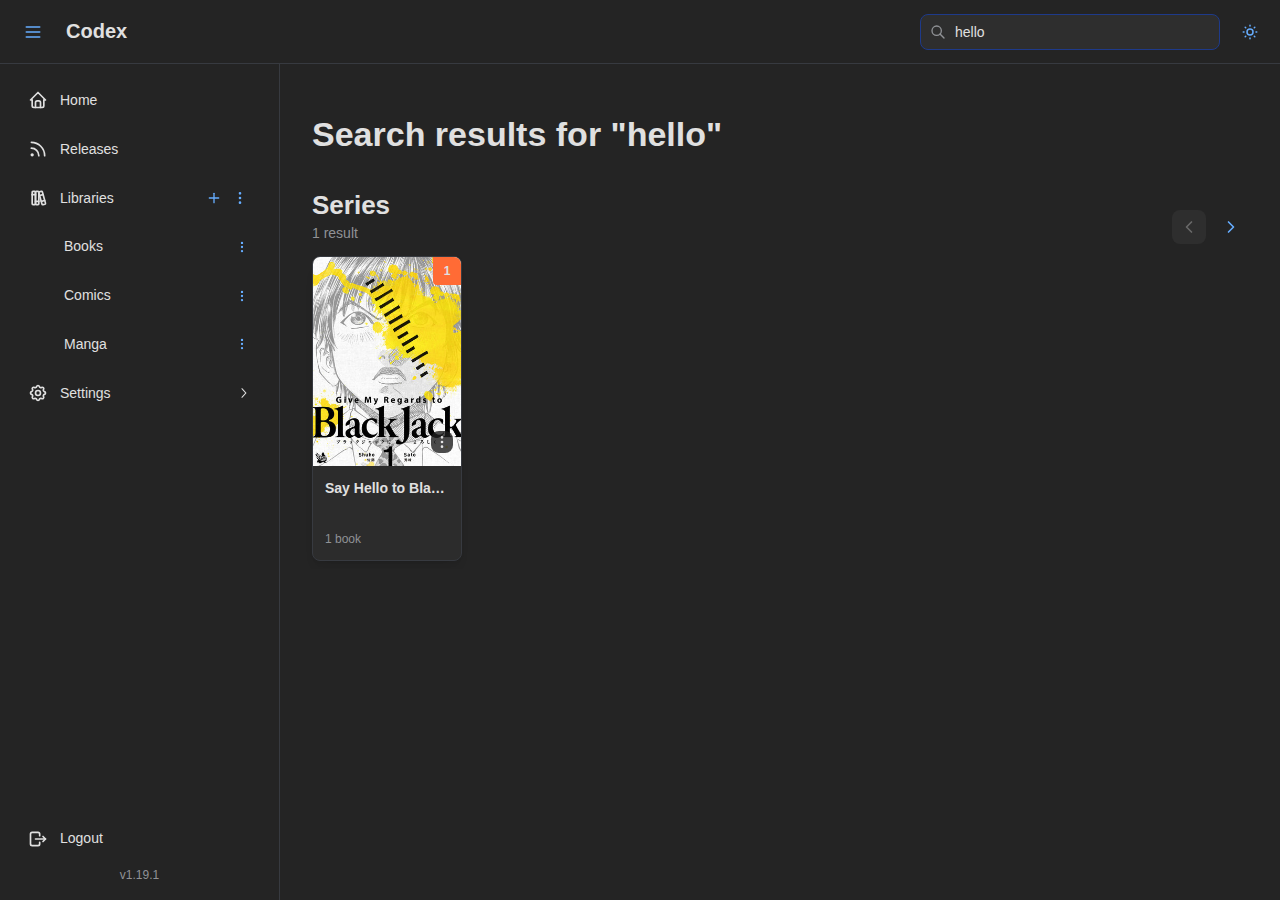
Search across your entire library.